SSH Cheat Sheet: An Advanced Guide for Users
A comprehensive guide to advanced OpenSSH features: key management, file copying, SSHFS, remote execution, aliases, X-server forwarding, SOCKS proxy, port forwarding, nested tunnels, reverse SOCKS proxy, L2/L3 tunneling, and agent forwarding through untrusted servers.
This article describes advanced OpenSSH features that can greatly simplify life for system administrators and programmers who aren't afraid of the shell. Unlike most guides that cover nothing beyond keys and the -L/-D/-R options, I've tried to collect all the interesting features and conveniences that SSH provides.
Warning: this post is very lengthy, but for ease of use I decided not to split it into parts.
Table of contents:
- Key management
- Copying files via SSH
- Forwarding stdin/stdout
- Mounting remote filesystem via SSH
- Remote code execution
- Aliases and connection options in .ssh/config
- Default options
- X-server forwarding
- SSH as a SOCKS proxy
- Port forwarding — direct and reverse
- Reverse SOCKS proxy
- L2/L3 traffic tunneling
- Authorization agent forwarding
- Tunneling SSH through SSH via an untrusted server (you most likely don't know this one)
Key Management
A brief theory: SSH can authenticate not with a password but with a key. The key consists of a public and a private part. The public part is placed in the home directory of the user you're logging in as on the server; the private part stays in the home directory of the user who is connecting to the remote server. The halves are compared (I'm oversimplifying) and if everything checks out, you're let in. Important: not only does the client authenticate to the server, but the server also authenticates to the client (i.e., the server has its own key). The key advantage of a key over a password is that it cannot be "stolen" by hacking the server — the key is never transmitted from client to server. During authentication, the client proves to the server that it possesses the key (that same cryptographic magic).
Key Generation
You can generate your own key with the command ssh-keygen. If you don't specify parameters, it will save everything as needed.
The key can be protected with a password. This password (in standard graphical interfaces) is asked once and cached for a period of time. If the password is left empty, it won't be prompted during use. A forgotten password cannot be recovered.
You can change the password on a key with the command ssh-keygen -p.
Key Structure
(Assuming you accepted the default location.)
~/.ssh/id_rsa.pub — the public key. It gets copied to servers you need access to.
~/.ssh/id_rsa — the private key. It must never be shown to anyone. If you accidentally paste it into a message or chat instead of the .pub file, you need to generate a new key pair. (I'm not joking — roughly 10% of people who are asked for their SSH key send id_rsa, and of those ten percent, 100% are male.)
Copying the Key to a Server
In the home directory of the user you want to log in as, if you create the file ~/.ssh/authorized_keys and put the public key there, you'll be able to log in without a password. Note that the file permissions must not allow other users to write to it, otherwise SSH will reject it. The last field in the key is user@machine. It has nothing to do with authorization and serves only to help identify which key belongs to whom. Note that this field can be changed (or even removed) without breaking the key structure.
If you know the user's password, the process can be simplified. The command ssh-copy-id user@server lets you copy the key without manually editing files.
Note: Older SSH guides mention authorized_keys2. The reason: there was SSH version 1, then version 2 (current), and for it they created a separate set of configs. Everyone got tired of that, and version 2 long ago switched to the files without any "2". In other words, always use authorized_keys and don't worry about different versions.
If SSH runs on a non-standard port, ssh-copy-id requires a special trick: ssh-copy-id '-p 443 user@server' (note the quotes).
Server Key
The first time you connect to a server, SSH asks whether you trust the key. If you answer no, the connection closes. If yes, the key is saved to the file ~/.ssh/known_hosts. There's no way to look up which key belongs to which server (because that would be insecure).
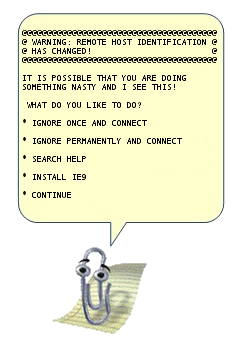
If the server's key has changed (for example, the server was reinstalled), SSH screams about key forgery. Note that if the server hasn't been touched but SSH is screaming, you're connecting to the wrong server (for example, another machine appeared on the network with the same IP — this is especially common in local networks with 192.168.1.1, of which there are millions worldwide). The "evil man-in-the-middle attack" scenario is unlikely; more often it's simply an IP mix-up. Although if "everything is fine" but the key changed, that's a reason to raise your paranoia level a couple of notches (and if you use key-based authentication but the server suddenly asks for a password, then you can crank paranoia up to 100% and not enter the password).
You can delete a known server key with the command ssh-keygen -R server. You also need to delete the IP key (they're stored separately): ssh-keygen -R 127.0.0.1.
The server key is stored in /etc/ssh/ssh_host_rsa_key and /etc/ssh/ssh_host_rsa_key.pub. They can be:
a) copied from an old server to a new one.
b) generated with ssh-keygen. No password should be set (i.e., leave it empty). A key with a password cannot be used by the SSH server.
Note: if you clone servers (e.g., in virtual machines), the SSH server keys must be regenerated.
Old keys from known_hosts should be removed as well, otherwise SSH will complain about duplicate keys.
Copying Files
Transferring files to a server can sometimes be tedious. Besides fiddling with SFTP and other oddities, SSH provides us with the scp command, which copies files through an SSH session.
scp path/myfile user@8.8.8.8:/full/path/to/new/location/You can also copy back:
scp user@8.8.8.8:/full/path/to/file /path/to/put/hereFish warning: Despite the fact that Midnight Commander (mc) can create connections over SSH, copying large files through it is extremely painful, because fish (mc's module for working with SSH as a virtual filesystem) works very slowly. 100-200 KB is the practical limit; beyond that, your patience starts being tested. (I recall my early youth when, not knowing about scp, I copied ~5 GB through fish in mc — it took a little over 12 hours on FastEthernet.)
The ability to copy is great. But you want to be able to "Save As" — and have it go straight to the server. And to copy in graphical mode not from a special program, but from any familiar one.
That's also possible:
SSHFS
Theory: The FUSE module allows you to "export" filesystem requests from the kernel back to userspace to the appropriate program. This makes it easy to implement "pseudo-filesystems." For example, we can provide access to a remote filesystem via SSH such that all local applications (with rare exceptions) won't suspect a thing.
The exception, specifically: O_DIRECT is not supported, unfortunately (this is a FUSE problem in general, not an SSHFS issue).
Usage: install the sshfs package (it will pull in FUSE automatically).
Here's an example of my script that mounts desunote.ru (hosted on my home computer — the images in this article are served from it) on my laptop:
#!/bin/bash
sshfs desunote.ru:/var/www/desunote.ru/ /media/desunote.ru -o reconnect
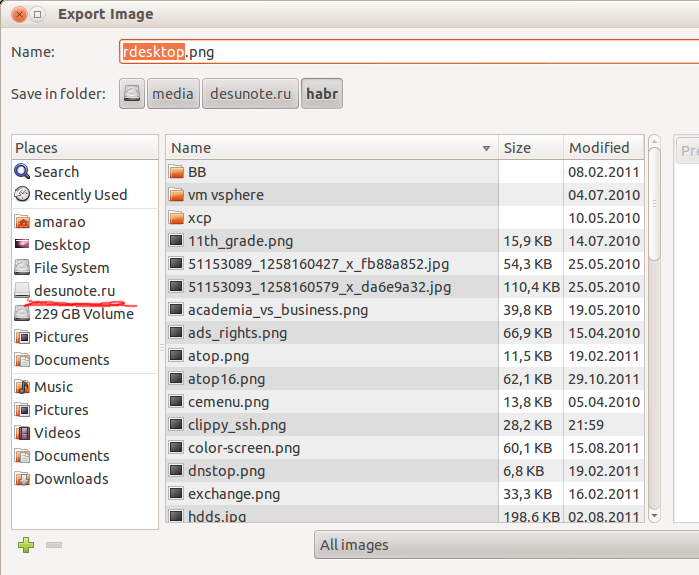
Make the file executable (+x), run it, open any application, click "Save" and you'll see the remote filesystem.
Useful SSHFS parameters: -o reconnect (tells it to try reconnecting instead of throwing errors).
If you work a lot with root-owned data, you can (and should) set up idmap:
-o idmap=user. It works like this: if we connect as pupkin@server but work locally as user vasiliy, we say "treat pupkin's files as vasiliy's files." Or "root" if we connect as root.
In my case, idmap isn't needed since the local and remote usernames are the same.
Note that comfortable operation requires an SSH key (see the beginning of this article). Without one, password authentication becomes infuriating by the 2nd or 3rd connection.
Unmount with fusermount -u /path. However, if the connection is stuck (e.g., no network), you can/should do it as root: sudo umount -f /path.
Remote Code Execution
SSH can execute a command on a remote server and immediately close the connection. The simplest example:
ssh user@server ls /etc/This will display the contents of /etc/ on the server, while we get our local command prompt back.
Some applications require a controlling terminal. They should be run with the -t option:
ssh user@server -t remote_commandBy the way, we can do something like this:
ssh user@server cat /some/file | awk '{print $2}' | local_appThis brings us to the next feature:
Forwarding stdin/stdout
Suppose we want to query a program remotely and then place its output into a local file:
ssh user@8.8.8.8 command > my_fileSuppose we want to send local output remotely:
mycommand | scp - user@8.8.8.8:/path/remote_fileLet's make it more complex — we can forward files from server to server. We build a chain to put stdin onto 10.1.1.2, which is not accessible from outside:
mycommand | ssh user@8.8.8.8 "scp - user@10.1.1.2:/path/to/file"There's also this brain-teasing pipe technique (kindly suggested in the comments on LiveJournal):
tar -c * | ssh user@server "cd && tar -x"Tar packs files by mask locally, writes them to stdout, where SSH reads them and passes them to stdin on the remote server, where cd ignores them (doesn't read stdin) and tar reads and extracts them. An "scp for the poor," so to speak.
Aliases
I'll be honest — until recently I didn't know about this and didn't use it. Turned out to be very convenient.
In any mid-to-large company, server names often look something like: spb-MX-i3.extrt.int.company.net. And the username doesn't match your local one. So you have to log in like: ssh ivanov_i@spb-MX-i3.extrt.int.company.net. Typing that every time — you'll run out of carpal tunnels. In small companies, the opposite problem: nobody thinks about DNS, and connecting to a server looks like: ssh root@192.168.1.4. Shorter, but still annoying. Even more dramatic if we have a non-standard port and, say, SSH version 1 (hello, Cisco). Then it all looks like: ssh -1 -p 334 vv_pupkin@spb-MX-i4.extrt.int.company.net. Enough to make you hang yourself. I don't even want to talk about the drama with scp.
You could set up system-wide aliases for IPs (/etc/hosts), but that's a clunky workaround (you still have to type the user and options). There's a shorter way.
The file ~/.ssh/config lets you set connection parameters, including server-specific ones — and most importantly, different settings for each server. Here's a sample config:
Host ric
    Hostname horns-and-hooves-llc.com
    User Administrator
    ForwardX11 yes
    Compression yes
Host home
    Hostname myhome.dyndns.org
    User vasya
    PasswordAuthentication no
All available options can be found in man ssh_config (not to be confused with sshd_config).
Default Options
As suggested by UUSER: you can specify default connection settings using the Host * construct, for example:
Host *
    User root
    Compression yes
The same can be done in /etc/ssh/ssh_config (not to be confused with /etc/ssh/sshd_config), but that requires root privileges and applies to all users.
X-Server Forwarding
I actually spoiled this part a bit in the config example above. ForwardX11 is exactly that.
Theory: Graphical applications in Unix typically use the X server (Wayland is on the way but still not ready). This means the application starts and connects to the X server for rendering. In other words, if you have a bare server without a GUI and a local X server (where you're working), you can let applications from the server draw on your desktop. Normally, connecting to a remote X server is neither safe nor trivial. SSH simplifies this process and makes it completely secure. And the ability to compress traffic means you can get by with less bandwidth (i.e., reduce channel utilization, reduce ping — or more precisely, latency — and thus reduce lag).
The flags: -X forwards the X server. -Y forwards authorization.
Just remember the combination: ssh -XYC user@SERVER.
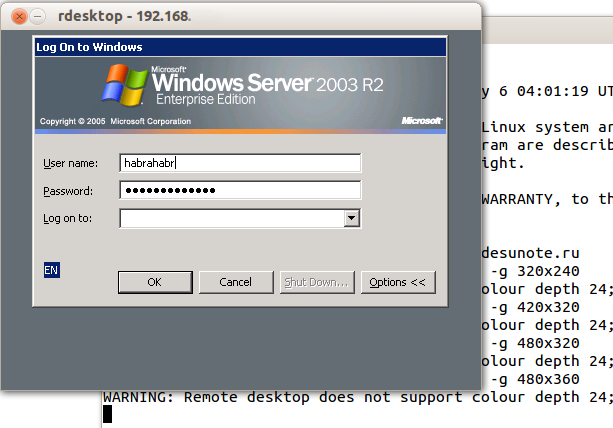
In the example above (company names are fictional), I connect to the server horns-and-hooves-llc.com not just for fun, but to gain access to a Windows server. We all know Microsoft's security when working on a network, so exposing raw RDP to the outside is uncomfortable. Instead, we connect to the server via SSH and then run the rdesktop command there:
ssh ric rdesktop -k en-us 192.168.1.1 -g 1900x1200And miraculously, a Windows login window appears on our desktop. Note: thoroughly encrypted and indistinguishable from regular SSH traffic.
SOCKS Proxy
When I find myself at yet another hotel (cafe, conference), the local WiFi usually turns out to be terrible — closed ports, unknown security level. And there isn't much trust in other people's access points (this isn't paranoia — I've personally observed passwords and cookies being stolen using a basic laptop sharing 3G with everyone under the name of a nearby cafe, while logging interesting data in the process).
Closed ports cause particular problems. Jabber gets blocked, then IMAP, then something else.
A regular VPN (PPTP, L2TP, OpenVPN) doesn't work in these situations — it simply gets blocked. Empirically, port 443 is most often left open, specifically in CONNECT mode — meaning it's passed through "as is" (regular HTTP might get transparently redirected to Squid).
The solution is SSH's SOCKS proxy mode. Its principle: the SSH client connects to the server and listens locally. When it receives a request, it sends it (through the open connection) to the server; the server establishes a connection per the request and sends all data back to the SSH client, which replies to the caller. For it to work, you need to tell applications to "use SOCKS proxy" and specify the proxy's IP address. With SSH, this is most often localhost (so you don't share your channel with strangers).
Connecting in SOCKS proxy mode:
ssh -D 8080 user@serverSince public WiFi is often not only bad but also laggy, it can be nice to enable the -C option (compress traffic). It's almost like Opera Turbo (except it doesn't compress images). In real HTTP browsing, it compresses roughly 2-3x (meaning if you're stuck with 64 kbps, you'll open megabyte-sized pages not in two minutes but in about 40 seconds. Lousy, but still better). But the main thing: no stolen cookies and no eavesdropped sessions.
I mentioned closed ports for a reason. Port 22 gets blocked just like the "unnecessary" Jabber port. The solution is to run the server on port 443. Don't remove it from 22 — sometimes there are systems with DPI (Deep Packet Inspection) that won't let your "pseudo-SSL" through.
Here's what my config looks like:
/etc/ssh/sshd_config (excerpt):
Port 22
Port 443
And here's the snippet from ~/.ssh/config on my laptop that describes the VPN:
Host vpn
    Hostname desunote.ru
    User vasya
    Compression yes
    DynamicForward 127.1:8080
    Port 443
(Note the "lazy" notation for localhost — 127.1. This is a perfectly valid way to write 127.0.0.1.)
Port Forwarding
We now move on to the extremely mind-bending part of SSH's functionality, which enables brain-twisting TCP tunneling operations "from the server" and "to the server."
To understand the situation, all examples below will refer to this diagram:
Commentary: Two gray networks. The first network resembles a typical office network (NAT); the second is a "gateway" — a server with a public interface and a private one looking into its own private network. In the following discussion, we assume "our" laptop is A, and the "server" is B.
Task: We have an application running locally, and we need to let another user (outside our network) see it.
Solution: forward the local port (127.0.0.1:80) to a publicly accessible address. Say our "publicly accessible" B has port 80 occupied by something useful, so we'll forward to a non-standard port (8080).
Final configuration: requests to 8.8.8.8:8080 will reach localhost on laptop A.
ssh -R 127.1:80:8.8.8.8:8080 user@8.8.8.8The -R option redirects from the Remote server's port to your (local) one.
Important: if we want to use the address 8.8.8.8, we need to enable GatewayPorts in server B's settings.
Task: On server B, a daemon is listening (say, a SQL server). Our application is incompatible with the server (different bitness, OS, or a strict admin who bans access and imposes limits, etc.). We want local access to the remote localhost.
Final configuration: requests to localhost:3333 on A should be served by the daemon on localhost:3128 of B.
ssh -L 127.1:3333:127.1:3128 user@8.8.8.8The -L option directs Local requests to the remote server.
Task: On server B's private interface, a service is listening, and we want to let a colleague (192.168.0.3) see this application.
Final configuration: requests to our private IP address (192.168.0.2) reach the private interface of server B.
ssh -L 192.168.0.2:8080:10.1.1.1:80 user@8.8.8.8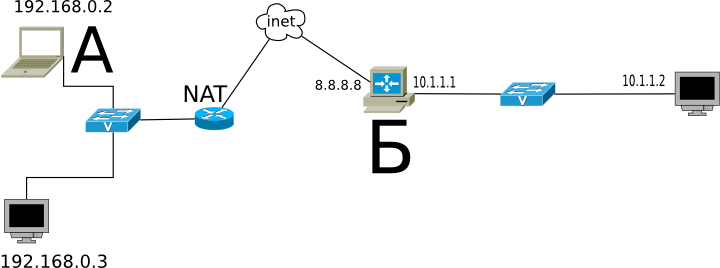
Nested Tunnels
Naturally, tunnels can be chained.
Let's complicate the task: now we want to show a colleague an application running on localhost on the server at address 10.1.1.2 (on port 80).
The solution is complex:
ssh -L 192.168.0.2:8080:127.1:9999 user@8.8.8.8 ssh -L 127.1:9999:127.1:80 user2@10.1.1.2What's happening? We tell SSH to forward local requests from our address to the localhost of server B and immediately after connecting, launch SSH (i.e., the SSH client) on server B with the option to listen on localhost and forward requests to server 10.1.1.2 (where the client should connect). Port 9999 is chosen arbitrarily — the only requirement is that it matches between the first and second invocations.
Reverse SOCKS Proxy
If the previous example seemed simple and obvious, try guessing what this example does:
ssh -D 8080 -R 127.1:8080:127.1:8080 user@8.8.8.8 ssh -R 127.1:8080:127.1:8080 user@10.1.1.2If you're a security officer whose job is to prohibit internet access on server 10.1.1.2, you can start tearing your hair out, because this command provides internet access to server 10.1.1.2 via a SOCKS proxy running on computer A. The traffic is fully encrypted and indistinguishable from any other SSH traffic. And the outgoing traffic from computer A, from the perspective of the 192.168.0.0/24 network, is indistinguishable from A's normal traffic.
Tunneling
If by this point the security department hasn't gone bald and SSH still hasn't been declared public enemy number one, here's the ultimate killer of all things: IP or even Ethernet tunneling. In the most radical cases, this allows tunneling DHCP, performing remote ARP spoofing, doing Wake-on-LAN, and other Layer 2 mischief.
More details here: www.khanh.net/blog/archives/51-using-openSSH-as-a-layer-2-ethernet-bridge-VPN.html
(I personally, alas, have not used this.)
It's easy to understand that under these conditions, no DPI (Deep Packet Inspection) can detect such tunnels — either SSH is allowed (read: do whatever you want) or SSH is blocked (and you can safely quit such a company of idiots without the slightest regret).
Authorization Forwarding
If you think that's all, then... well, unlike the author who hasn't written what's "below" yet, the reader can already see there are many more letters below, so the suspense doesn't quite work.
OpenSSH allows using servers as stepping stones for connecting to other servers, even if those servers are untrusted and can abuse anything they want.
Let's start with simple authorization forwarding.

Suppose we want to connect to server 10.1.1.2, which is ready to accept our key. But we don't want to copy the key to 8.8.8.8 because it's a revolving door and half the people there have sudo access and can rummage through others' directories. A compromise would be to have a "different" SSH key that authorizes user@8.8.8.8 on 10.1.1.2, but if we don't want to let just anyone from 8.8.8.8 onto 10.1.1.2, that's not an option (especially since the key could not only be used but also copied for "a rainy day").
SSH offers the ability to forward the SSH agent (a service that requests the key's password). The ssh -A option forwards authorization to the remote server.
The call looks like this:
ssh -A user@8.8.8.8 ssh user2@10.1.1.2The remote SSH client (on 8.8.8.8) can prove to 10.1.1.2 that we are who we say we are — but only while we're connected to that server and have given the SSH client access to our authorization agent (but not the key itself!).
In most cases, this works fine.
However, if the server is truly compromised, root on that server can use the socket for impersonation while we're connected.
There's an even more powerful method — it turns SSH into a simple pipe (as in "tube") through which we work with the remote server end-to-end.
The main advantage of this method is complete independence from the trustworthiness of the intermediate server. It can use a fake SSH server, log every byte and every action, intercept any data, and forge it however it wants — the interaction occurs between the final server and the client. If the endpoint server's data is forged, the signature won't match. If the data isn't forged, the session is established in protected mode, so there's nothing to intercept.
This awesome configuration I didn't know about, and it was dug up by redrampage.
The setup relies on two SSH features: the -W option (which turns SSH into a "pipe") and the config option ProxyCommand (there doesn't seem to be a command-line equivalent), which says "launch this program and connect to its stdin/stdout." These options appeared recently, so CentOS users are out of luck.
It looks like this (using the numbers from the diagram above):
~/.ssh/config:
Host raep
    HostName 10.1.1.2
    User user2
    ProxyCommand ssh -W %h:%p user@8.8.8.8
And connecting is trivial: ssh raep.
Let me repeat the important point: server 8.8.8.8 cannot intercept or forge the traffic, use the user's authorization agent, or otherwise alter the traffic. Block it — yes, it can. But if it allows it through, it passes it without decryption or modification. For this configuration to work, you need your public key in authorized_keys for both user@8.8.8.8 and user2@10.1.1.2.
Naturally, the connection can be equipped with all the other bells and whistles — port forwarding, file copying, SOCKS proxy, L2 tunnels, X-server forwarding, and so on.