Speeding Up Windows Boot for Fun and Profit
A methodical guide to optimizing Windows boot time using profiling tools (xbootmgr/WPA), NTFS compression, and service delay — cutting boot from 2+ minutes to under 20 seconds on a spinning hard drive.
I'll start by saying that if you reboot 15 times a year, any "tuning" of the boot process takes more time than you'll ever save on reboots over the system's entire lifetime. However, the competitive spirit takes over, especially since people are interested in the performance optimization process. And the boot sequence turned out to be the most obvious candidate for demonstrating what I think this process should look like. I should note right away that we'll be booting from a 5400 RPM hard drive, and we'll be booting into a "working" system: in addition to leftover vendor crapware, there's a bunch of stuff installed like Visual Studio, antivirus, Skype, Steam, Google Updater, and so on...
Why disabling the pagefile is more harmful than helpful is a topic for another time, but for now...
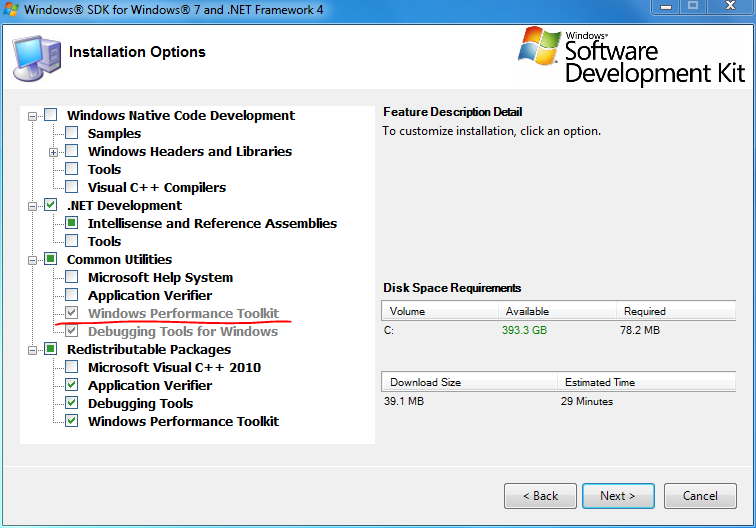
There can be no concrete, universally applicable advice on OS optimization, just as there can be no concrete advice on speeding up any randomly chosen program. Just like in individual programs, the entire system's operation can be seriously slowed down by one or two seemingly insignificant spots. To find such "bottlenecks" in programs, there are tools called profilers. There's nothing strange about the fact that to find "bottlenecks" in an operating system, we'll also use a profiler (no scare quotes needed — it really is a profiler, both sampled and instrumented simultaneously). Recently, WPA Tools have been distributed as part of the Windows SDK. Installing the full SDK is completely unnecessary. You can install just the "Windows Performance Toolkit":
We'll collect traces using xbootmgr. The only magic involved is an autologger that enables ETW trace collection starting from winload itself. To see the help, you can type xbootmgr -help — I won't reproduce it here. For those who want to appreciate the scale, try xperf -providers (or logman providers). Each provider has several "keywords," and each "keyword" enables/disables several event types.
So let's begin. Caution — the following command automatically reboots your computer:
xbootmgr -trace bootAfter rebooting, a file called "boot_BASE+CSWITCH_1.etl" (BASE+CSWITCH are those very "keywords") will remain in the directory where this command was executed:
xperf boot_BASE+CSWITCH_1.etlAnd you can start reviewing. What we see is depressing:
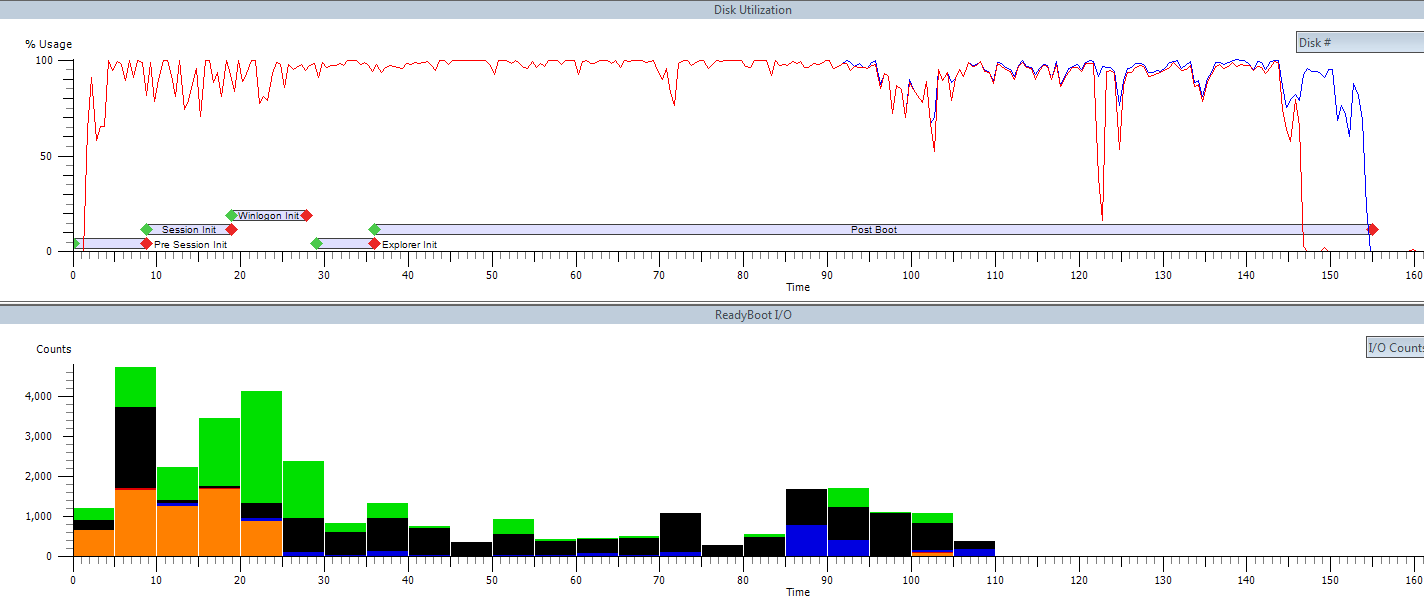
Explorer is ready by the 36th second, but due to the single (not particularly fast) disk being at 100% load, the system will remain unresponsive for another 2 minutes (the Start menu will open instantly, but launching programs will require waiting). ReadyBoot tries to do something, and at first it even succeeds (orange and green), but gradually accumulating deviations from the boot plan render its attempts futile.
What's even more depressing is that instead of actually reading data, the disk spends most of its 100% utilization time frantically seeking between the center of the disk and back:
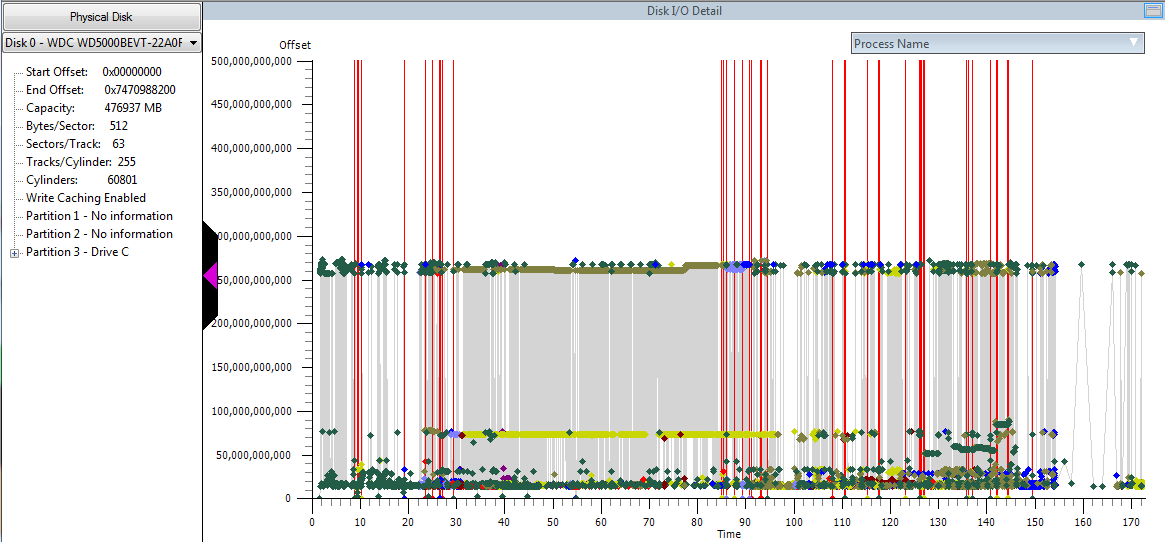
A brief note: ReadyBoot collects a disk usage profile during each boot, and then the SysMain service builds a boot plan based on the last five boots. Accordingly, the more often you boot, the better the boot plan will be "guessed" for the next boot, and the faster it will be. In addition, the prefetcher collects statistics on which files were used and in what order during boot, and stores this information in %SystemRoot%\Prefetch\Layout.ini
This information is used by the built-in defragmenter to make decisions about file placement.
Accordingly, the first "optimization" will be multiple reboots and defragmentation. Very conveniently, xbootmgr can do this for us:
xbootmgr -trace boot -prepSystemBy default, six reboots are performed:
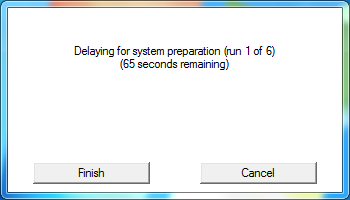
After the second one, defragmentation begins:
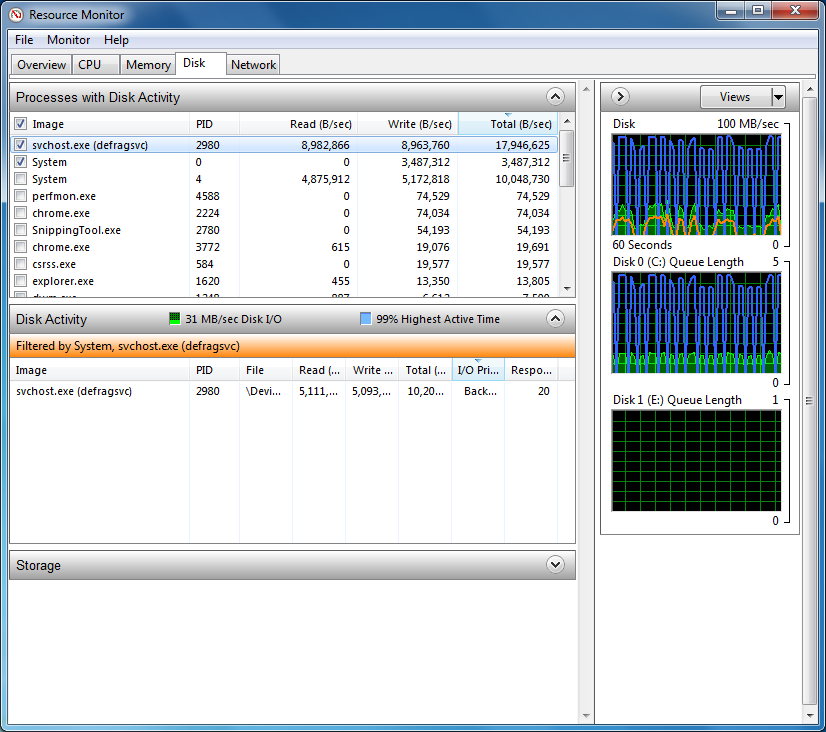
When everything is finished, the directory from which xbootmgr was launched will contain 6 trace files from each of the preparatory reboots, as well as the same boot_BASE+CSWITCH_1.etl.
Let's see if anything has changed. And everything has changed quite noticeably:
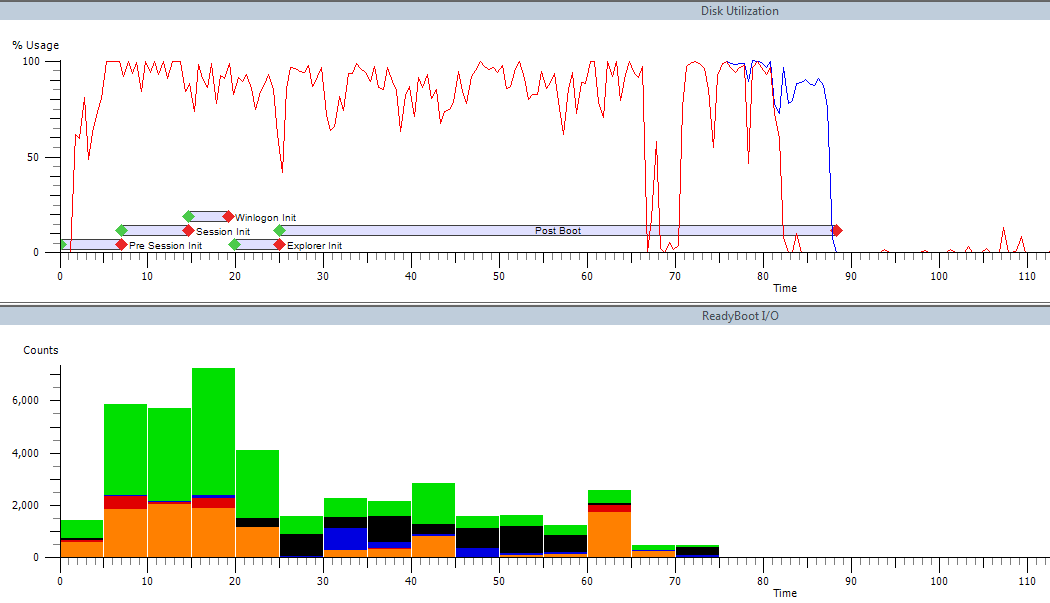
ReadyBoot handles its task significantly better, and as a result, Explorer is ready one-third faster, and disk activity time has been cut nearly in half.
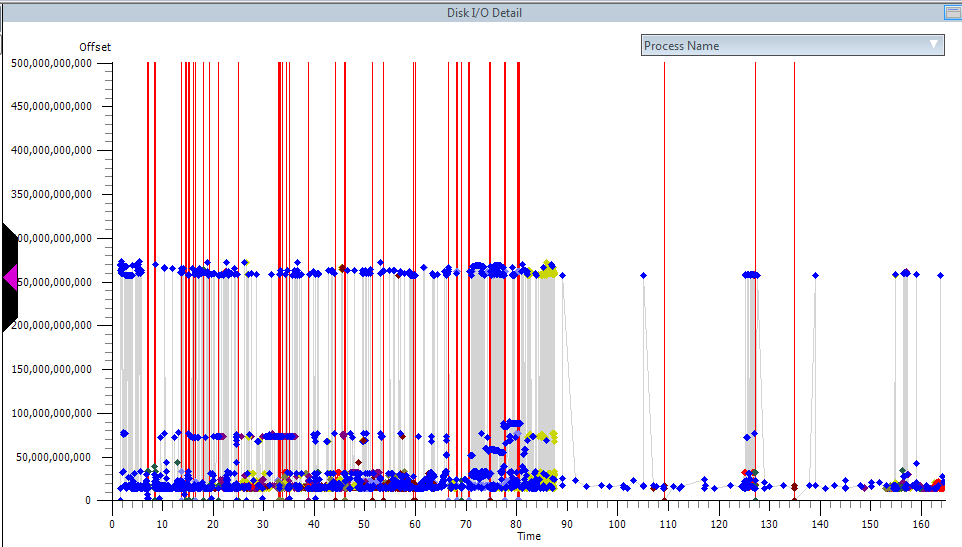
We're still seeking to the center of the disk, and we'll deal with that later, but there are already noticeably fewer disk seeks, and that's already some kind of success. For now, let's pay attention to this graph:
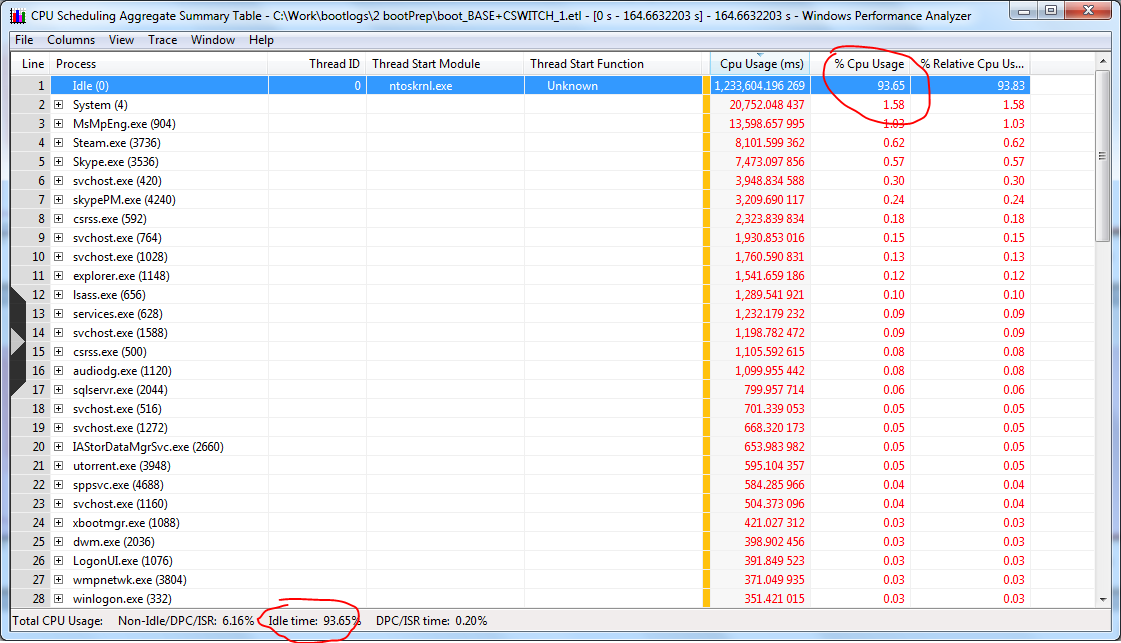
This is outrageous. While some components are working at 100%, others are resting. We'll fix that. How do you usually trade CPU time for data read size? That's right — compression. We'll fix this by compressing the Windows folder and both Program Files folders. An attempt to do this from the running system can't be called successful — some files get compressed, others don't. You can't live like this:
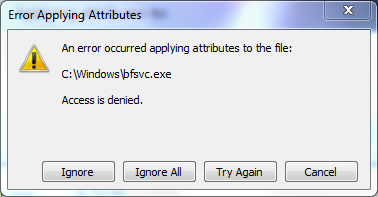
Reboot into System Recovery and execute from there compact /c /a /i /s:directory for our three directories. No screenshots here, as I was too lazy to make a screenshot tool for WinPE — you'll have to take my word for it (or better yet, verify experimentally). prepSystem will need to be run again, since the disk layout changed significantly after compression.
And let's check what we've got:
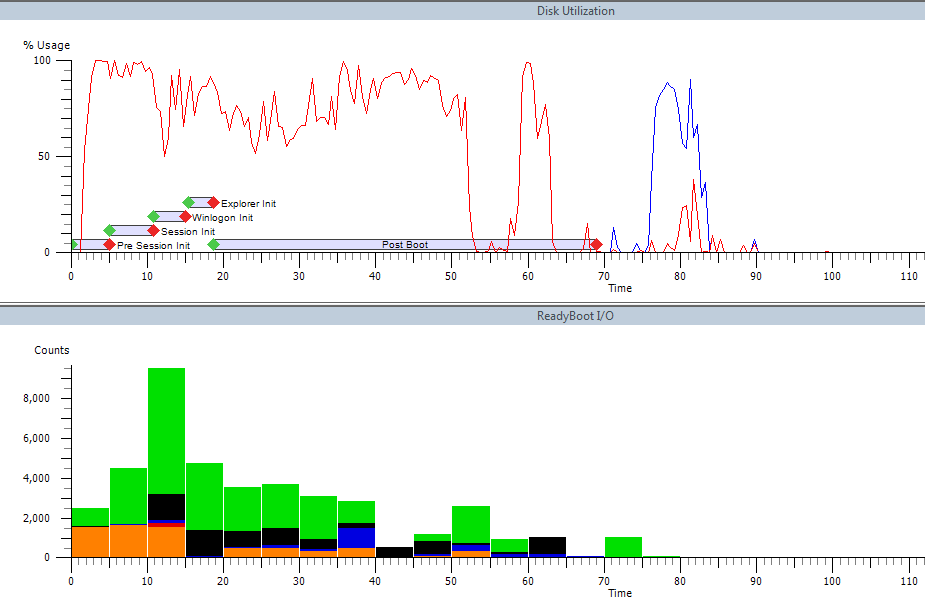
Explorer is ready by the 20th second, disk activity continues for just under a minute more, but already slightly below 100%.
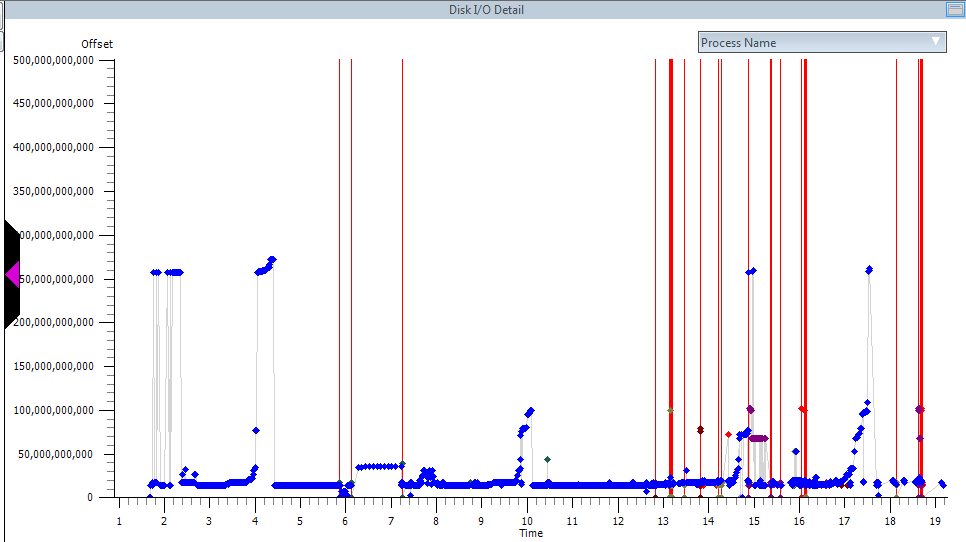
And yes, we're still seeking to the center of the disk:
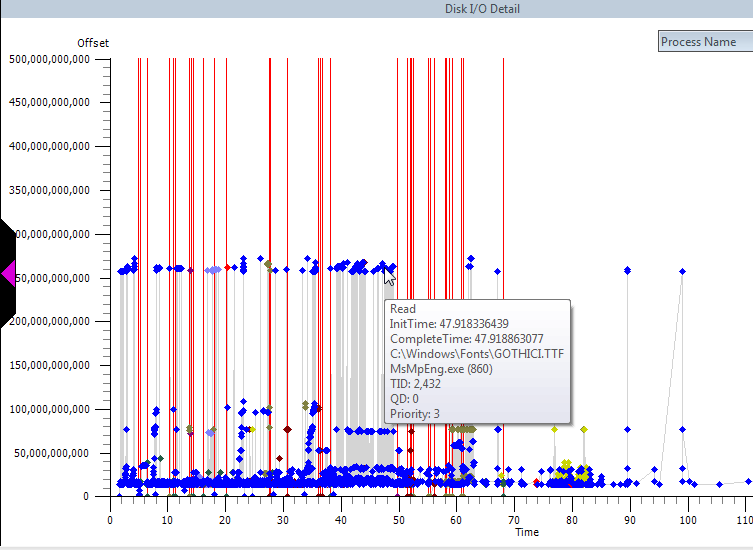
Tooltips tell us the culprit. Let's double-check:
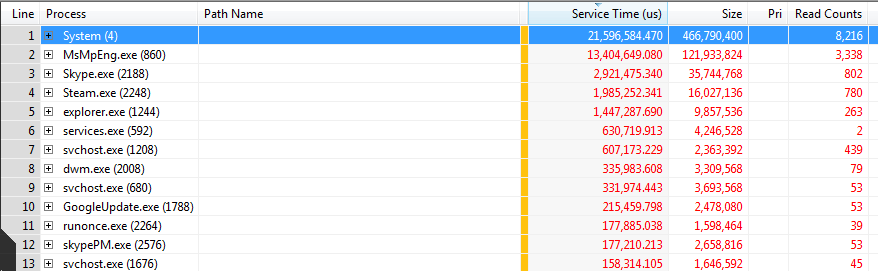
Skype and Steam also end up on the chopping block. And rightly so — they have no business being in the auto-start with appetites like those. You can always launch them from the superbar/start menu.
Final touches:
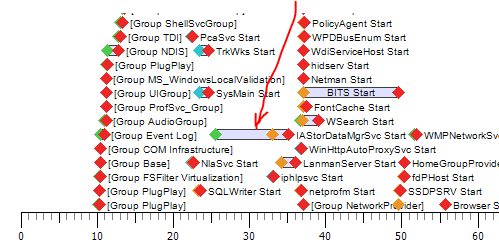
A completely unreasonable load time for one service:
And a second one:
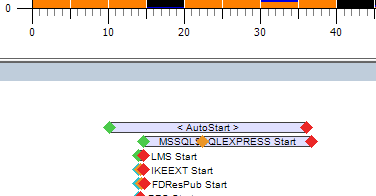
We agreed not to give up any functionality, even if we don't need it. So we won't disable any services. We'll simply switch them to "Automatic (Delayed start)":
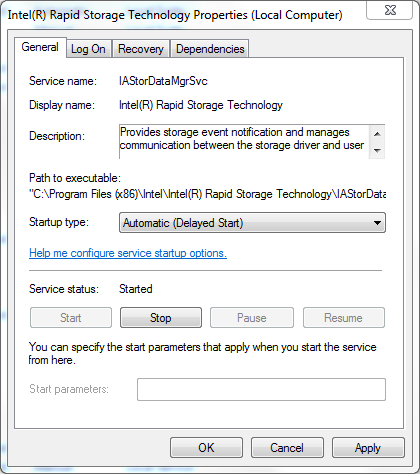
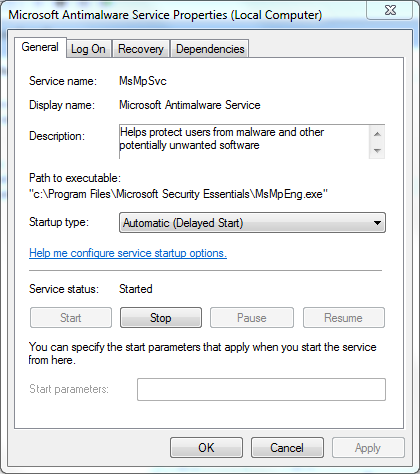
In the case of Microsoft Antimalware, things are a bit more complicated:
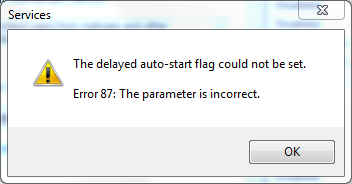
We quickly discover that the issue is that the service belongs to the "COM Infrastructure" group and cannot be loaded later than this group. We go into the registry and pull it out of this group, after which we calmly finish the job:
Just in case, one more prepSystem run, and here's the final result:
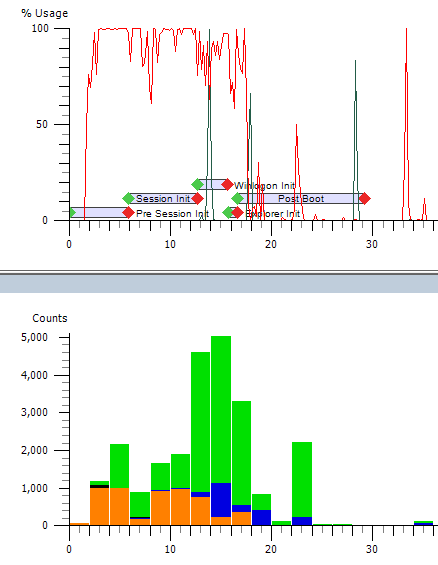
Explorer loaded at the 17th second, and by the 18th second disk activity has essentially ceased.
You can admire the strictly ordered disk access pattern:
A fast SSD and/or ruthless removal of functionality could cut boot time to ten seconds or less.
And the takeaway from all of this is: before "optimizing" anything, it's worth identifying those minimal changes that will produce the maximum result.
FAQ
What is this article about in one sentence?
This article explains the core idea in practical terms and focuses on what you can apply in real work.
Who is this article for?
It is written for engineers, technical leaders, and curious readers who want a clear, implementation-focused explanation.
What should I read next?
Use the related articles below to continue with closely connected topics and concrete examples.