DIY Mobile Internet: Launching Your Own 4G LTE Base Station
A hands-on guide to building a private 4G LTE network at home using software-defined radio and the open-source srsRAN stack, covering everything from hardware selection to SIM card programming and internet connectivity.
What Is This About?
Having launched a GSM network, I decided not to stop there and continue my experiments. This time my choice fell on 4G LTE. This technology is actively being deployed and developed. It is perhaps the newest widely adopted communication standard — CDMA died ages ago, and while 5G has been deployed in certain locations, its coverage is still extremely limited and supported by very few devices. Meanwhile, LTE actively serves many types of equipment — phones, modems, routers, IoT devices, and even intercoms. Even the Moscow Metro runs on it.
Long ago, the well-known Fabrice Bellard created software that allowed launching a base station. At the time there was nothing else like it in the world. But it was proprietary software that eventually changed hands and was sold. But many things have changed over the years, and now anyone can launch a base station given the appropriate hardware.
Software
The concept of Private LTE is not new in itself. While in the open-source GSM world Osmocom rules everything, here the undisputed leader is srsRAN — completely open software implementing a minimal configuration for launching such a network. It can be built from source, but I recommend using the previously mentioned DragonOS, where this software is already included in the distribution.
There are also other noteworthy projects:
- LibreCellular — a kit for deploying LTE networks
- OpenLTE — an alternative LTE implementation on SourceForge
- Open Air Interface — another LTE implementation
- gr-lte — a set of blocks for GNU Radio that allow decoding an LTE signal from the air
But for now let's stick with srsRAN.
How LTE Works
By tradition, let's understand how this network (RAN, Radio Access Network) is structured. Any LTE network consists of three components:
EPC (Evolved Packet Core) — the operator's core network. Its main component is the MME (Mobility Management Entity), through which all signaling traffic from subscriber devices passes — session management, handoffs between base stations, authentication, and so on. Additionally, EPC includes the HSS (Home Subscriber Server) — a database storing encryption keys and subscriber information. There's also billing and a gateway providing access to external networks (the internet, for instance).
eNB (eNodeB) — these are the base stations. LTE operates across a wide frequency range, from 450 to 2600 MHz. The channel number (frequency) is set using EARFCN (E-UTRA Absolute Radio Frequency Channel Number). Frequencies are divided into so-called LTE bands. In different countries, different bands are used depending on what's allocated by the local regulator. This can be easily looked up online.
UE (User Equipment) — these are the devices themselves that connect to the network: phones, modems, and other equipment.
srsRAN implements all three components.
What Do You Need to Set Up Your Own LTE Network?
Now a bit about complexity. For a GSM network, a HackRF and any computer were sufficient. With LTE, things are a bit trickier.
Computer. The machine must be sufficiently powerful, as launching the network requires considerable resources. Please don't try it in a virtual machine or on a Raspberry Pi — it won't work. You need something in the range of an Intel Core i5 with eight to twelve gigabytes of RAM. The OS should be Linux.
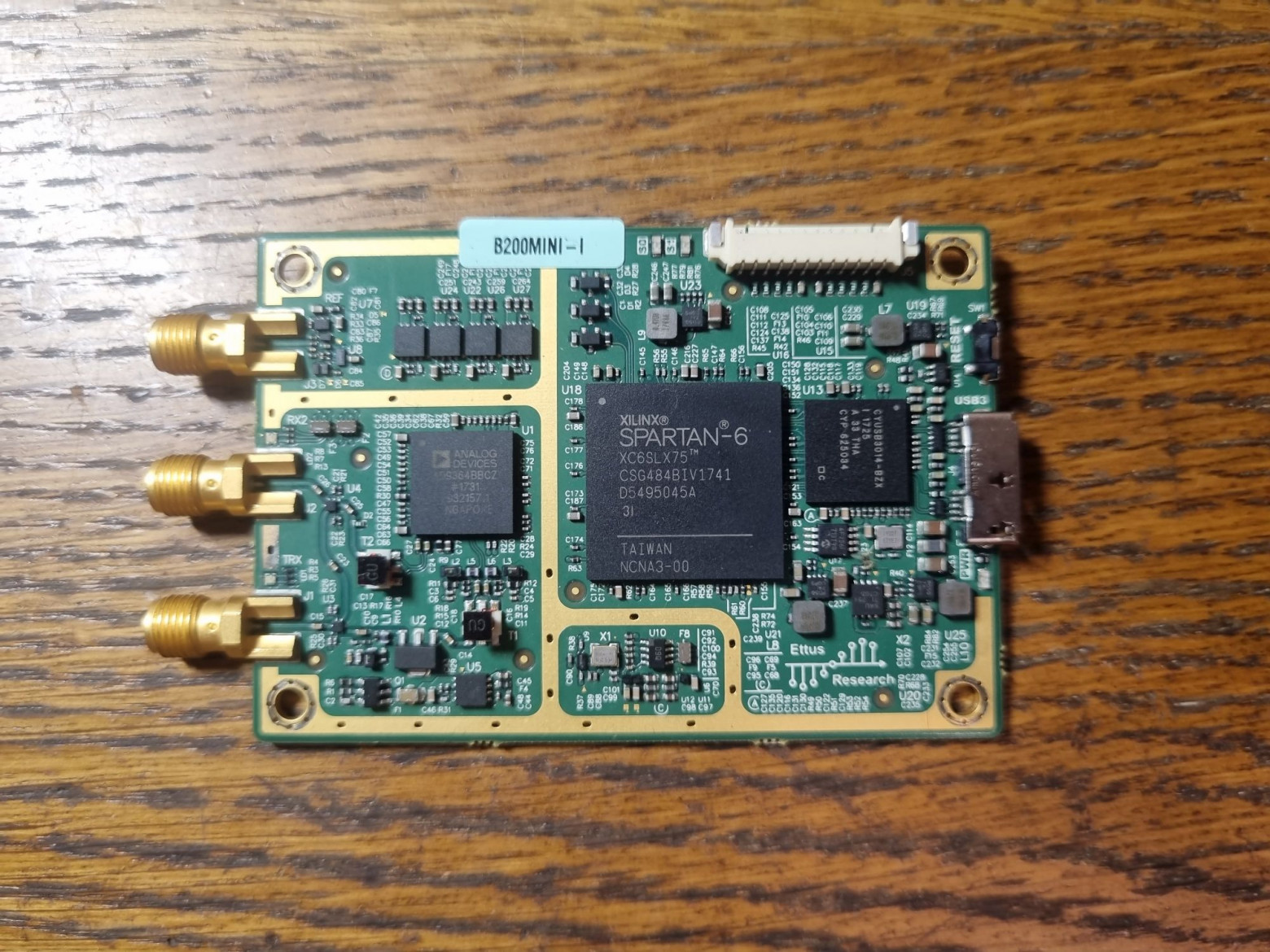
SDR (Software-Defined Radio). Naturally, it must be full-duplex. A USRP, BladeRF, or various LimeSDR models will work. A HackRF won't work (except for one trick I'll show at the end). The Ettus USRP B205-mini or B210 are probably the most popular choices for this purpose.
Antennas. They must be rated for the frequency we'll be selecting. This means regular Wi-Fi router antennas won't work — you need cellular antennas for the appropriate band. Ideally two antennas.
Programmable SIM cards. Unlike GSM, where you could connect to a network with any SIM or even without one, LTE requires cryptographic authentication, and the SIM must be specially programmed with the correct keys.
GPS-DO (GPS Disciplined Oscillator). An external timing source may be needed for improved stability. Its use is optional, but connecting one is definitely worth it for better stability.
Equipment Overview
Let's look at what we'll be using.
The SDR is a USRP B200mini-i. I would have liked to additionally use an external clock generator (GPS-DO), but I don't have one available.
For testing, I'll use the following mobile devices:
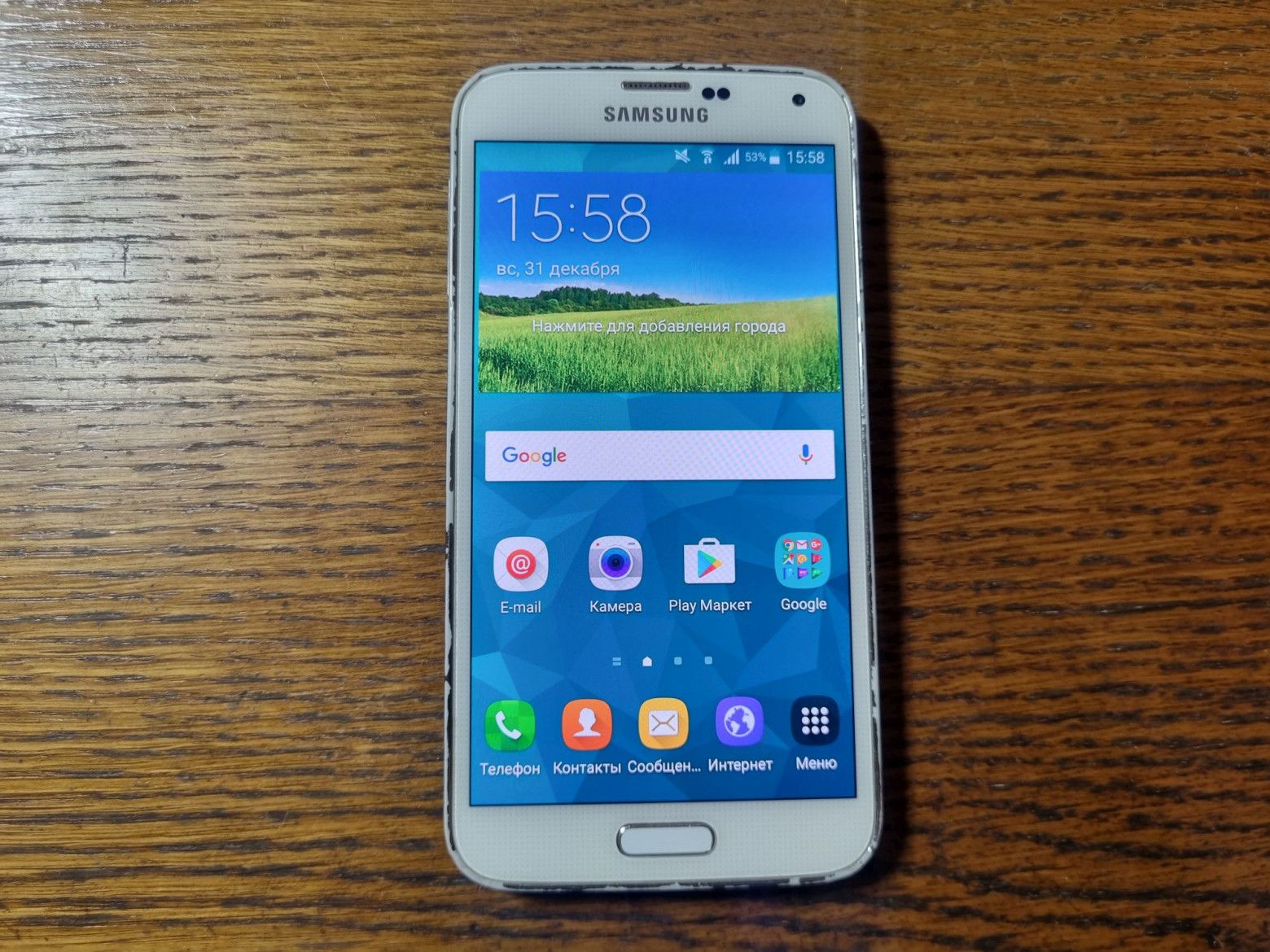
Samsung Galaxy S5 — a working device that successfully picks up the network.
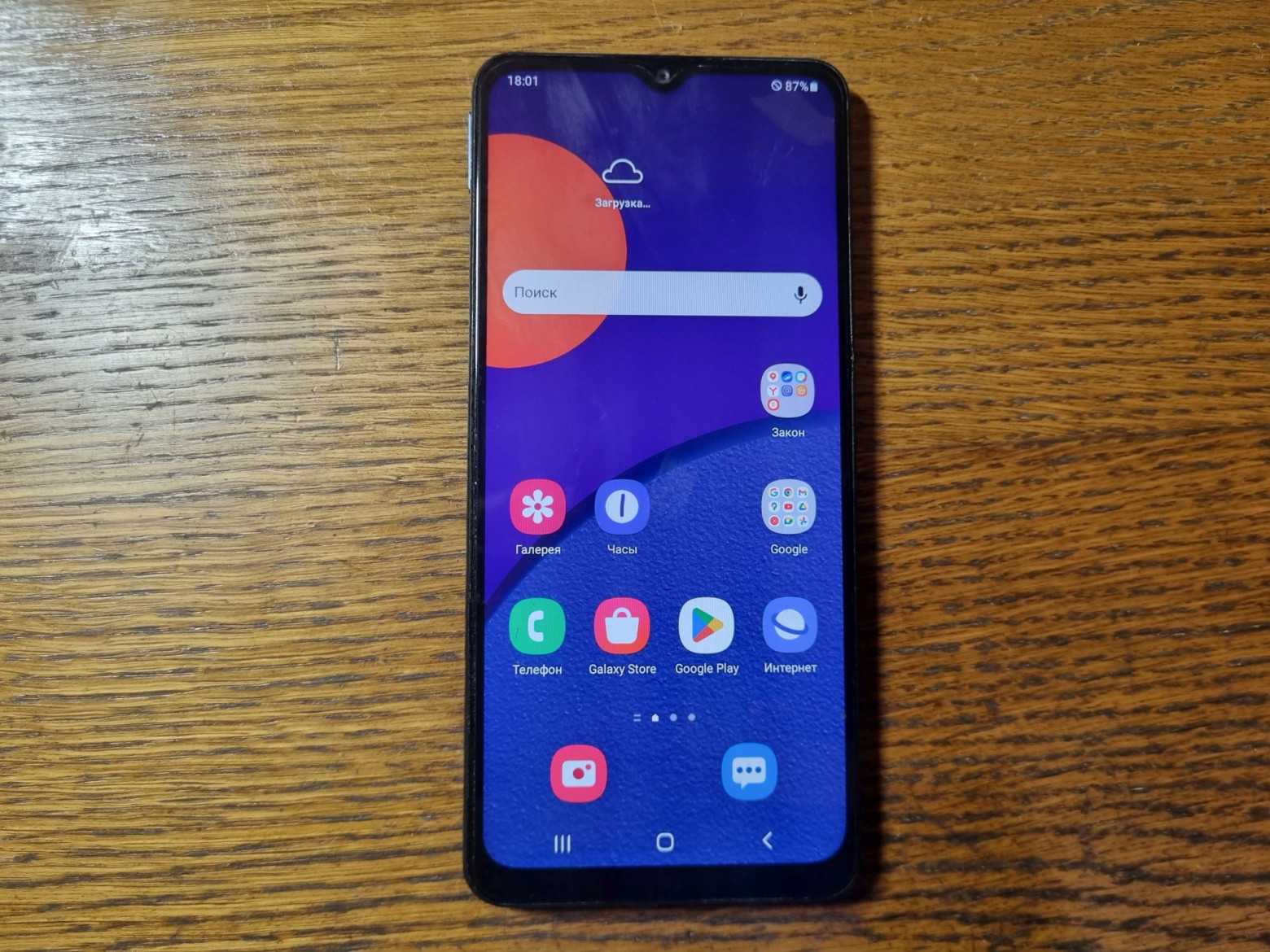
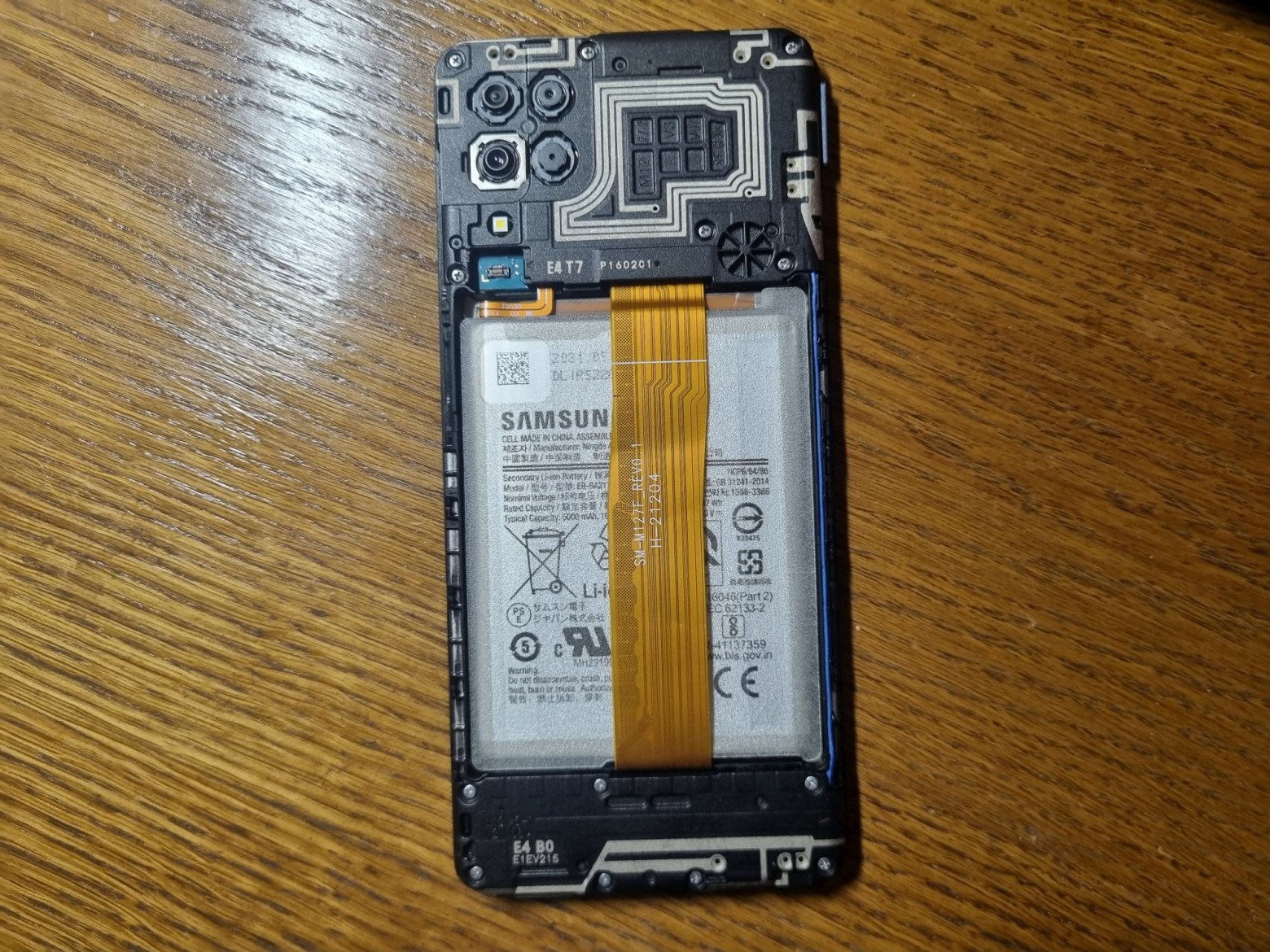
Samsung Galaxy M12 — a newer device, though missing its back cover and with a broken button.
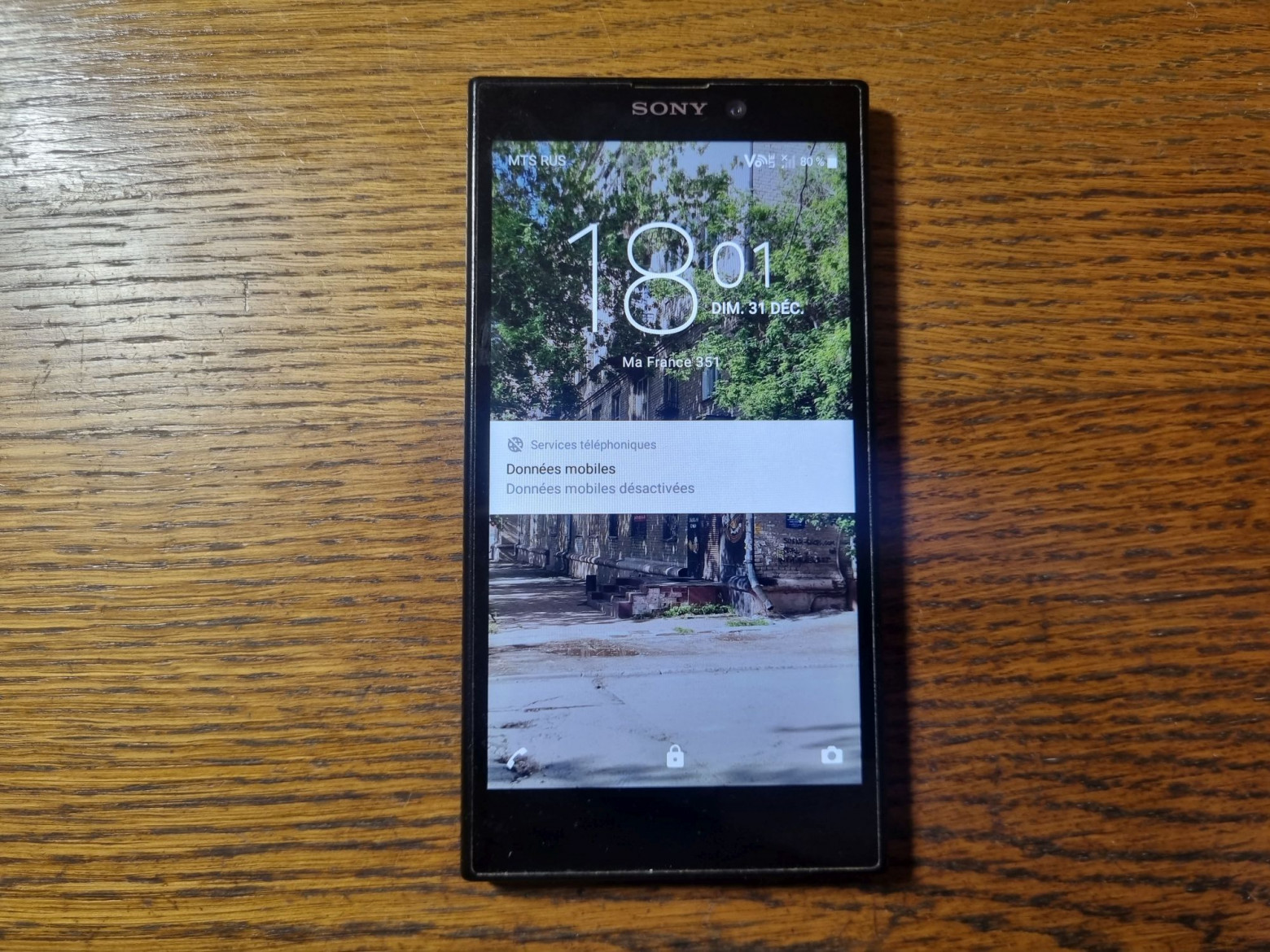
Sony Xperia L2 — did not participate in the experiments due to historically poor LTE reception.
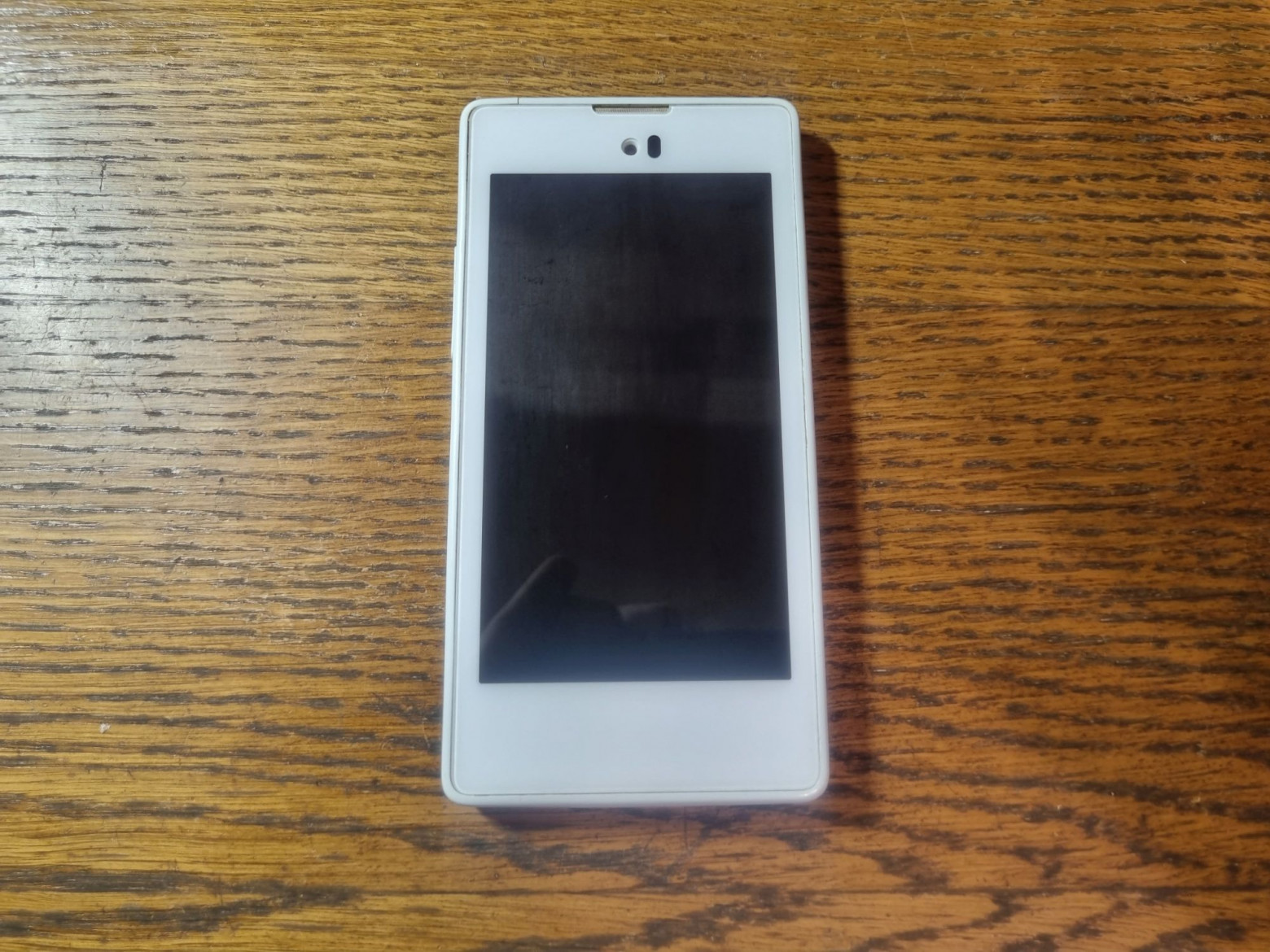
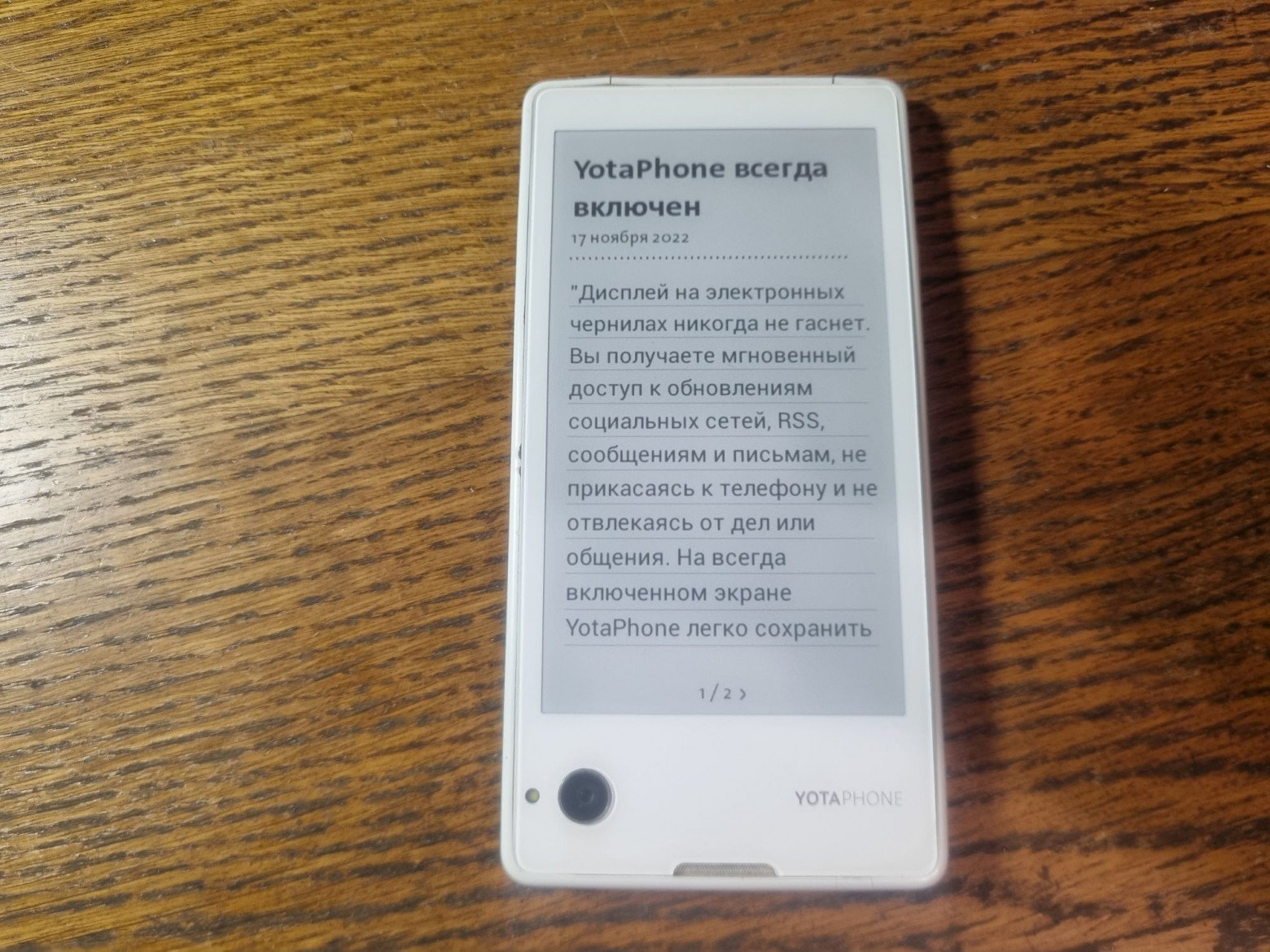
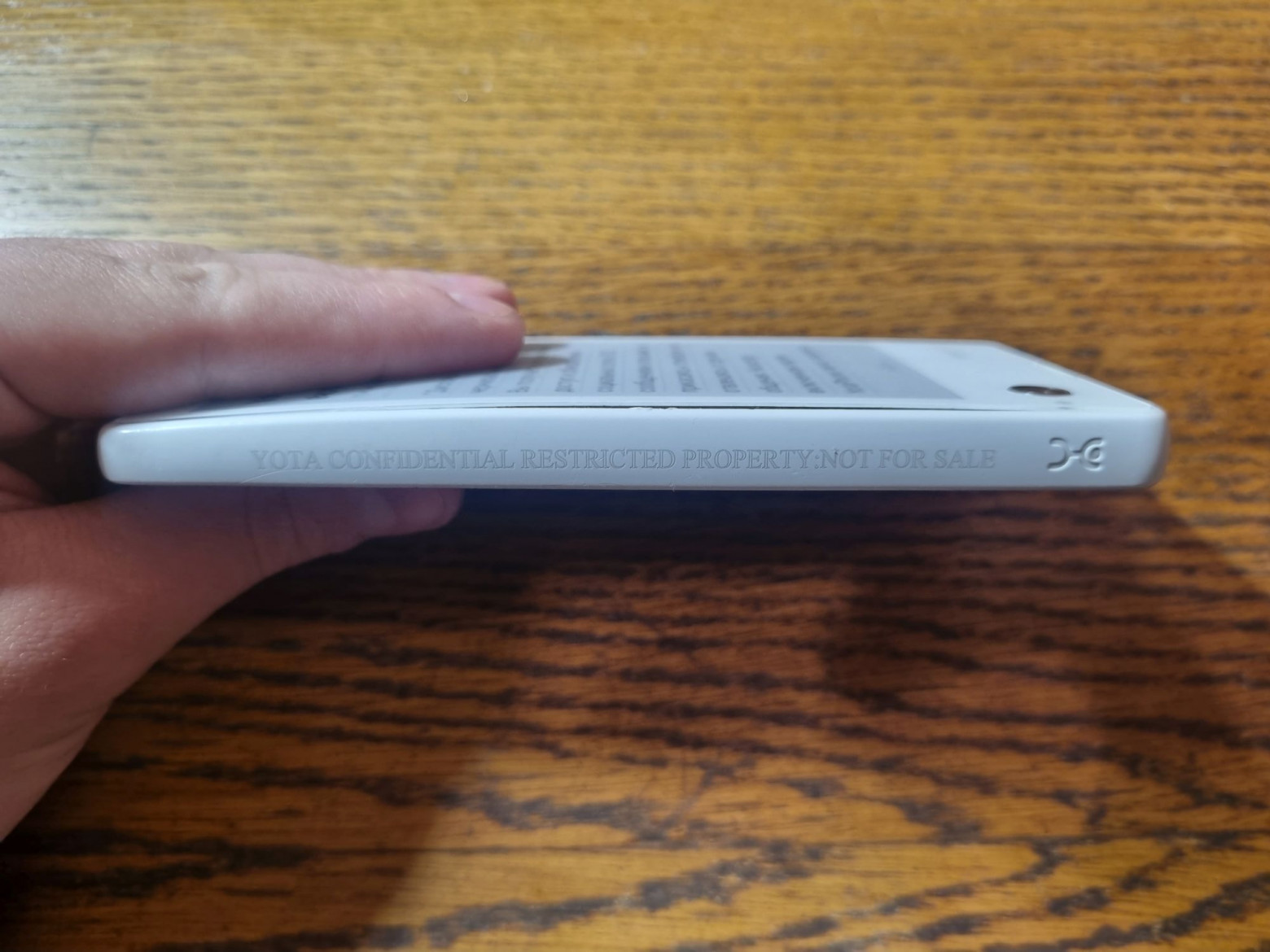
Yotaphone — the first phone with LTE support in its country, a prototype model. It was given to me by a fellow enthusiast, for which I'm especially grateful.
First Launch
So, we boot into DragonOS and connect the SDR. We need to edit the configuration file enb.conf in the /etc/srsran folder.
The [enb] section should contain:
[enb]
enb_id = 0x19B
mcc = 250
mnc = 10
mme_addr = 127.0.1.100
gtp_bind_addr = 127.0.1.1
s1c_bind_addr = 127.0.1.1
s1c_bind_port = 0
n_prb = 50
#tm = 4
#nof_ports = 2
Here you need to set the MCC (Mobile Country Code) and MNC (Mobile Network Code). The MCC identifies the country and the MNC identifies the network operator. Most phones refuse to connect to networks with unfamiliar identifiers, so you should choose realistic values. MCC 250 was used as the country code, and MNC 10 was chosen to avoid conflicts with operators active in the author's region.
Similarly, edit the epc.conf file:
[mme]
mme_code = 0x1a
mme_group = 0x0001
tac = 0x0007
mcc = 250
mnc = 10
mme_bind_addr = 127.0.1.100
apn = srsapn
dns_addr = 8.8.8.8
encryption_algo = EEA0
integrity_algo = EIA1
paging_timer = 2
request_imeisv = false
lac = 0x0006
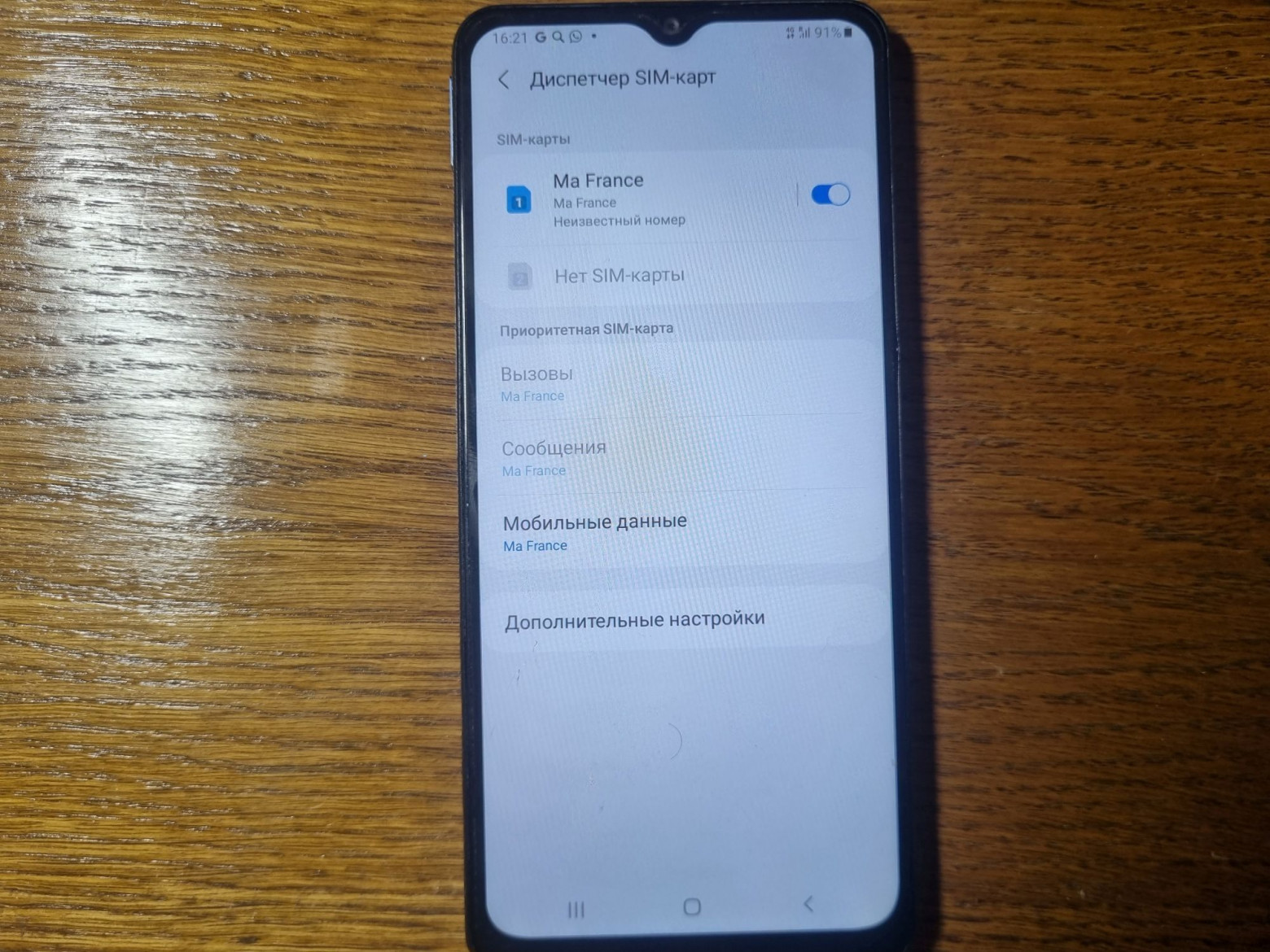
full_net_name = MaFrance
short_net_name = MaFrance
Launch is performed with commands in two separate terminals:
sudo srsepcand
sudo srsenb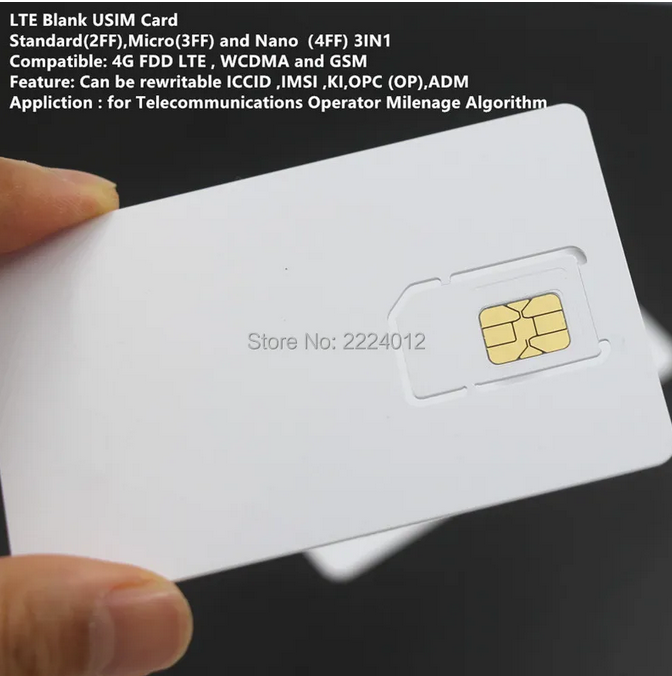
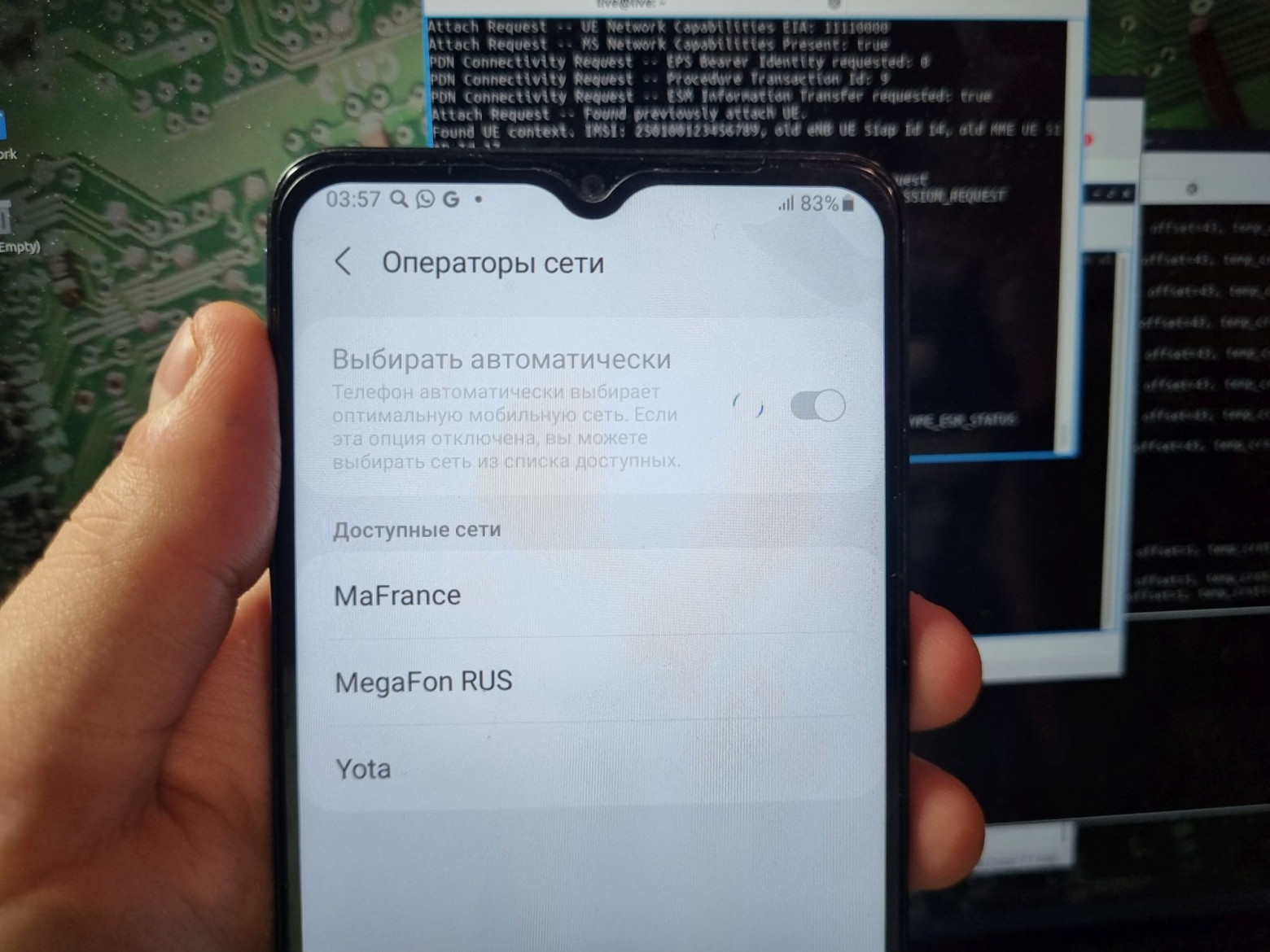
After this, the network should appear in the list of available networks on the phone.
If the network doesn't appear, you need to edit the rr.conf file, specifically the dl_earfcn parameter in the cell_list section. EARFCN determines the operating frequency. The value 3500 was found to be optimal for this setup, but the exact value needs trial-and-error depending on the antennas used and the frequency band.
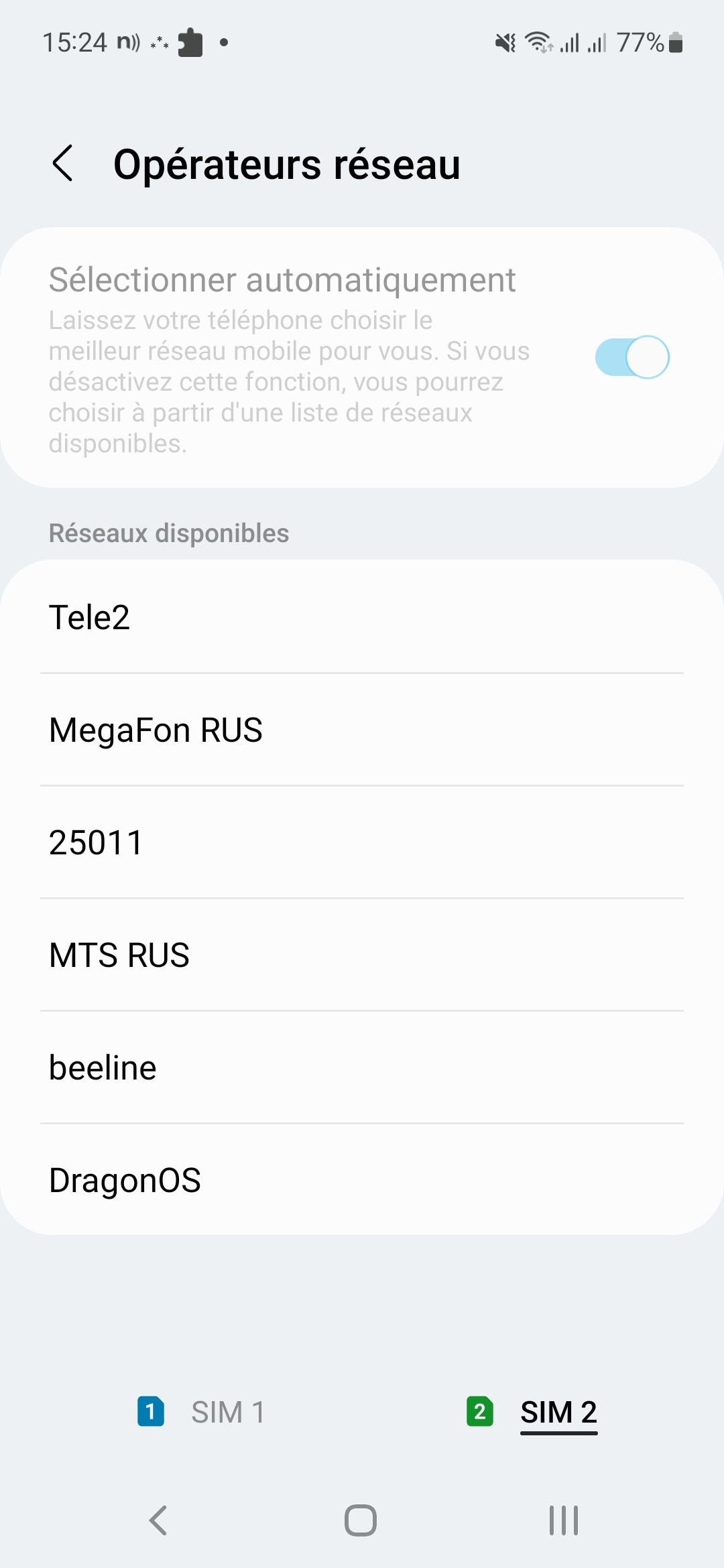
You can use EARFCN calculators available online, like this one, to determine which frequency corresponds to which channel number. It's also useful to check which frequencies are already occupied in your area using apps like Net Monitor.
The authentication is all that's needed for a connection. And that brings us to SIM cards.
SIM Cards
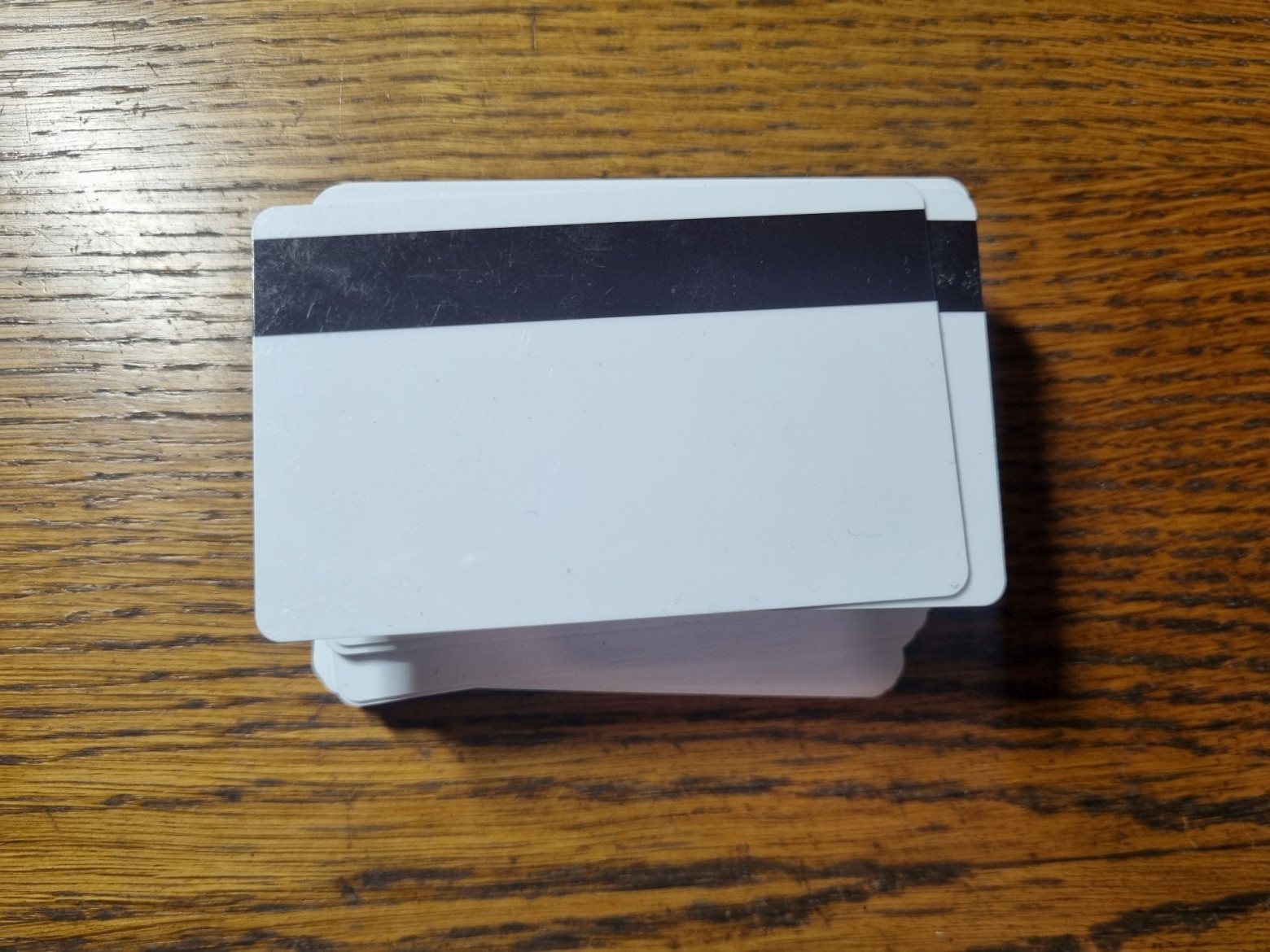
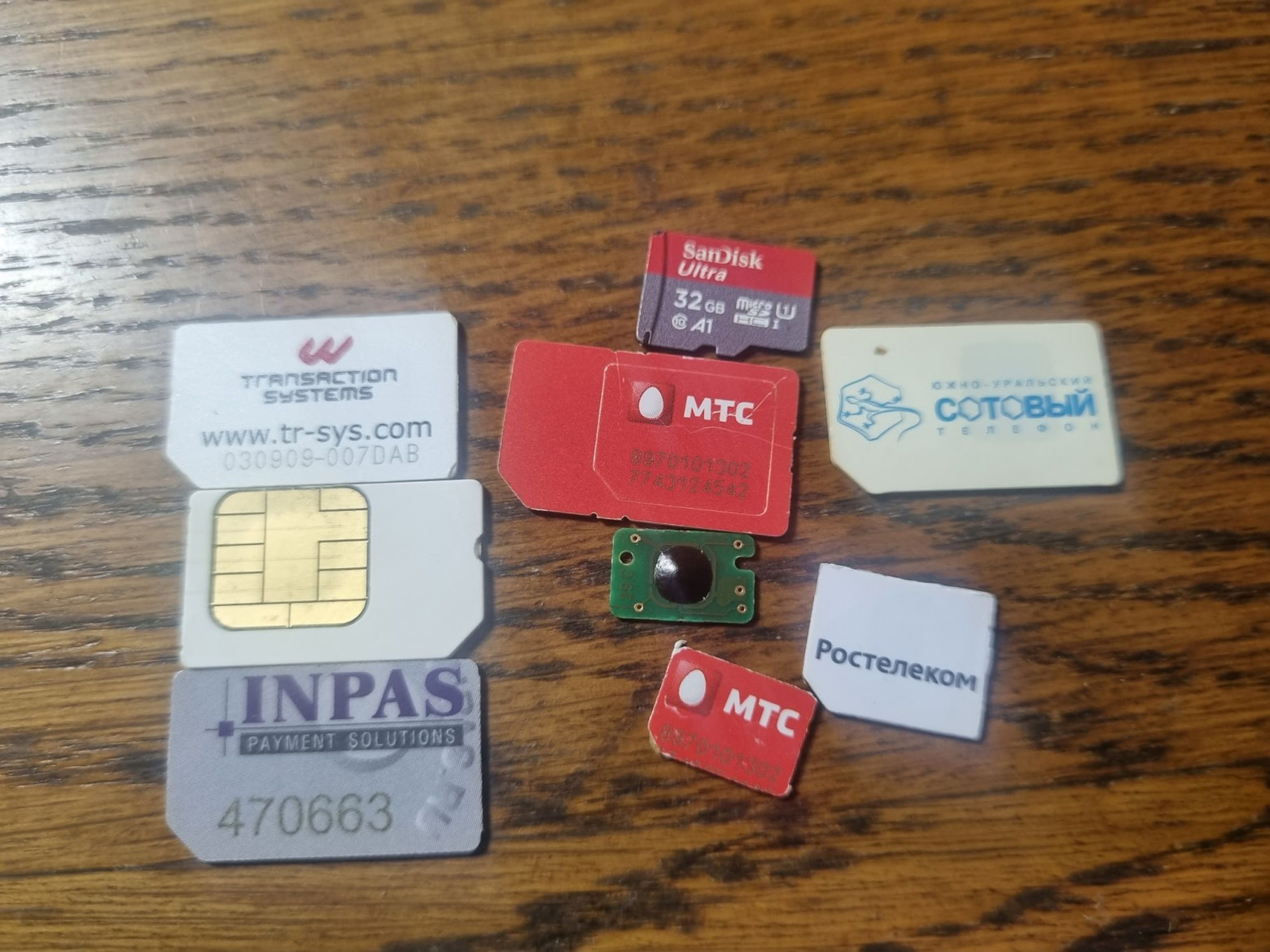
In the carding world there's a term called "white plastic" — magnetic cards onto which dumps are written. The SIM card analogue would be programmable test SIM cards.
Unlike GSM, where you could connect to a network with any SIM or even without one, LTE employs mandatory encryption and verifies the authenticity of both the subscriber and the network itself. For this, each SIM contains two keys:
- OP (Operator Key) — a shared key, the same across thousands of cards from one operator. If it leaks, all cards are compromised.
- Ki — an individual key unique to each card.
There's also OPc — an encrypted version of OP derived from OP and Ki. This allows cards to perform authentication without ever exposing the raw OP key. The algorithm used is called Milenage.
Several types of programmable SIM cards are available on the market:
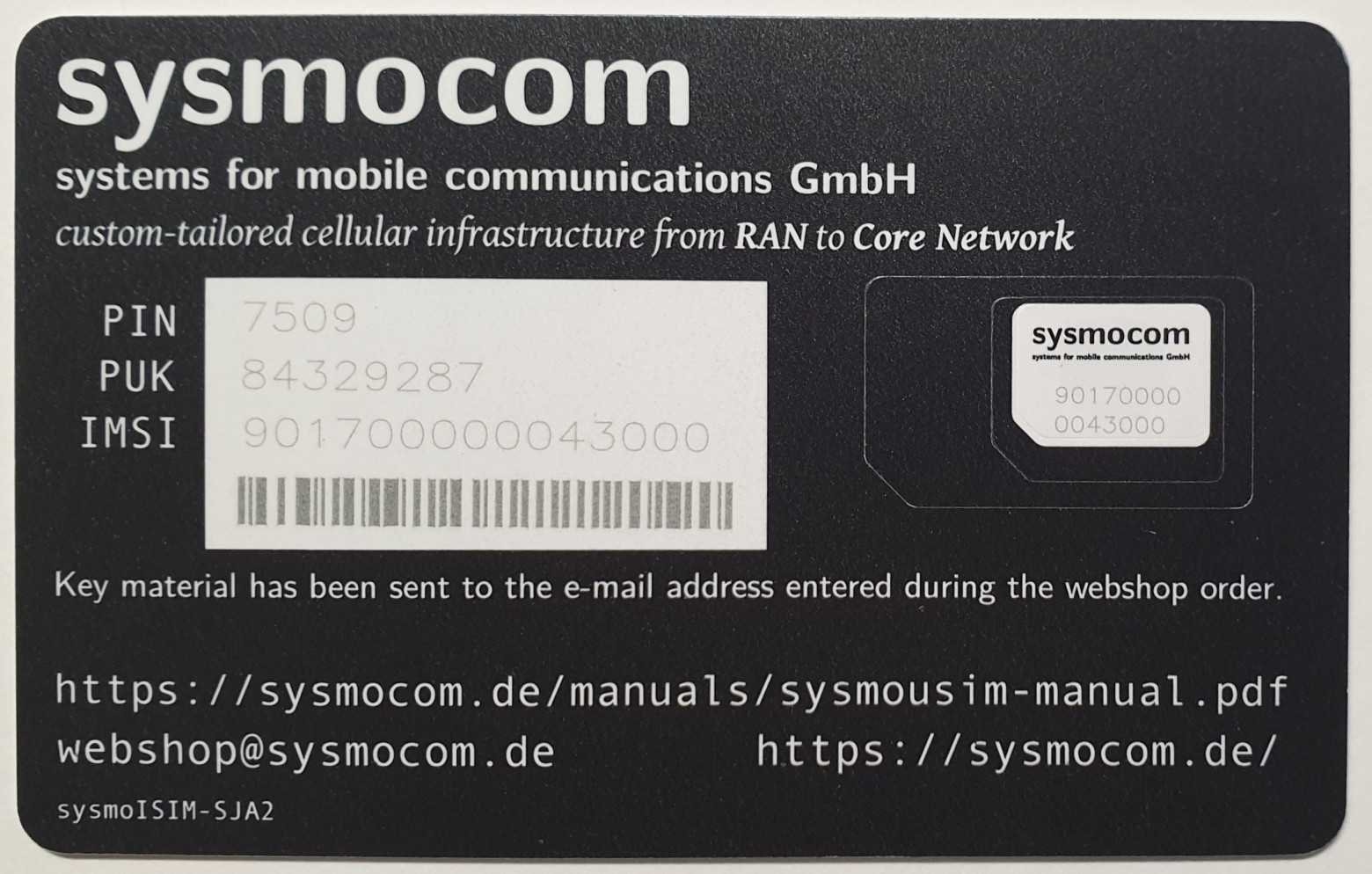
Sysmocom cards — expensive, hard to obtain, but with the best stability and production-grade quality. They come with fixed IMSI values and pre-loaded keys emailed to you after purchase.
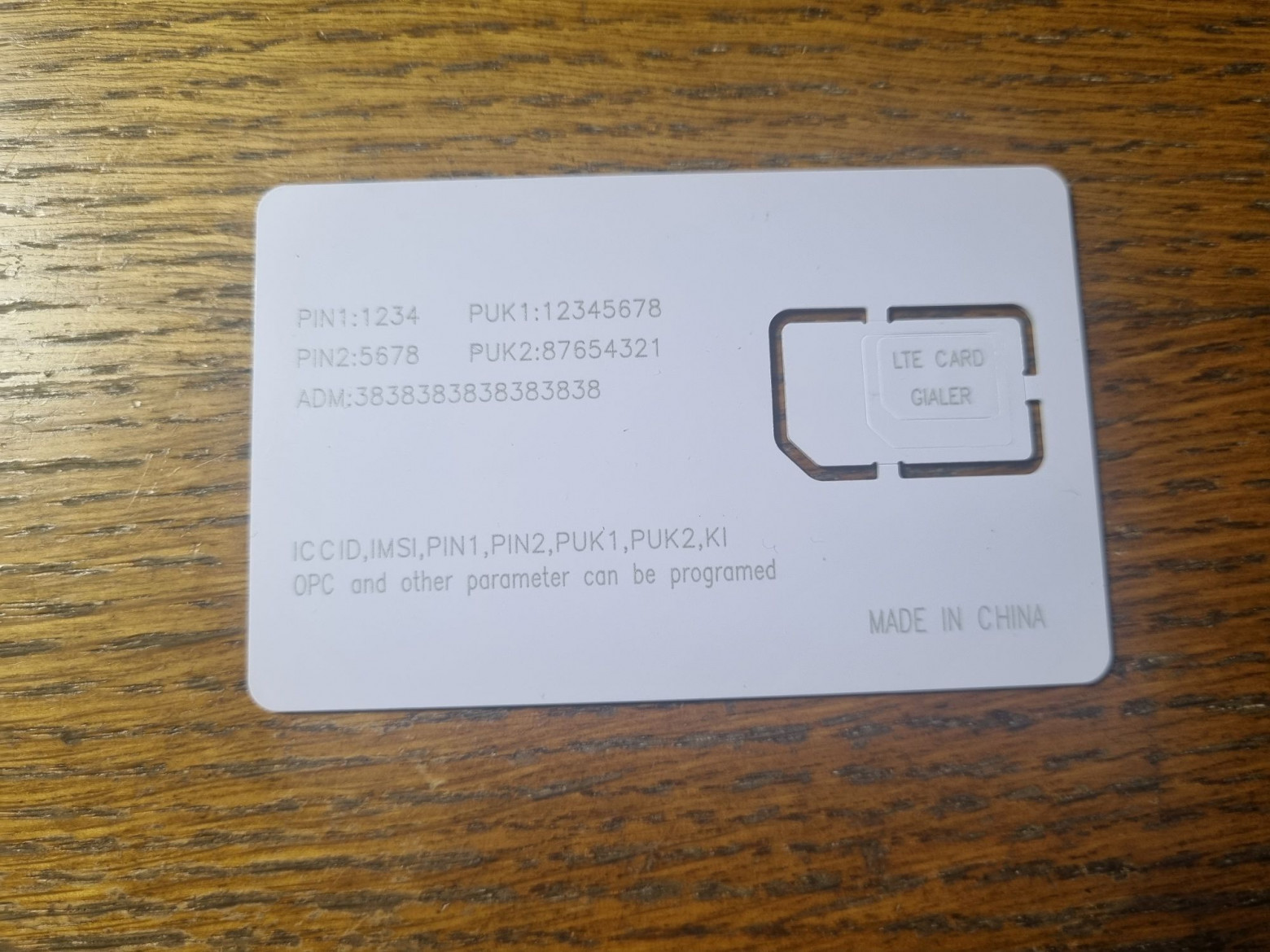
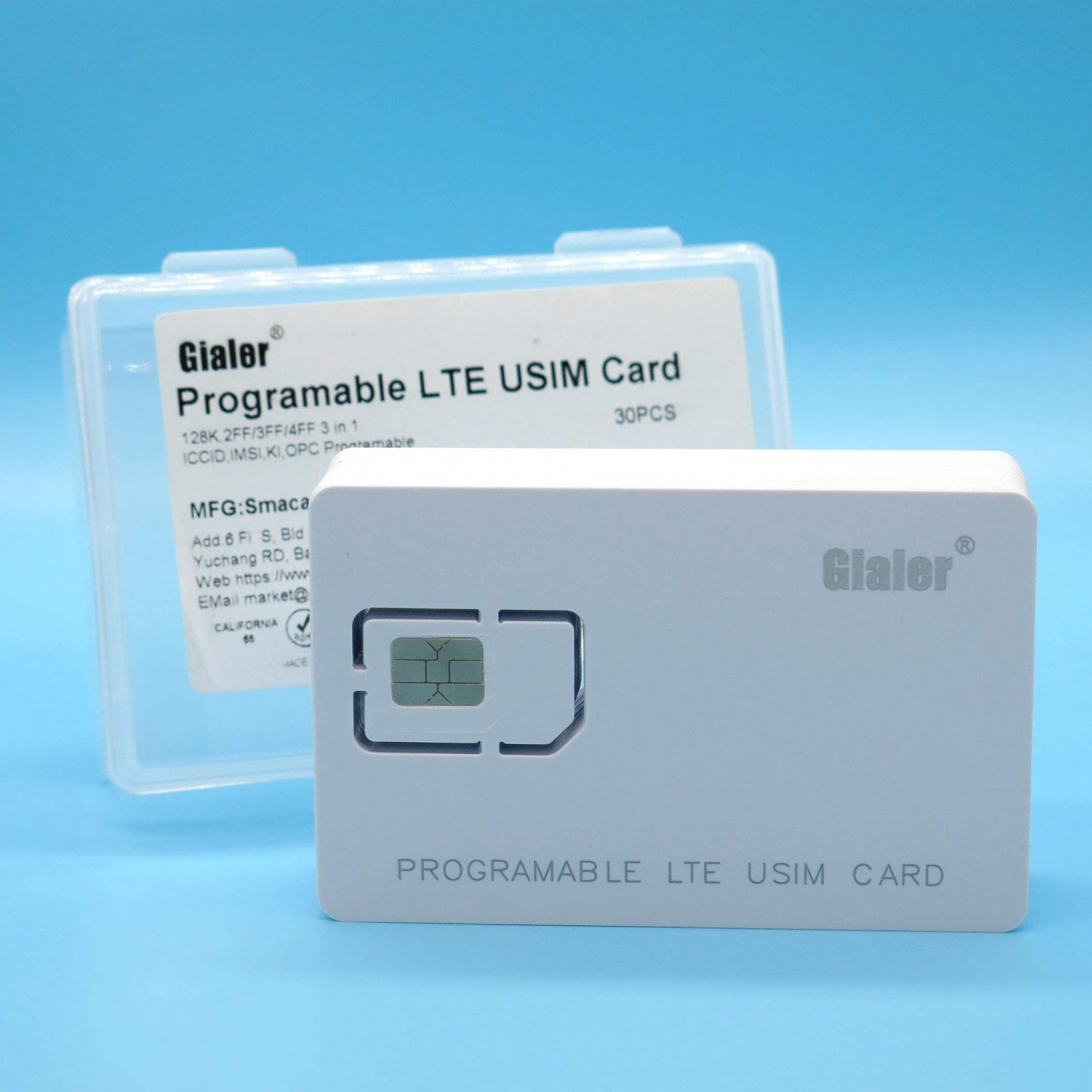
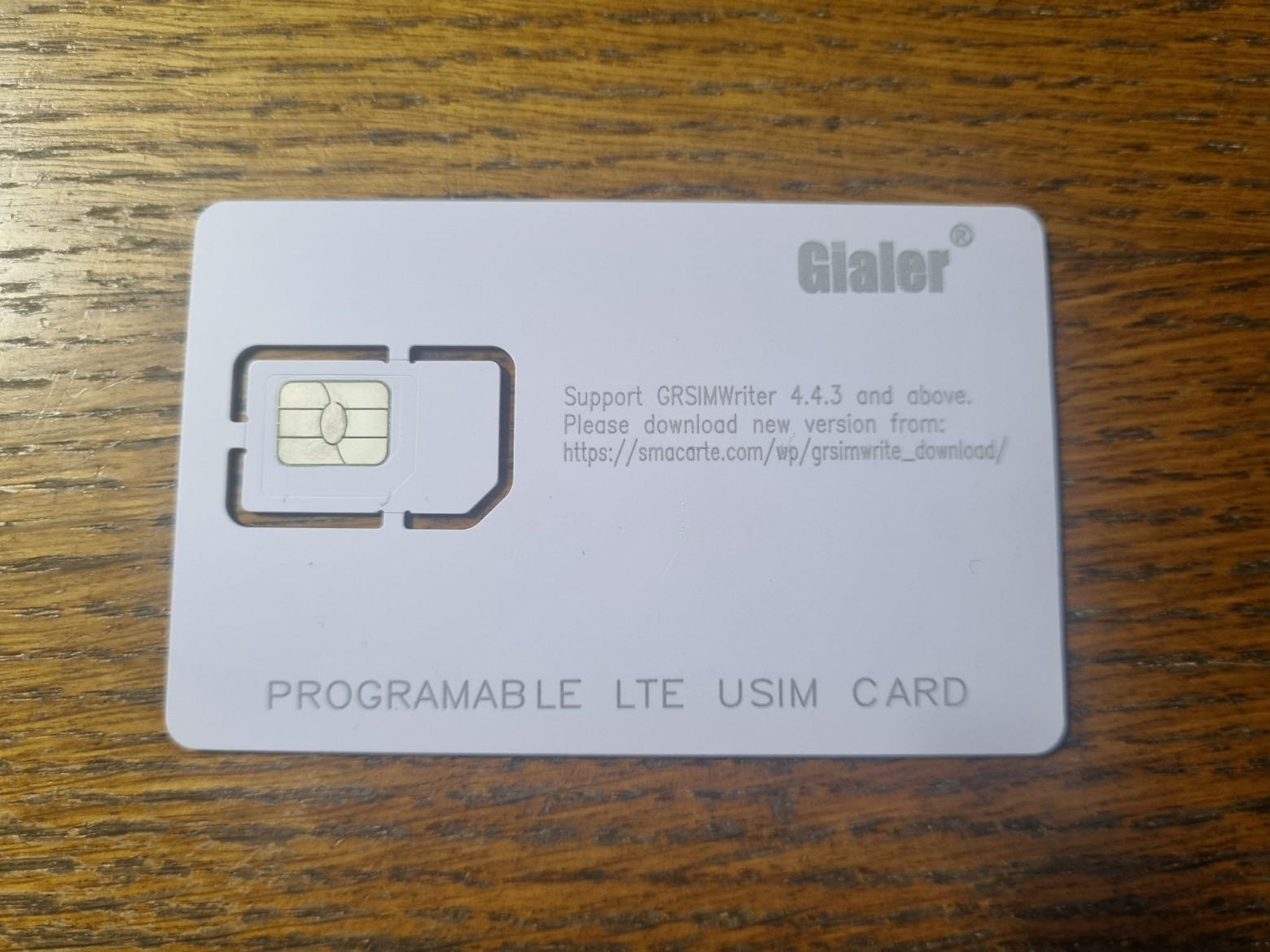
Gialer cards — mid-range pricing, fully programmable with almost all parameters configurable. Their compatibility with srsRAN was verified — they work successfully.
Generic/Oyeitimes cards — the cheapest option, but with unreliable srsRAN compatibility and unclear programming methods.
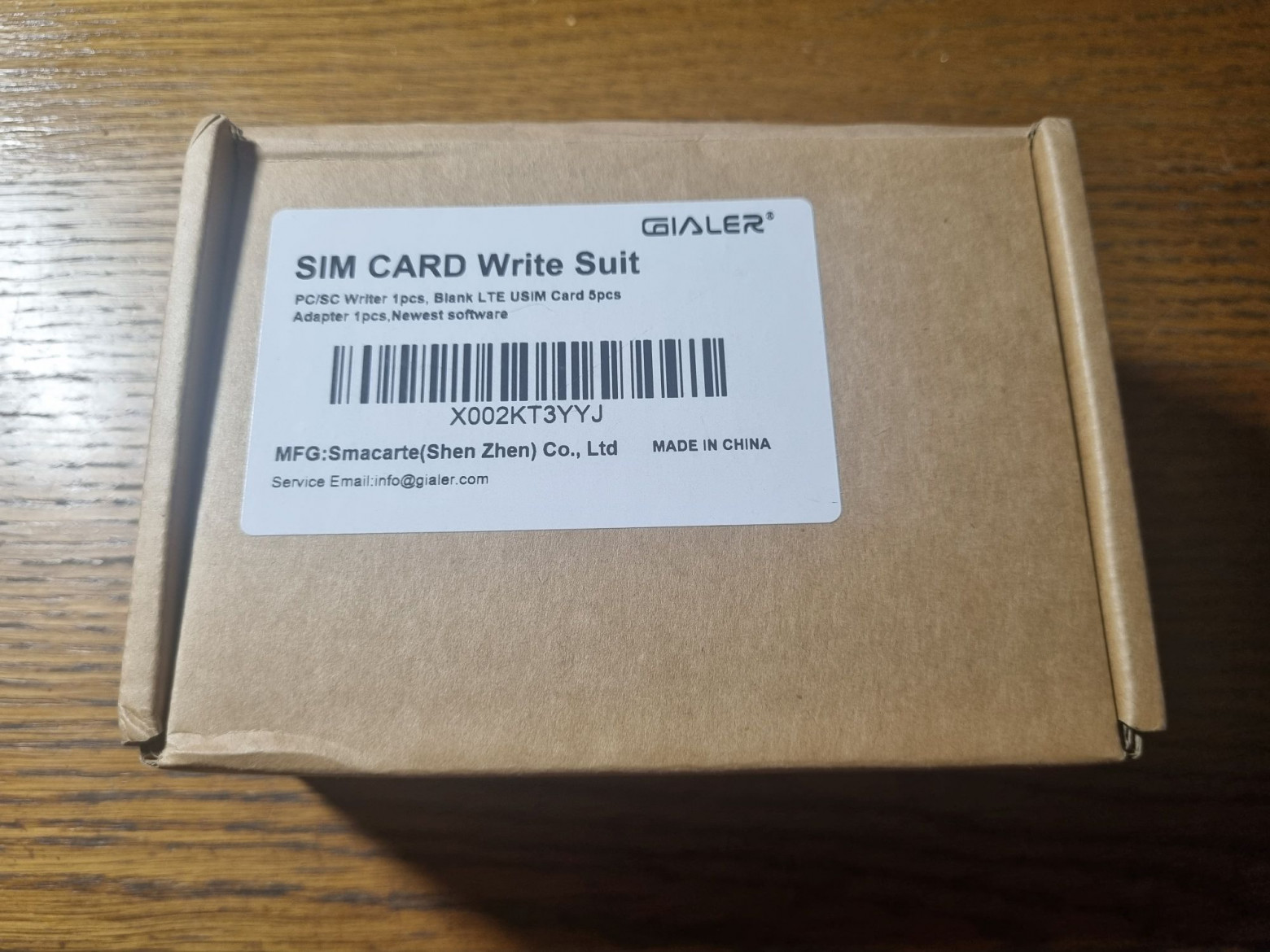
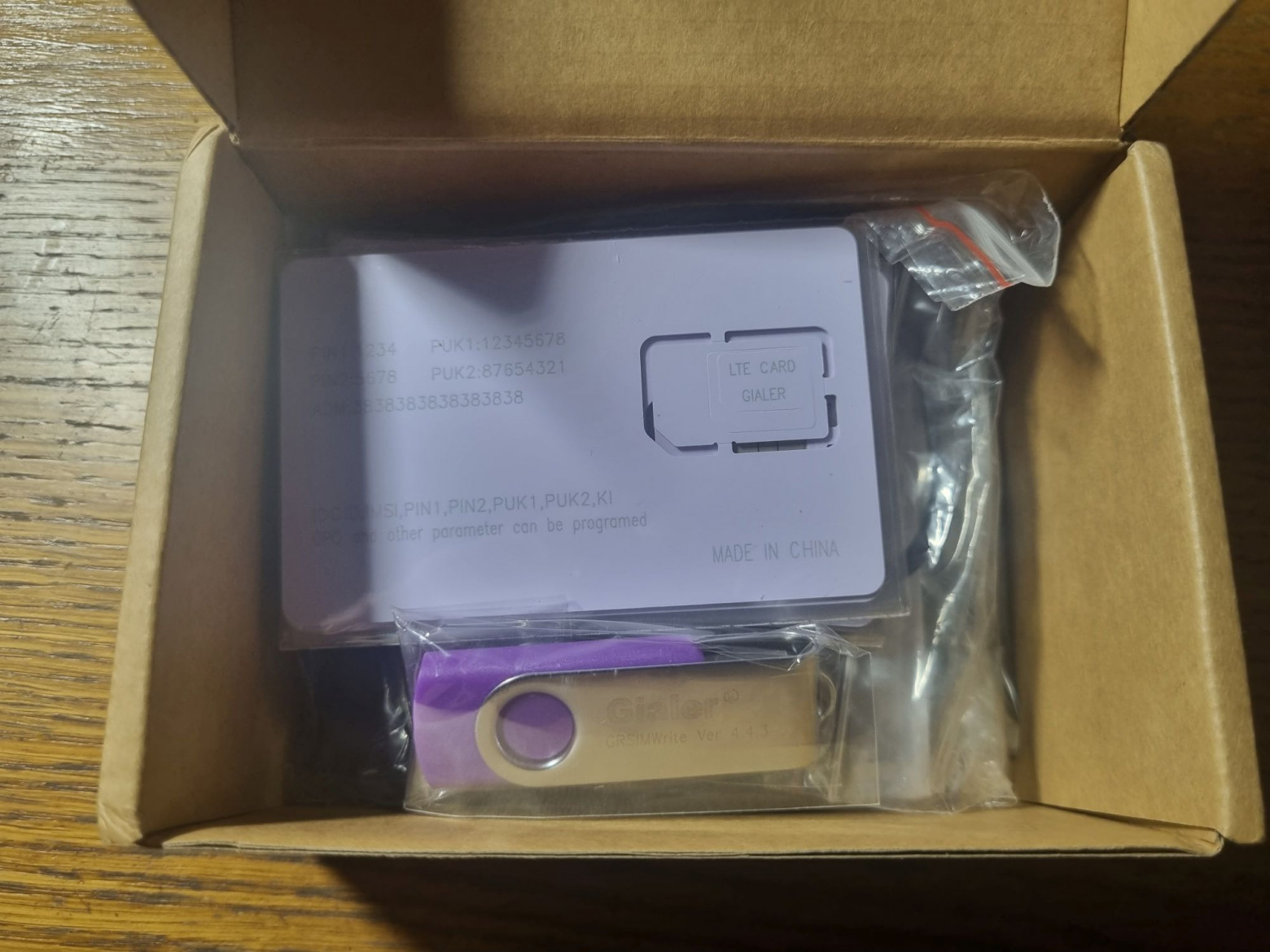
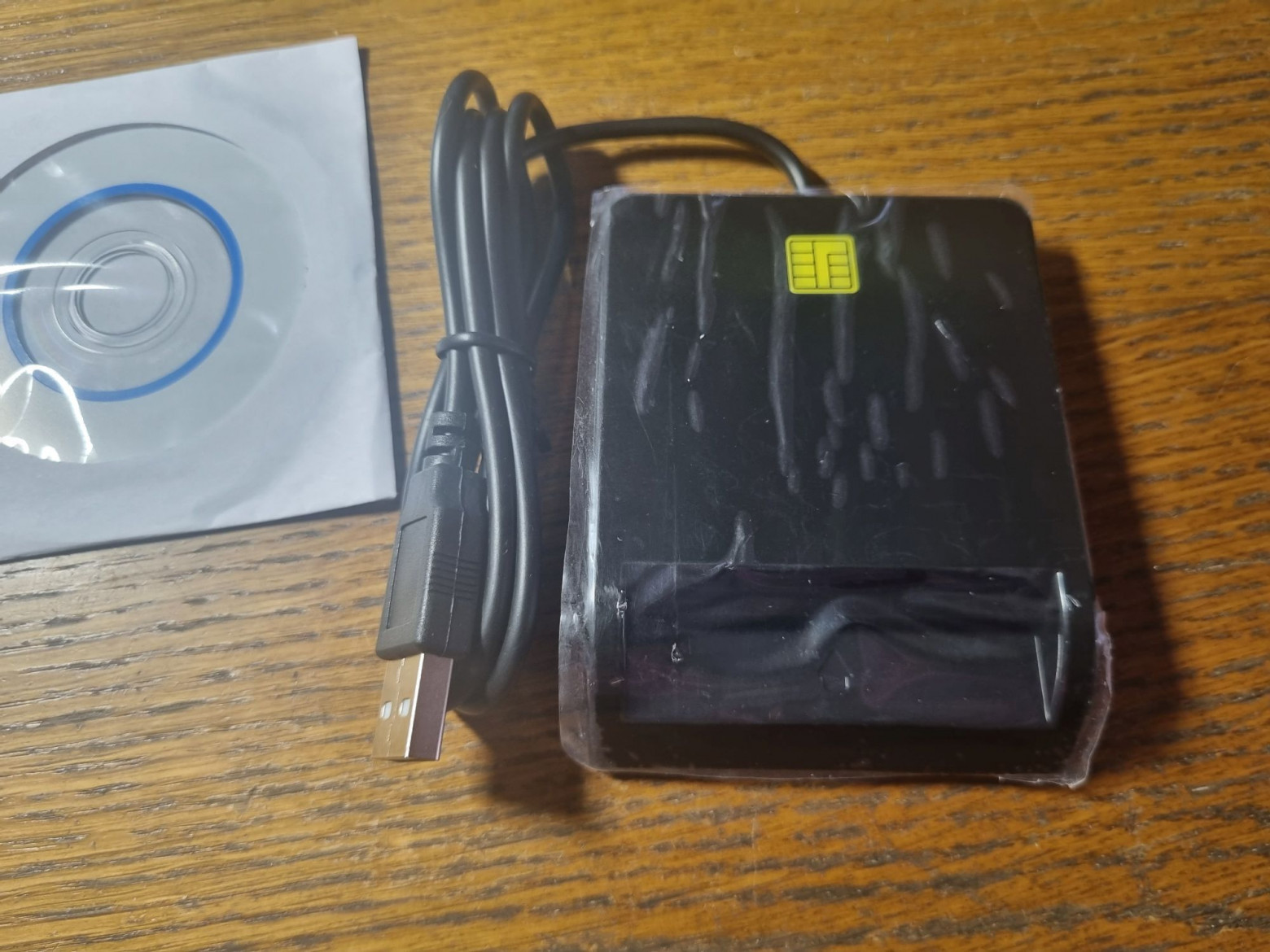
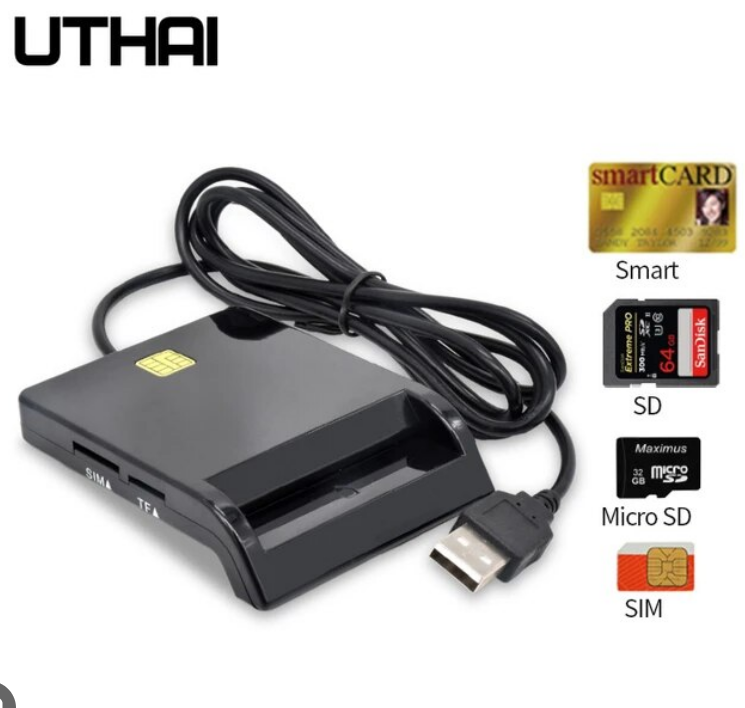
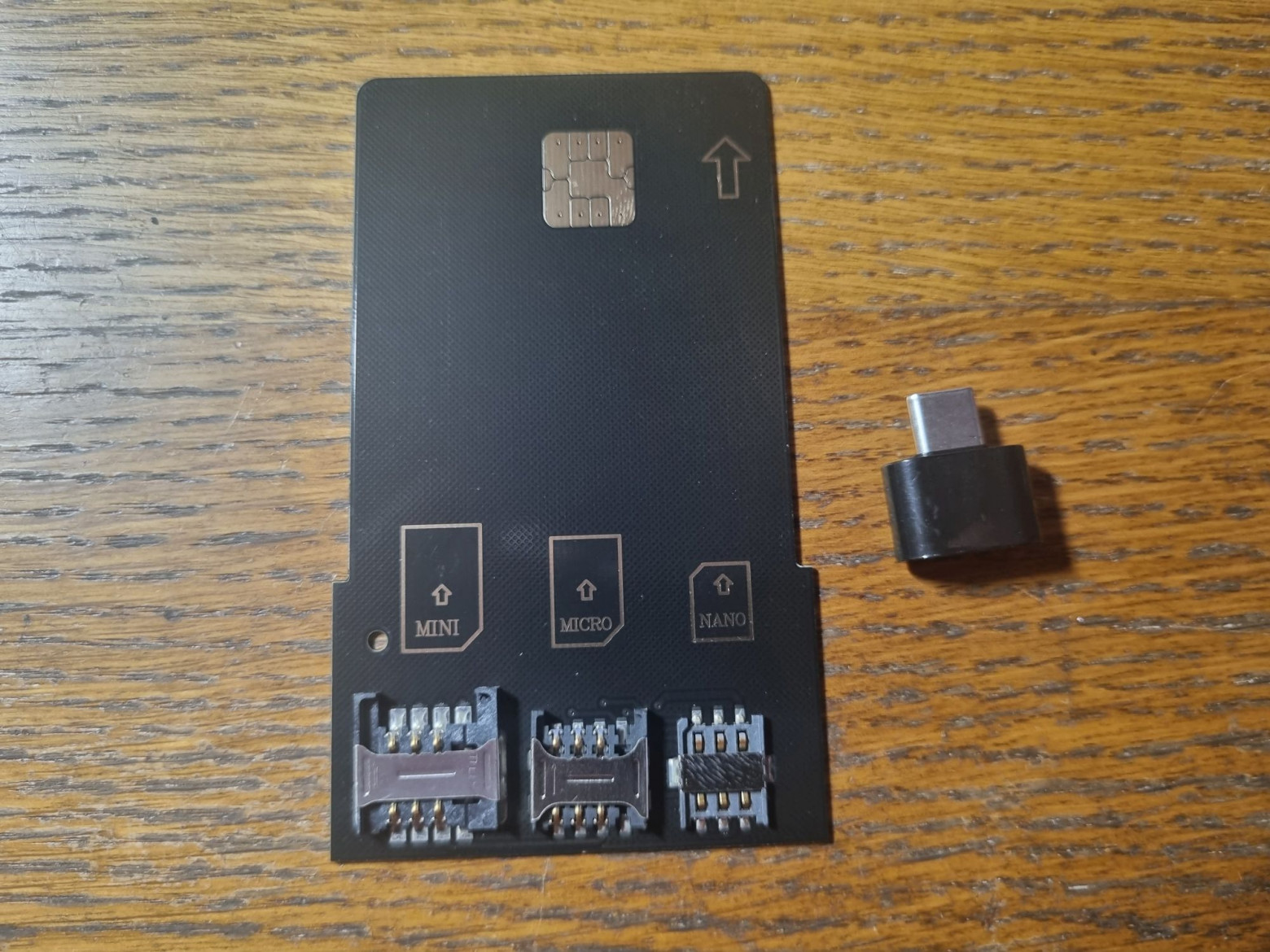
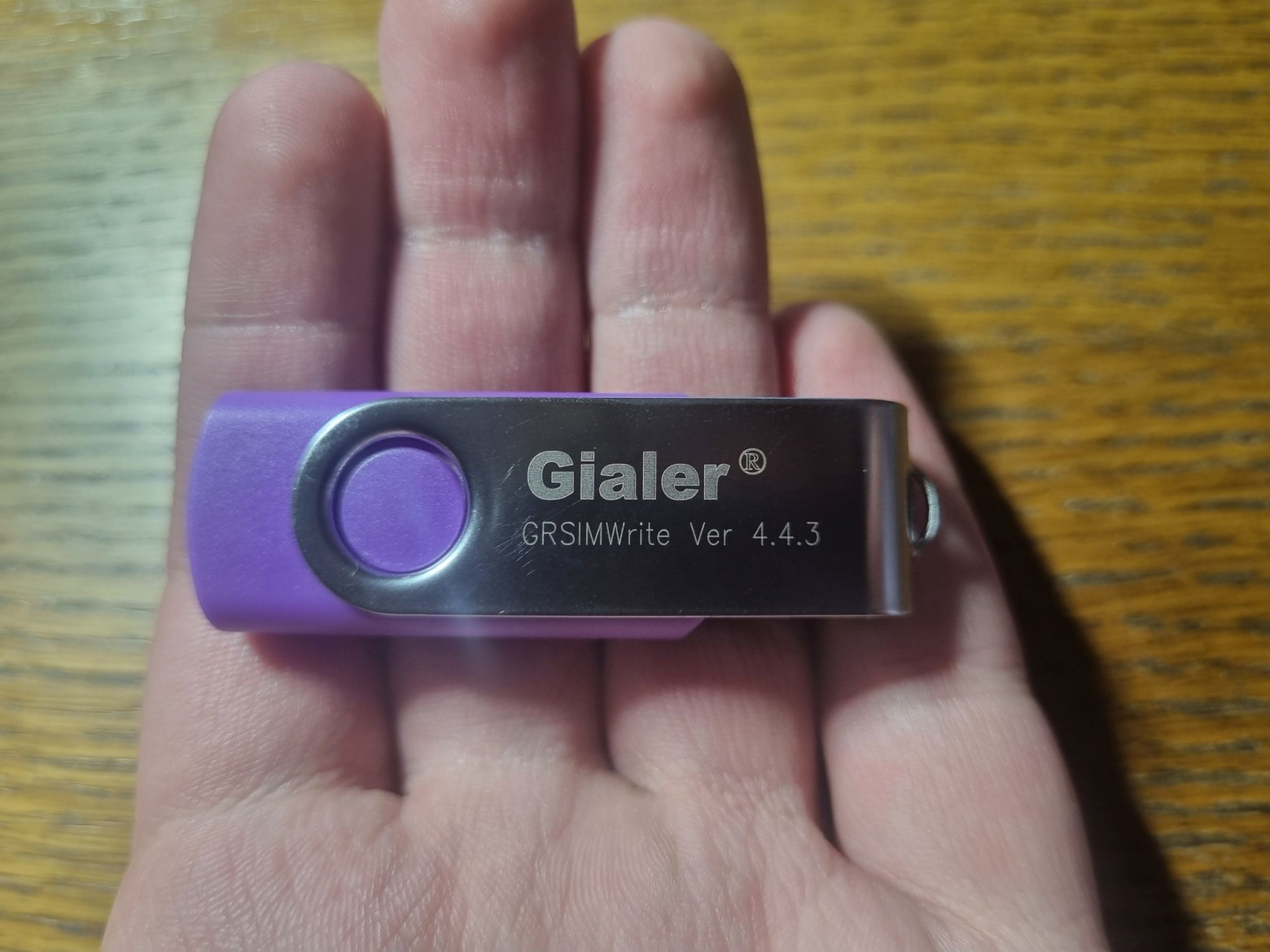
The Gialer cards were purchased, arriving as a kit including five blank cards, a USB card reader (Uthai X02), a SIM adapter for smaller form factors, and a flash drive with software.
SIM Personalization
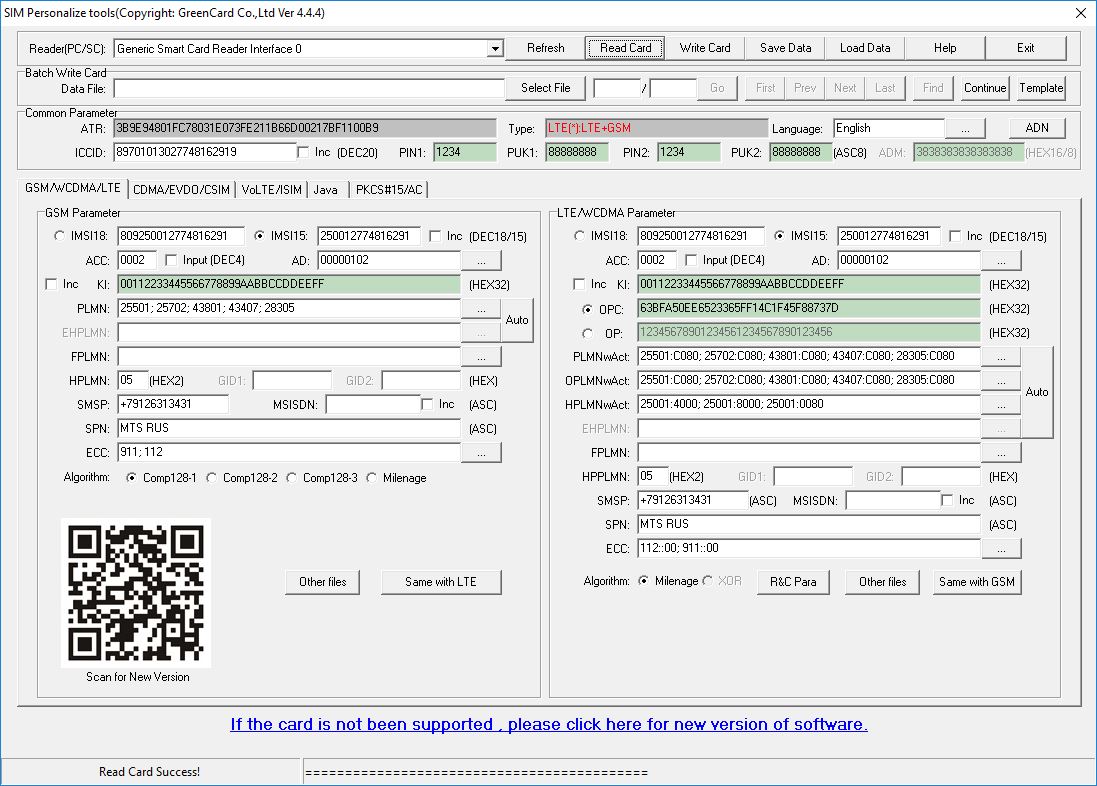
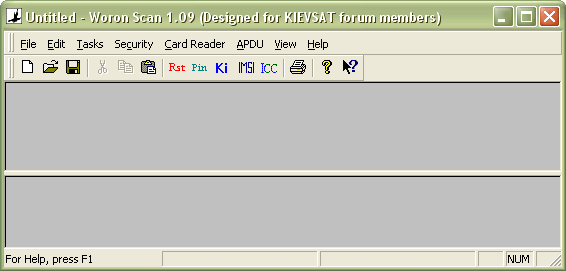
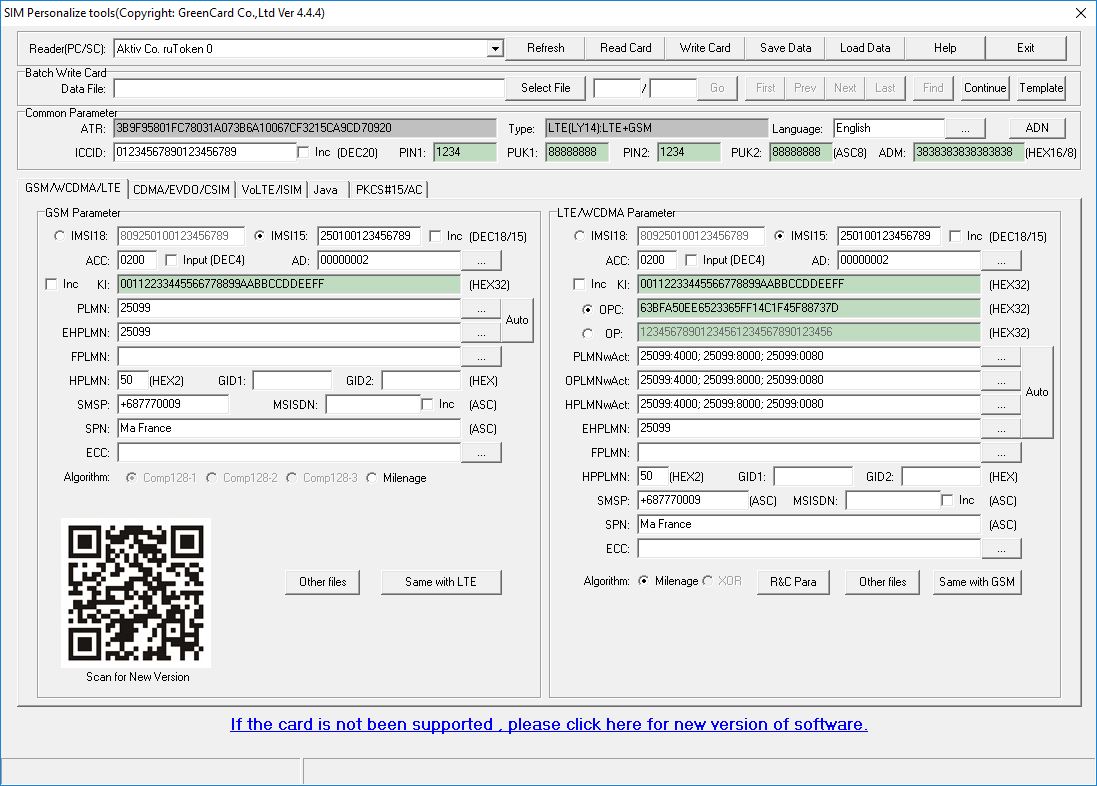
The software runs from the flash drive included in the kit. You can first read an existing card to understand the process.
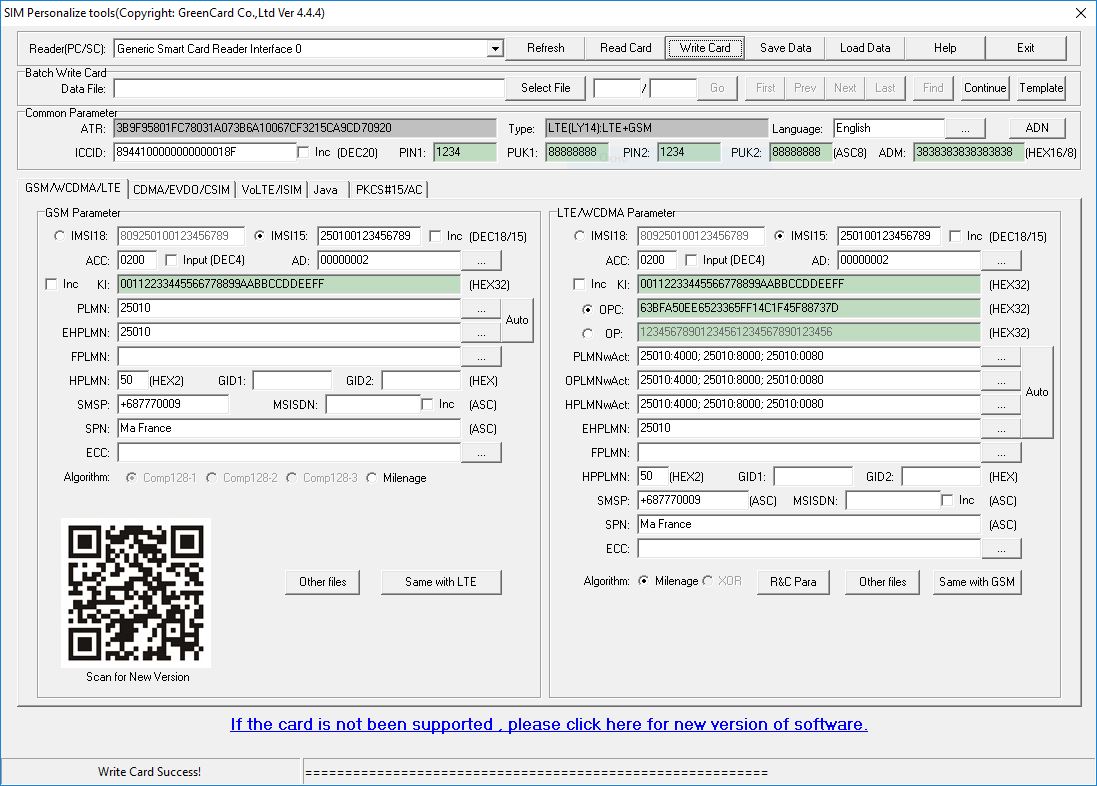
After inserting a blank card and clicking "Read Card," you need to fill in the following fields:
- ICCID: Card identifier, e.g.,
01234567890123456789 - IMSI: Network identifier, e.g.,
250100123456789 - K (Key): 128-bit hex key, e.g.,
00112233445566778899AABBCCDDEEFF - OPc: Encrypted operator code, e.g.,
63BFA50EE6523365FF14C1F45F88737D - PLMN: Auto-filled from IMSI by pressing the "Auto" button, e.g.,
25010 - Algorithm: Milenage
Optional fields you can also configure:
- SPN — service provider name displayed in the SIM manager
- ECC — emergency call numbers
- SMSP — SMS center number
- MSISDN — the subscriber's display phone number
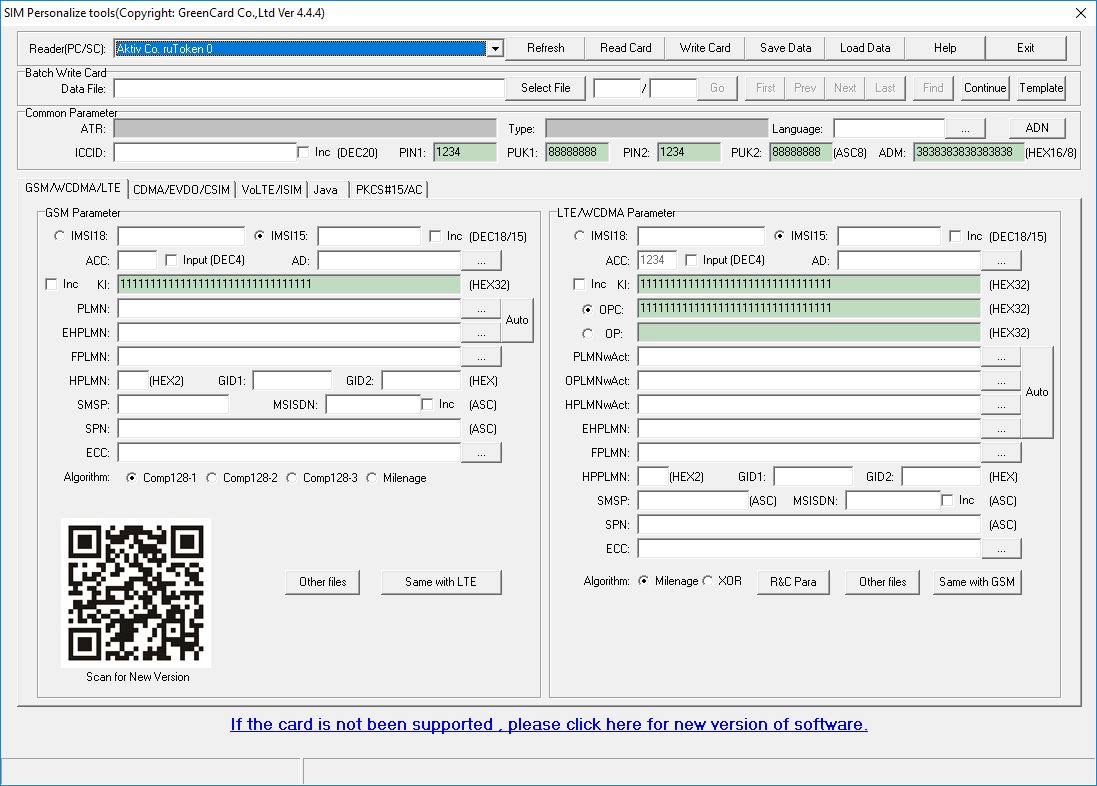
After filling in all parameters in the GSM section, click "Same with LTE" to copy them to the LTE section, then click "Write Card." Once the process completes, the card is ready for use.
A Note on SIM Card Cloning
I want to warn anyone who arrives here from a search engine expecting this kit to be a miracle device. You cannot read data from a SIM and write it to another. Well, technically you can, but the copy won't work.
The main problem is that Ki and OPc, as mentioned earlier, are non-extractable. So the copy will contain not their true values, but default test values from the software. And a card with wrong keys simply won't authenticate with the network.
Back in the old days, when SIM cards were protected by the vulnerable COMP128v1 algorithm, there was a way to extract the key using special software. The method was based on a series of dirty hacks that allowed extracting the key in an acceptable number of queries to the SIM card. Alas, with today's cards this no longer works.
Not All Card Readers Are Created Equal
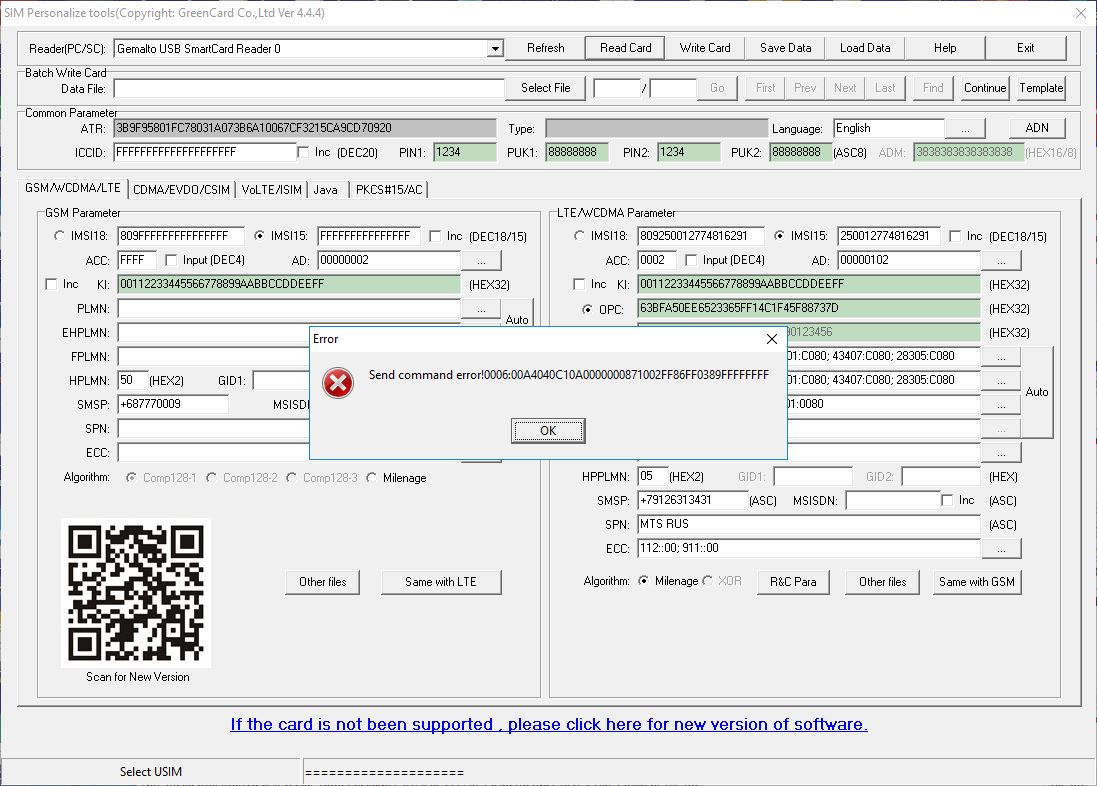
I had a USB Gemalto card reader and thought: what if the one that came in the kit was purchased in vain?
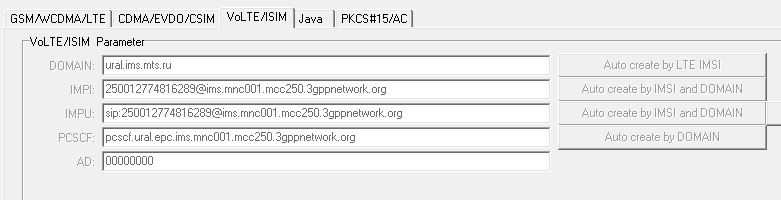
Unfortunately, when attempting to read a card, an error pops up. Thus, this particular reader is not compatible with the software.
Launching the Network
So, we pop the freshly programmed SIM out of its holder and insert it into the phone.
The user_db.csv configuration file needs to be updated with our subscriber information:
# CSV format for HSS UE information
# Format: Name,Auth,IMSI,Key,OP_Type,OP/OPc,AMF,SQN,QCI,IP_alloc

ue2,mil,250100123456789,00112233445566778899aabbccddeeff,opc,63bfa50ee6523365ff14c1f45f88737d,8000,0000000012fa,7,dynamic
You need to change the IMSI in the first line to yours. K and OPc were left as default (these are what were programmed into the SIM). The second line that's in this file by default should be commented out or deleted.
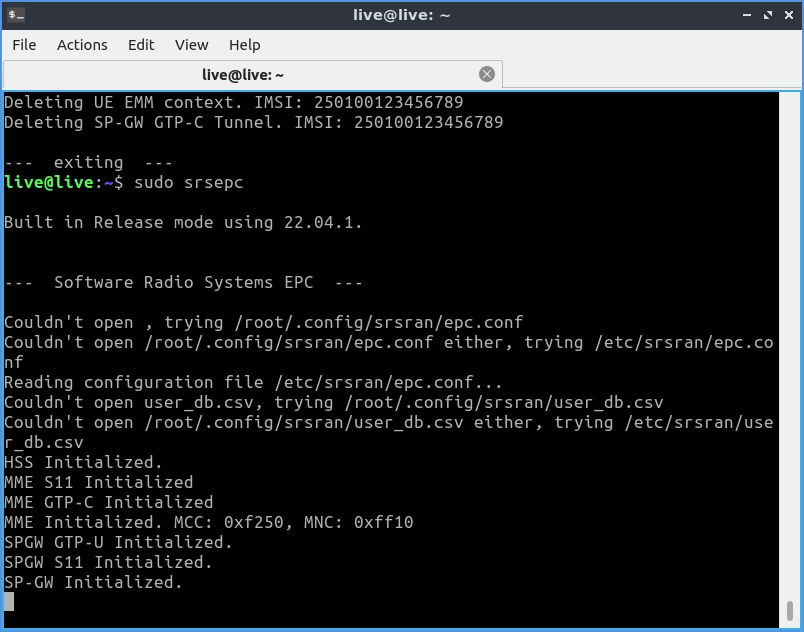
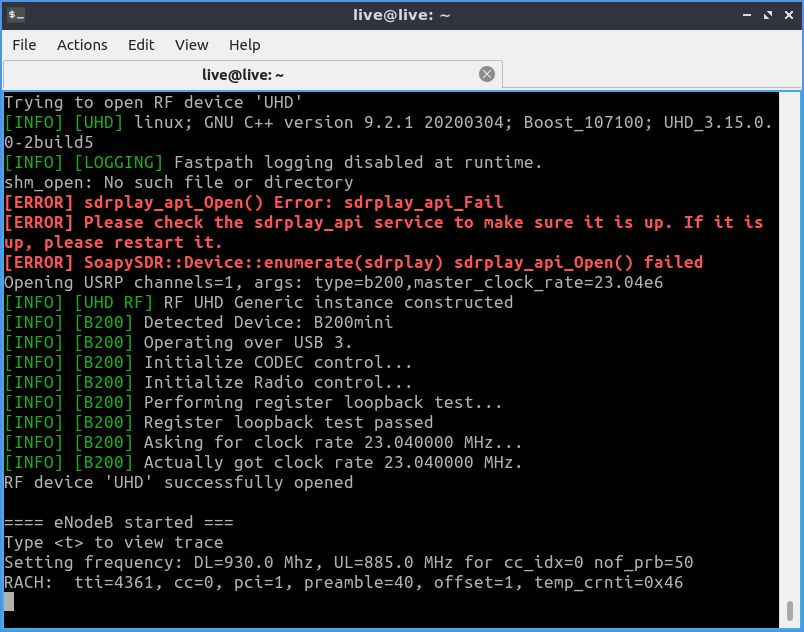
Starting the components:
sudo srsepcsudo srsenbThe SDR must be connected to the computer at this point.
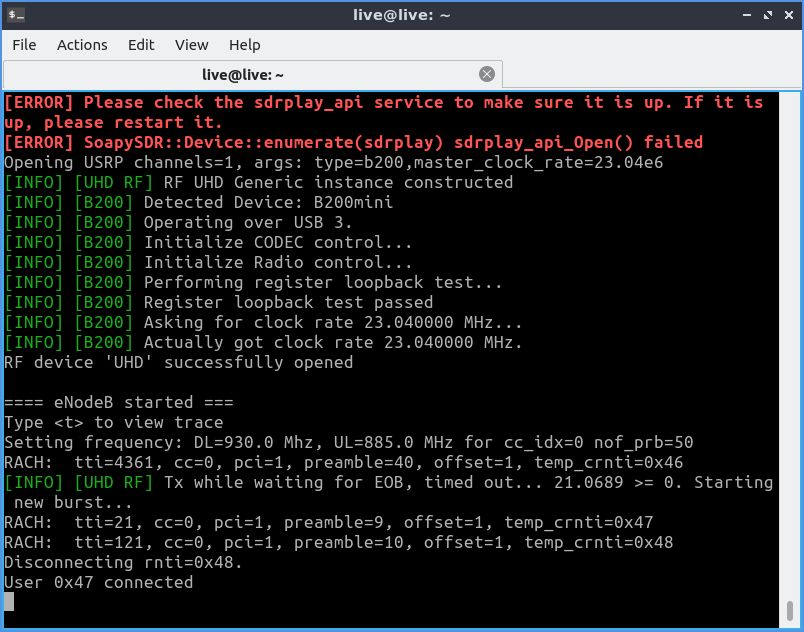
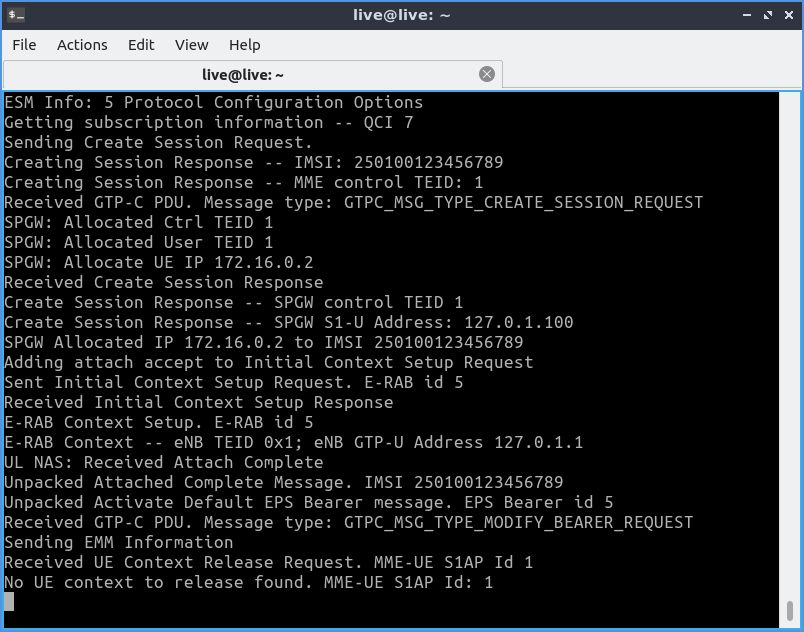
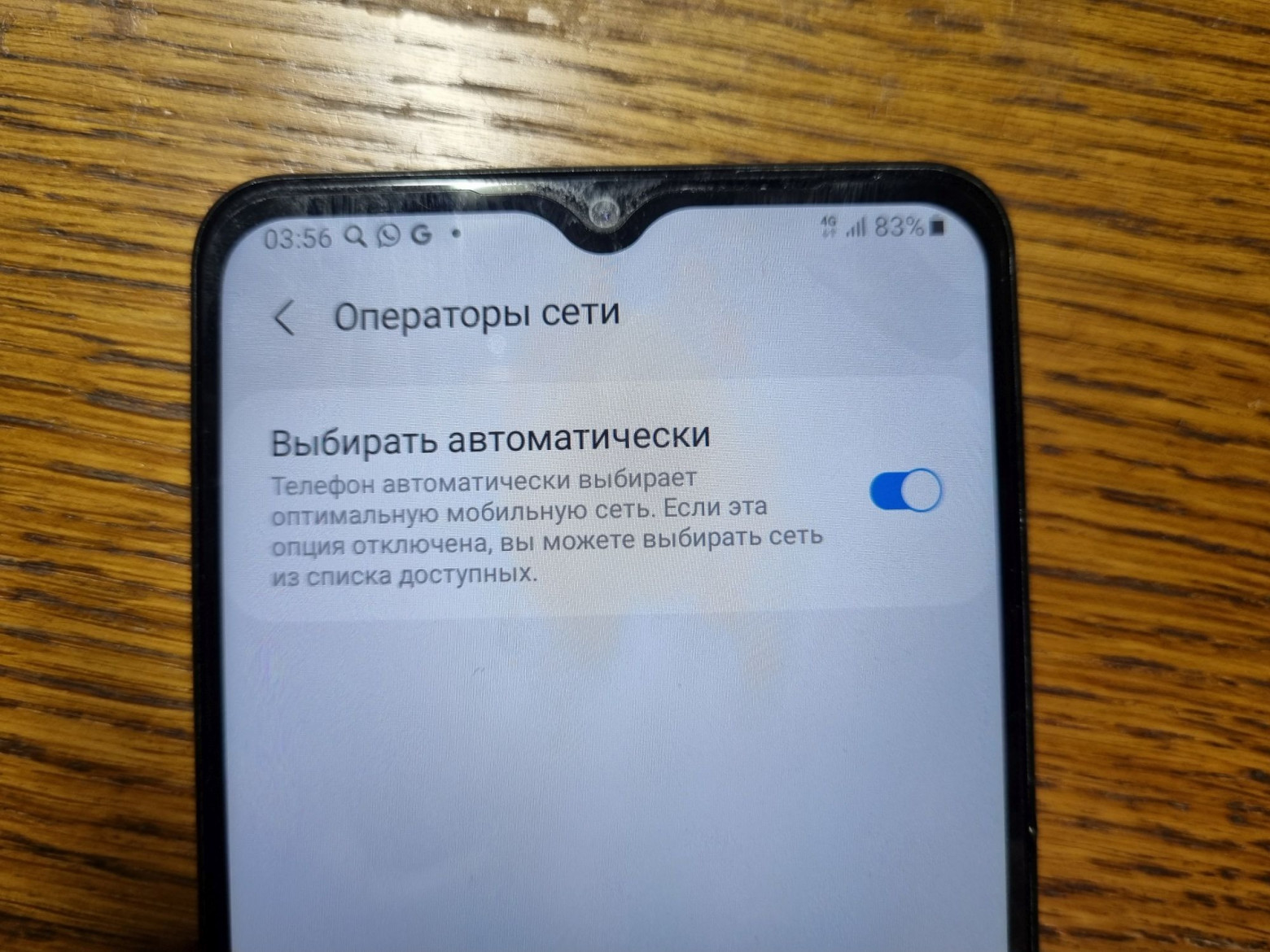
When searching for networks on the phone, our custom network appears in the list. Selecting it triggers authentication logs in both the eNB and EPC terminal windows, confirming a successful connection.
Initially phones showed "roaming" status due to incorrect PLMN configuration. After correcting those values to match properly, the phone successfully connected to the network even through automatic search.
Internet Access
srsRAN does not support calls or SMS — only internet connectivity.
On the phone, create an Access Point Name (APN) — this is usually found in the same settings area as cellular network selection.
Enter any values for the name and APN, leave everything else unchanged. Save and set it as default.
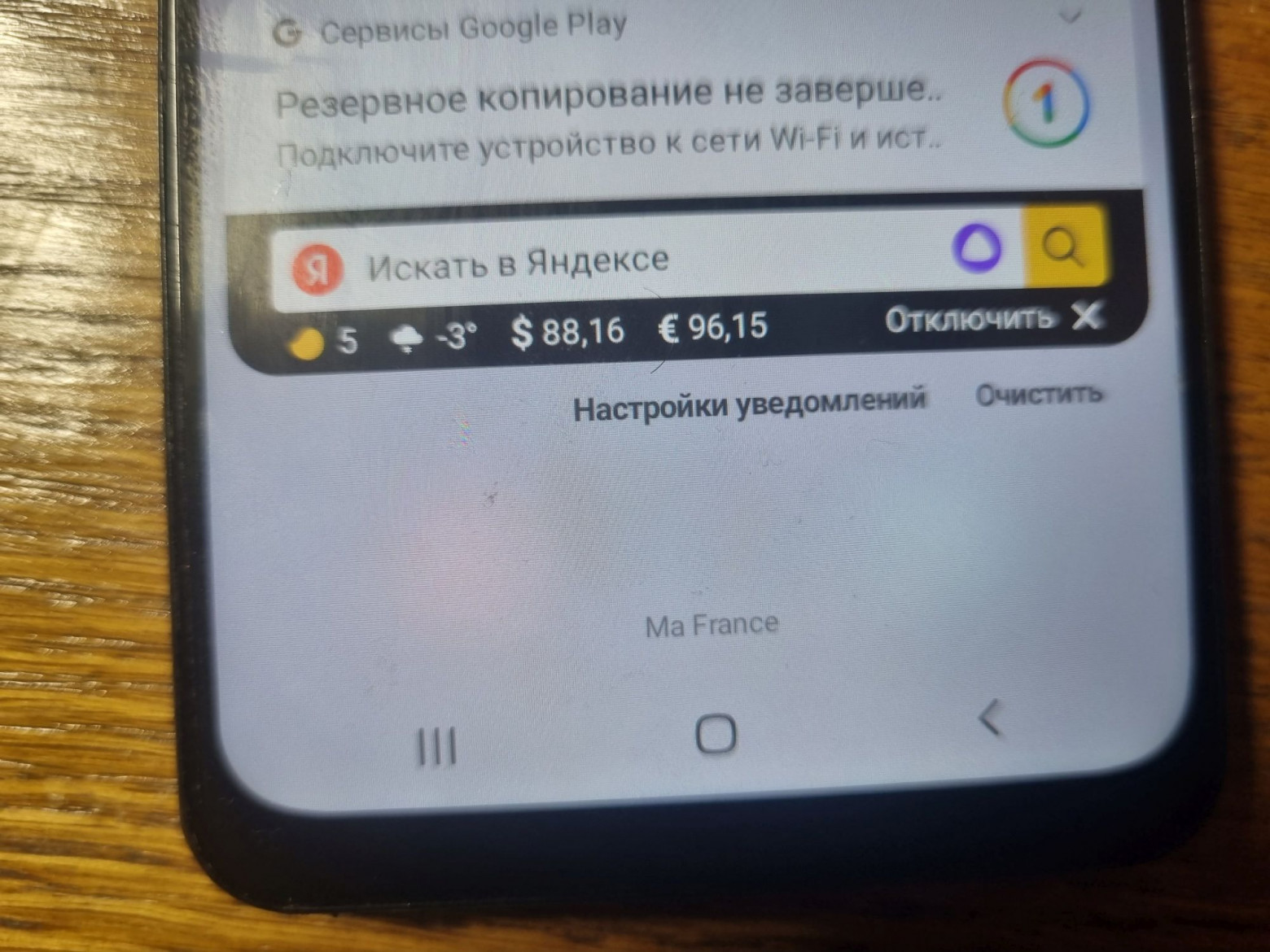
Somewhere nearby there may be a setting prohibiting mobile data in roaming. It needs to be disabled.
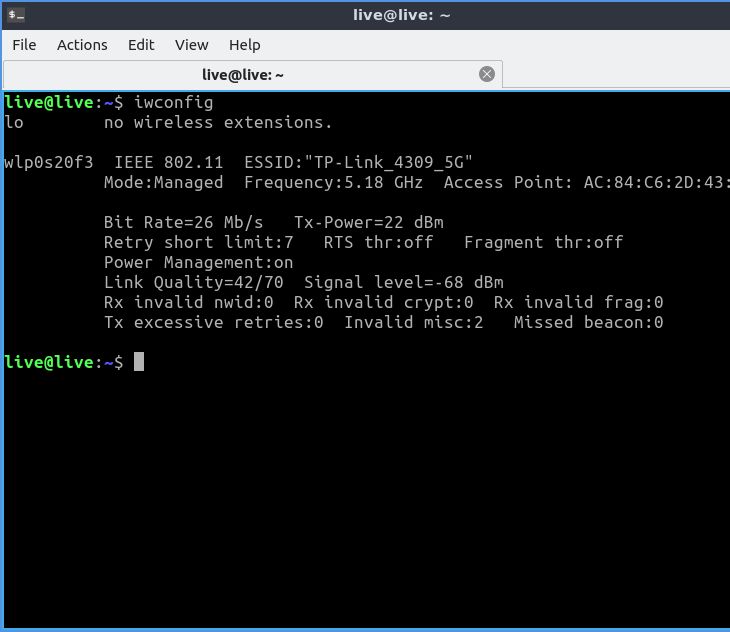
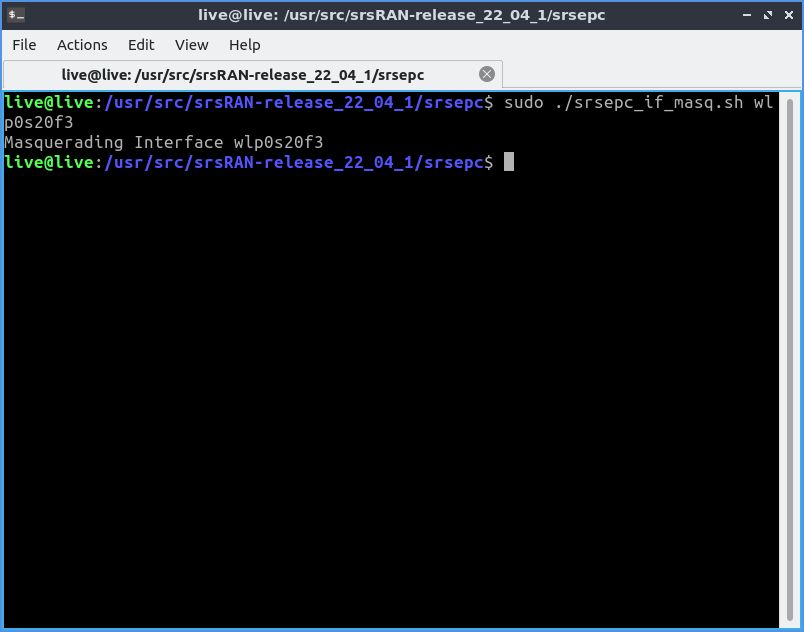
On the host computer, run:
sudo ./srsepc_if_masq.sh <interface_name>where <interface_name> is the name of the host's internet connection. If everything goes well, you'll see "Masquerading interface (connection name)" in the console.
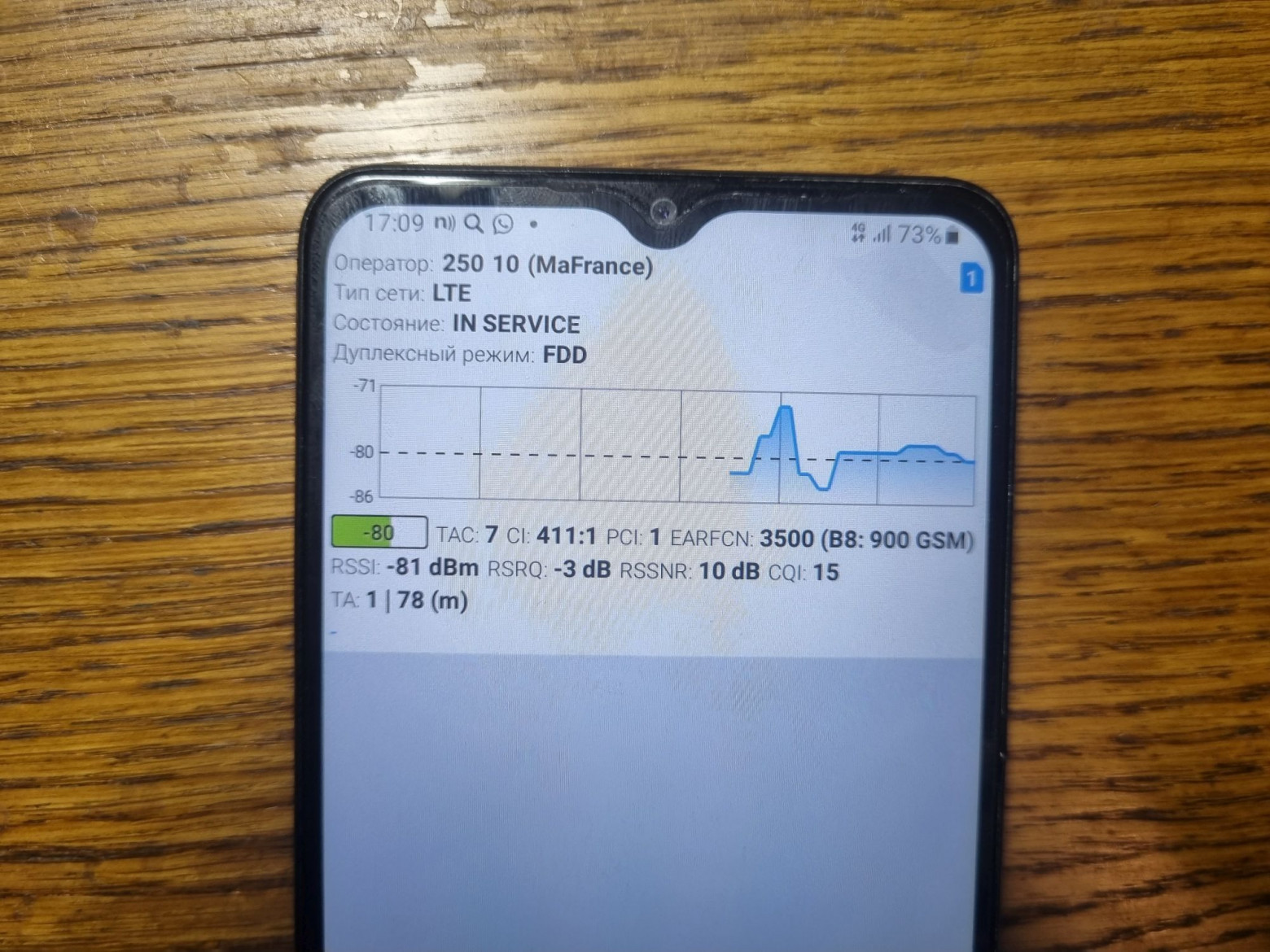
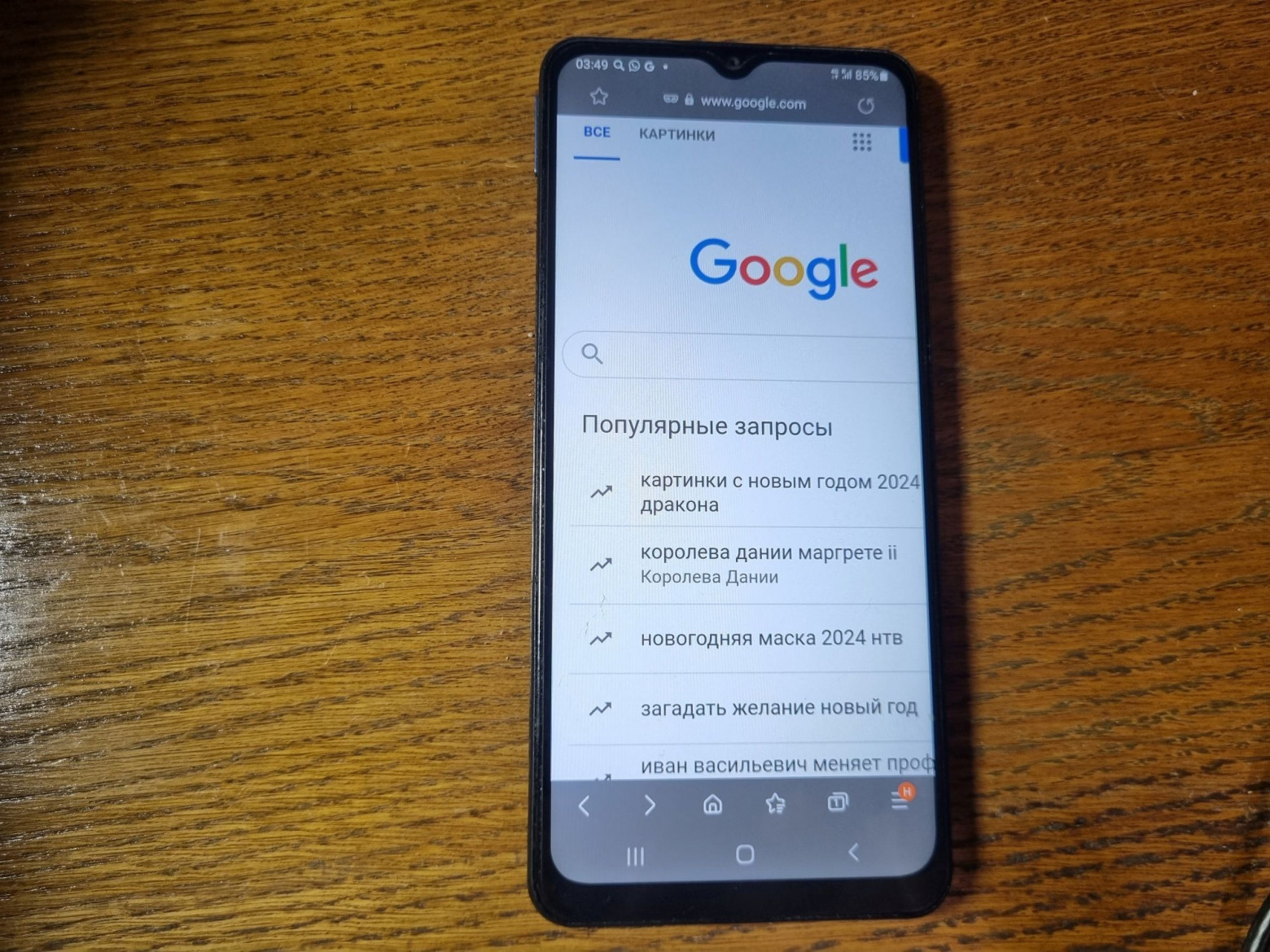
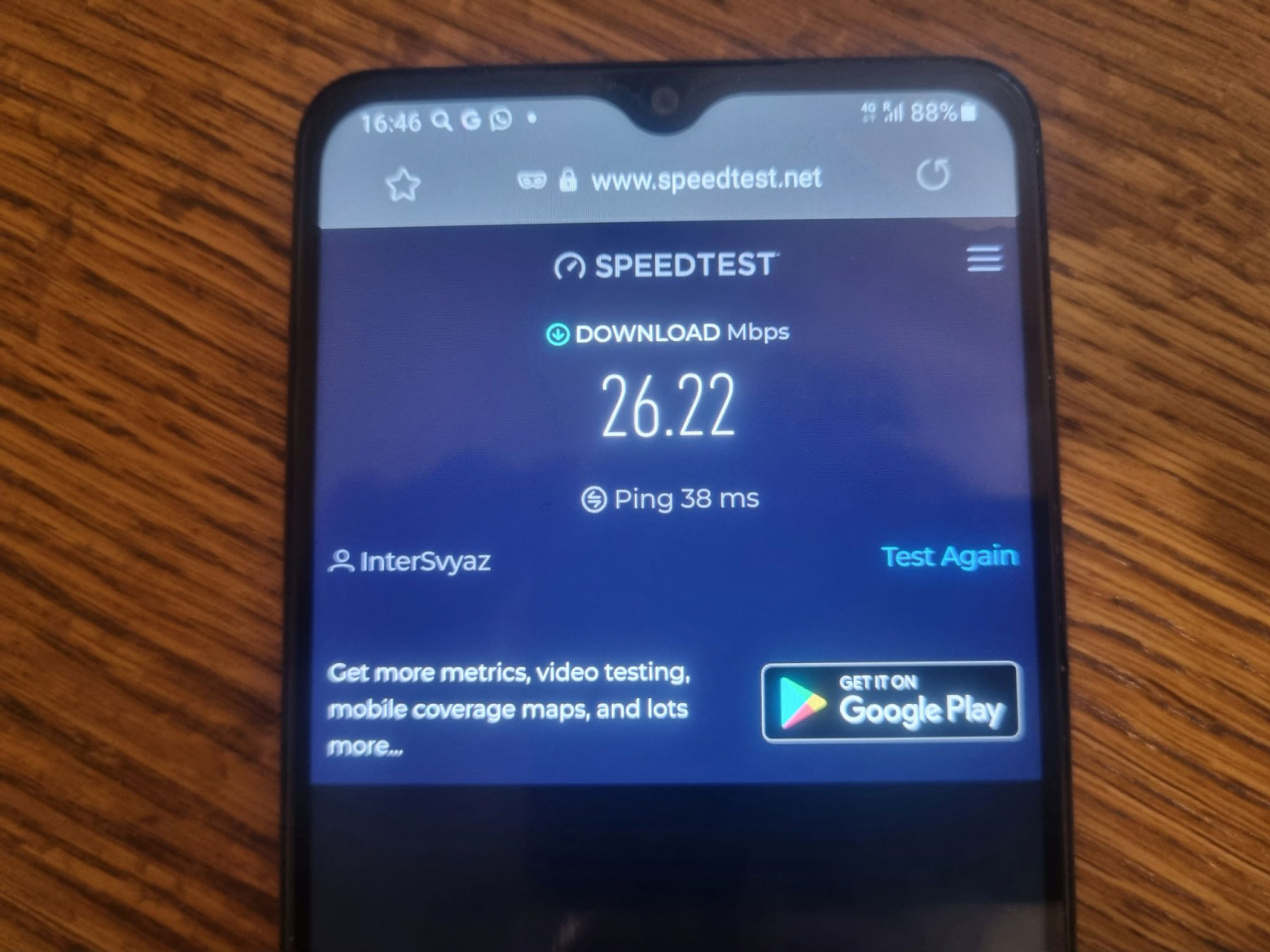
On the phone, enable mobile data. Making sure Wi-Fi is turned off, open the browser, refresh the page, and... it works!
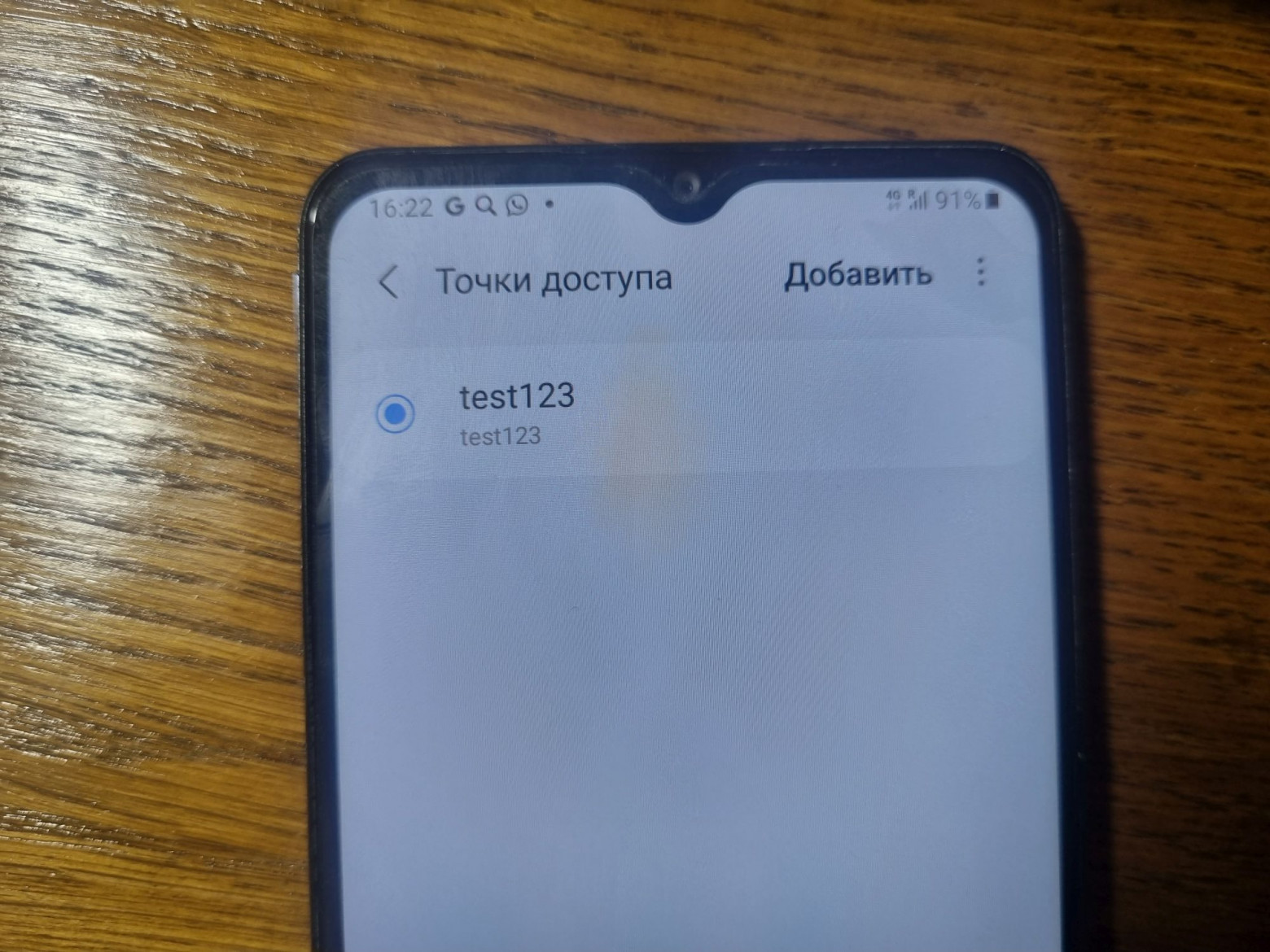
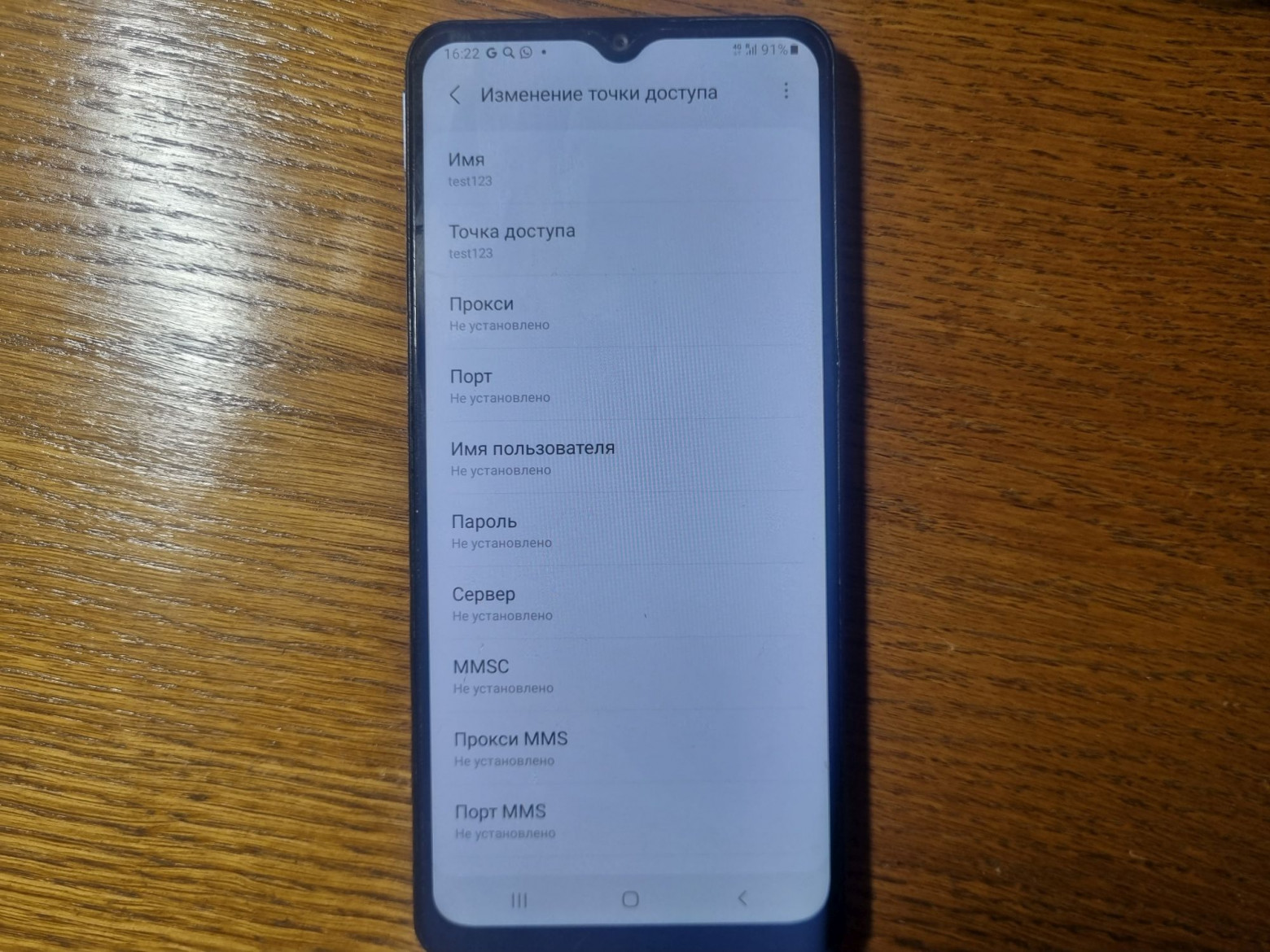
Speed tests showed approximately 30% reduction compared to Wi-Fi, but operation was stable.
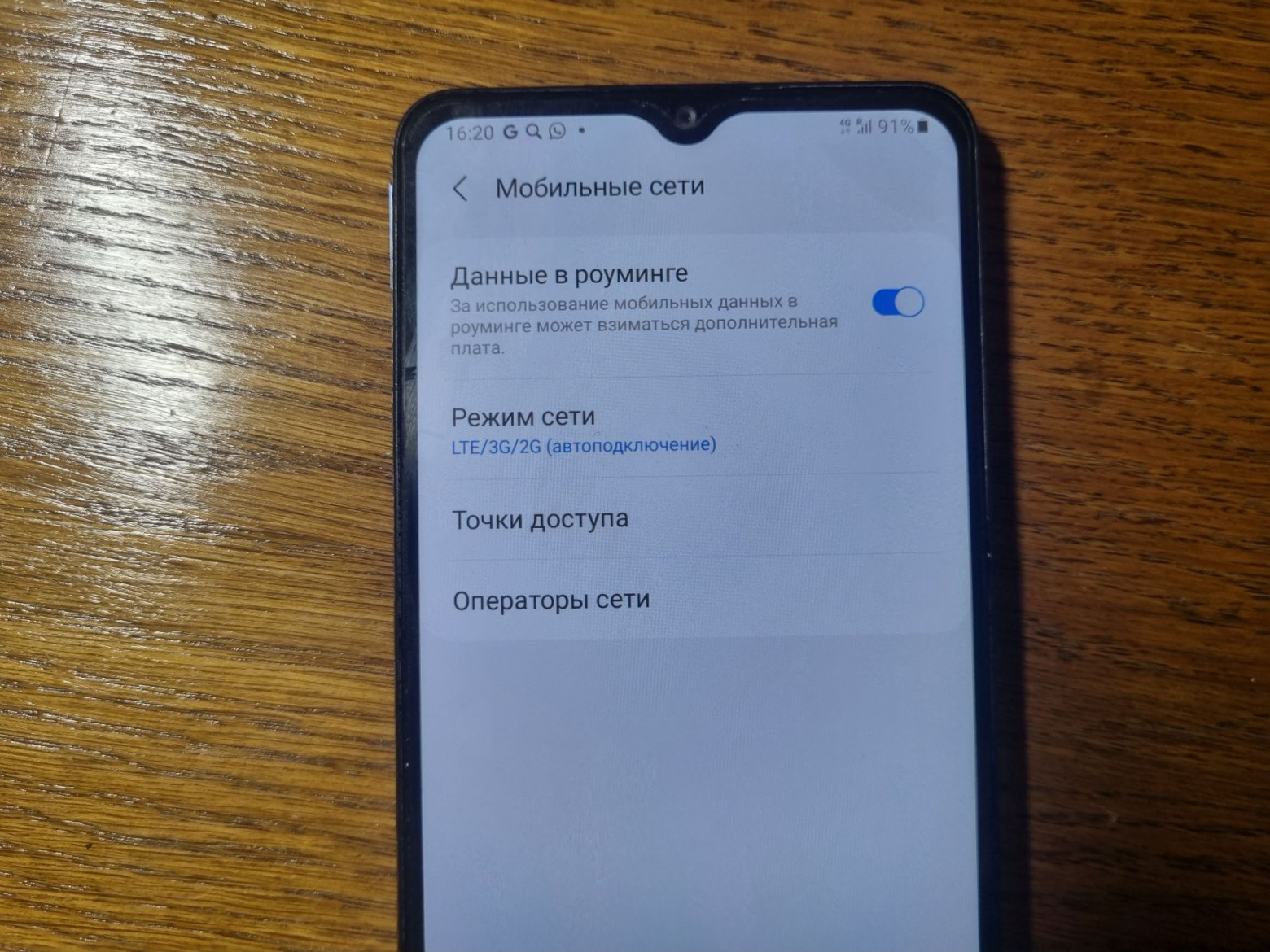
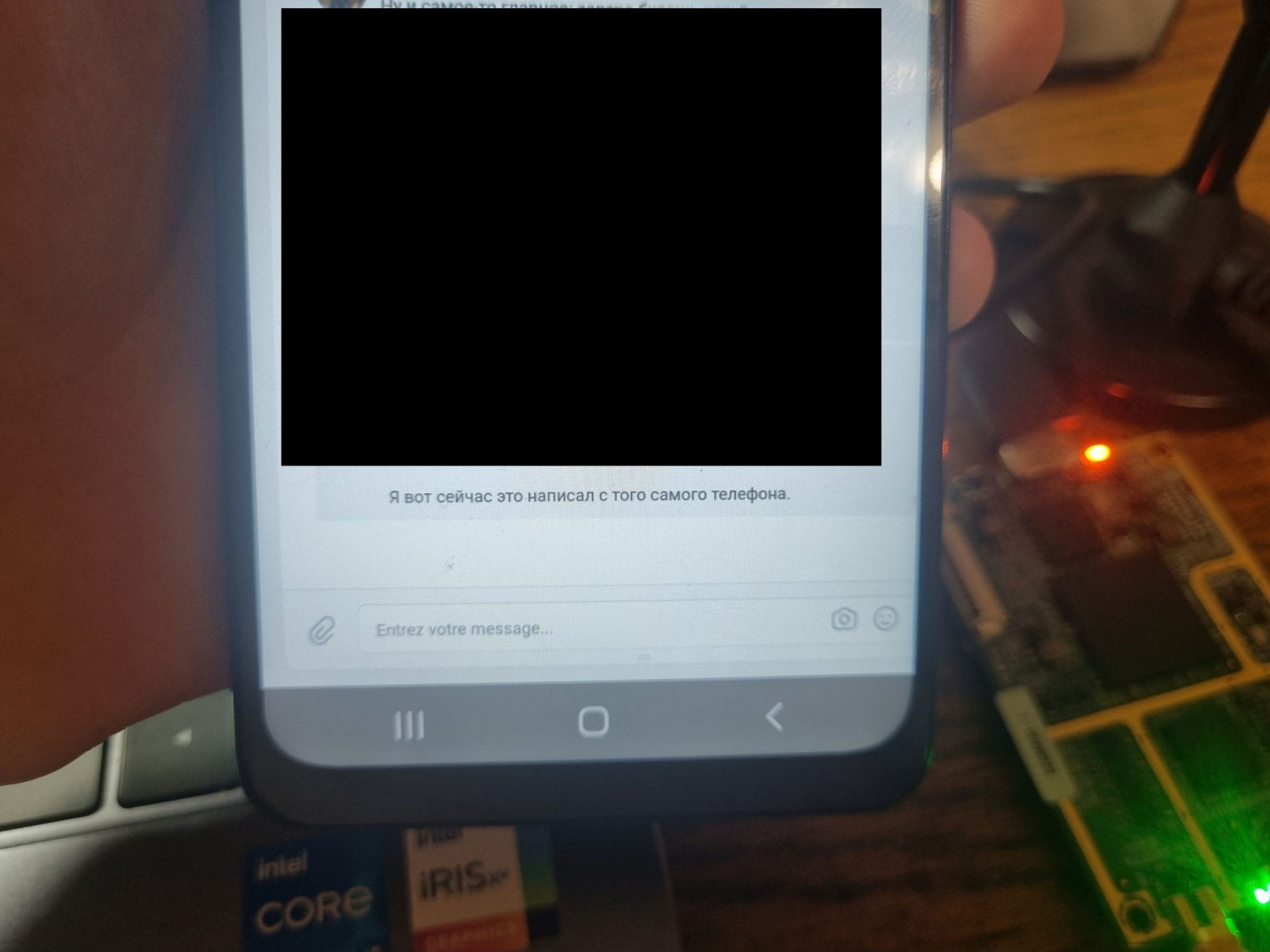
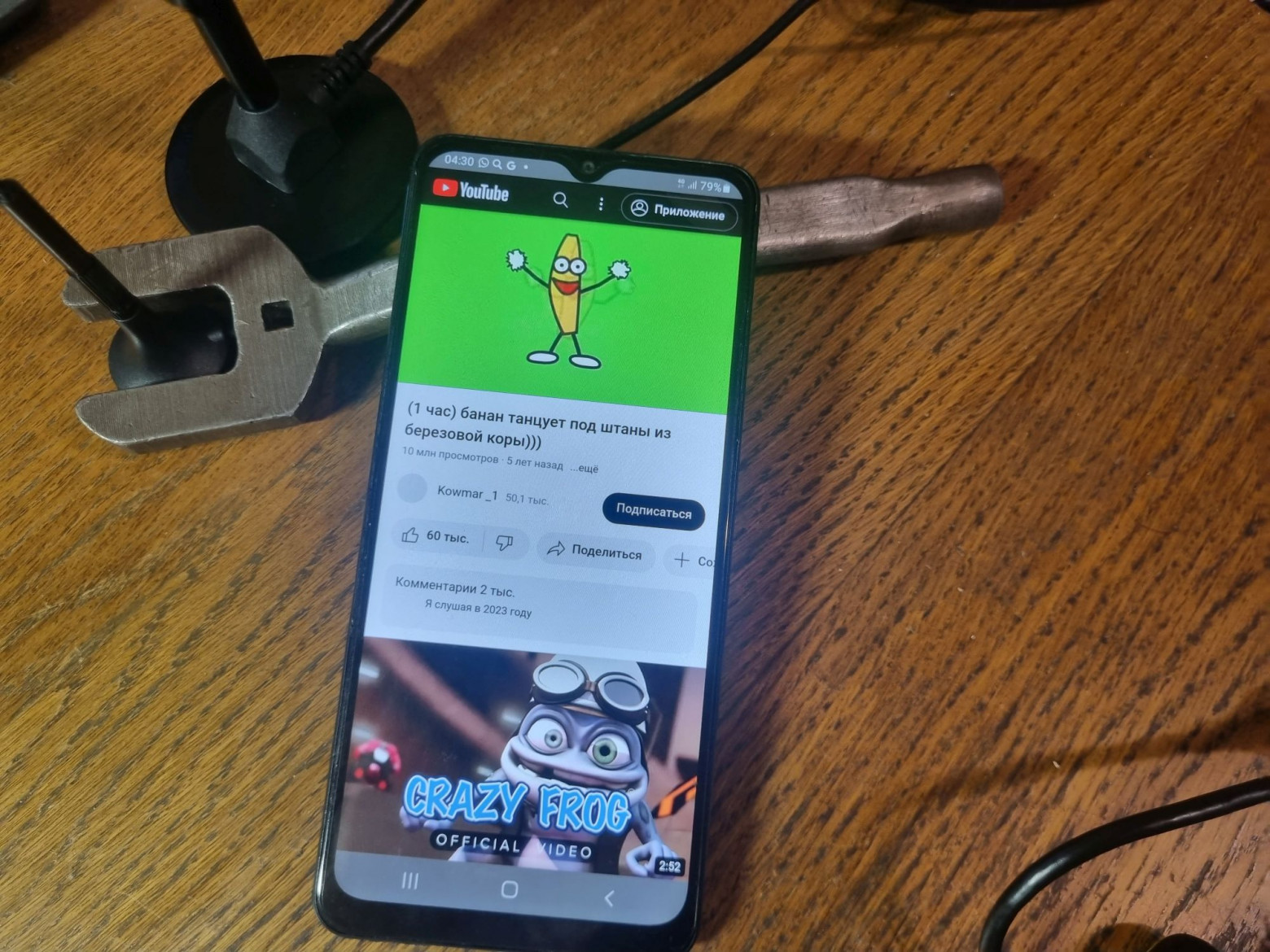
An hour-long YouTube video was streamed on the phone. The network didn't drop once. It works quite stably — throughout all the experiments the network never went down.
A Small Bonus
As a parting gift, let me show you how to set up a fake base station using an ordinary HackRF. You won't be able to connect to it, of course, but seeing it in the network list is easy enough.
You'll need the project from this GitHub repository.
The launch command:
hackrf_transfer -t srslte.bin -f 2649800000 -a 0 -s 15360000 -R -x 45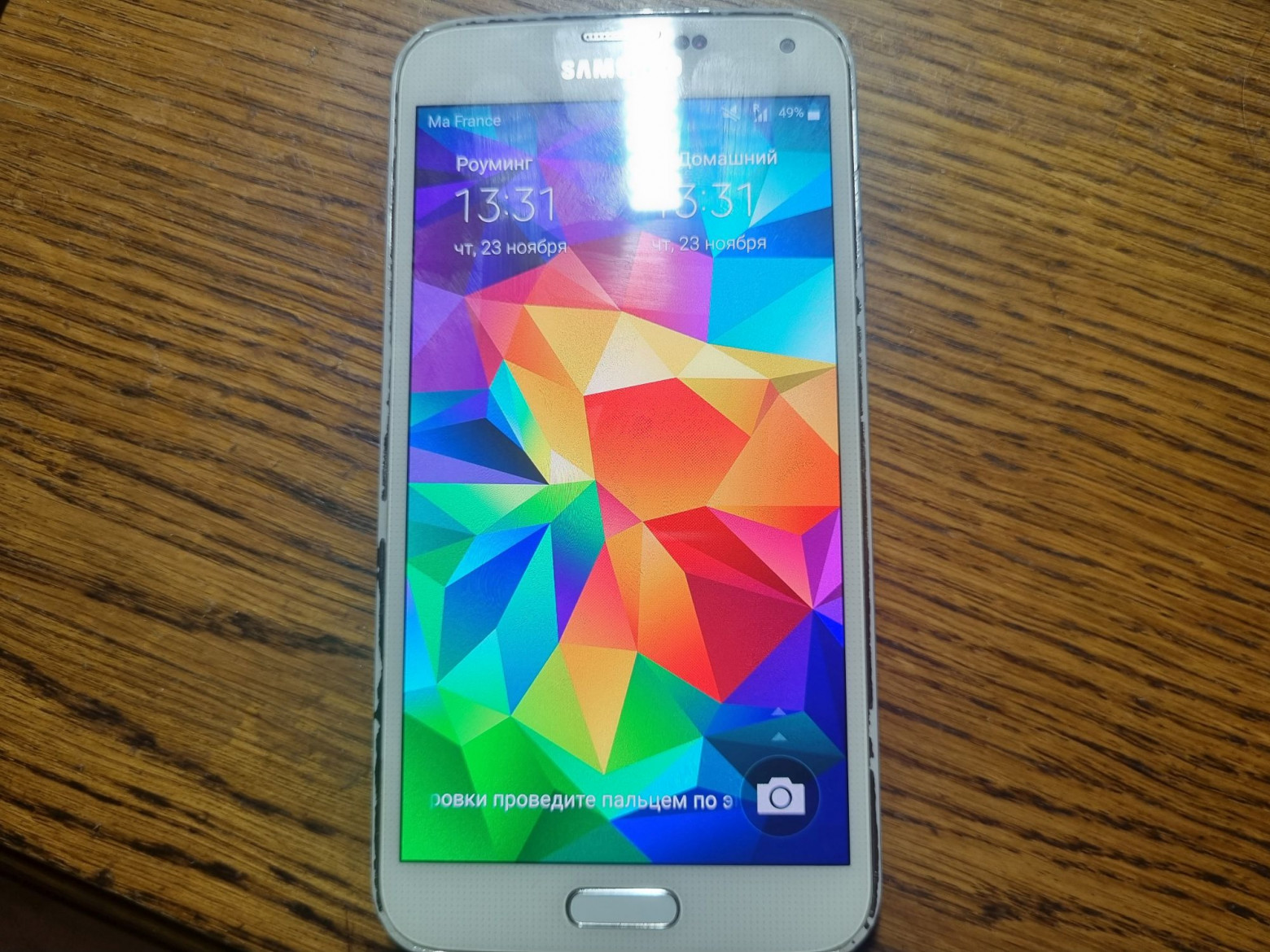
After this, the phone should display a network called "Test PLMN 1-1" in the available networks list.
That's About It
Of course, many will ask: what's the point of all this? Certainly, if the goal is just sharing internet from a PC to a phone, you can solve that without purchasing equipment that costs as much as a high-end gaming PC.
This project is an excellent way to learn LTE network architecture and security. Even if you don't have an SDR, you can run the transmitter emulator that's also included in srsRAN. That's how it goes.