Cray: Reviving a Legend
Enthusiasts have breathed new life into a mythical Cray supercomputer through a painstaking simulation project — now anyone can run authentic UNICOS on their Linux machine. Here is how to set it up from scratch.
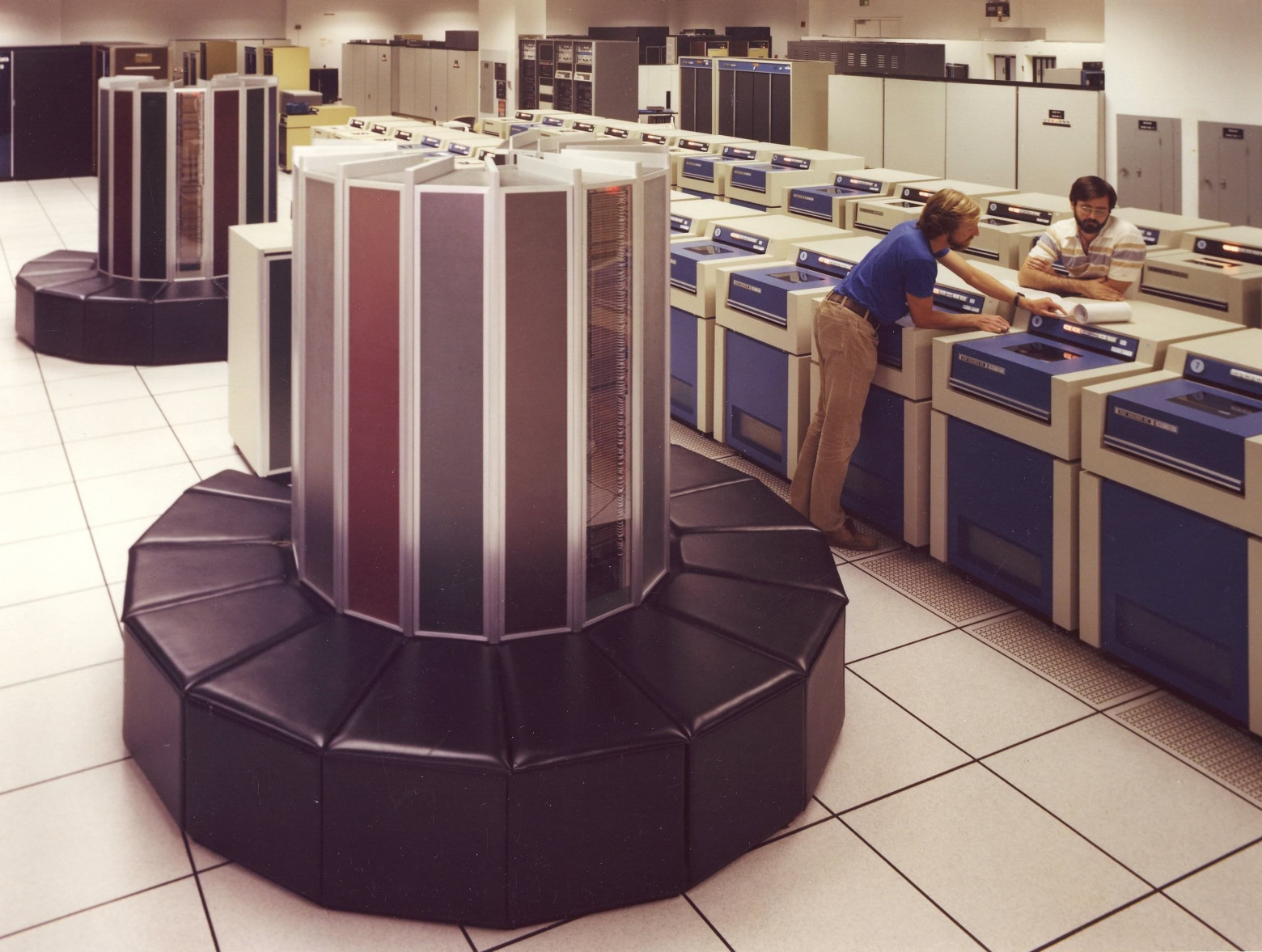
Cray supercomputers occupy a special place in IT mythology. During their heyday these machines were accessible only to the chosen few: researchers with top-secret clearances, military installations, intelligence agencies. Only a handful of people who actually worked with them can still talk about it. These were the fastest computers on the planet — built by Seymour Cray, a man whose engineering obsession produced machines that redefined what computing could be.
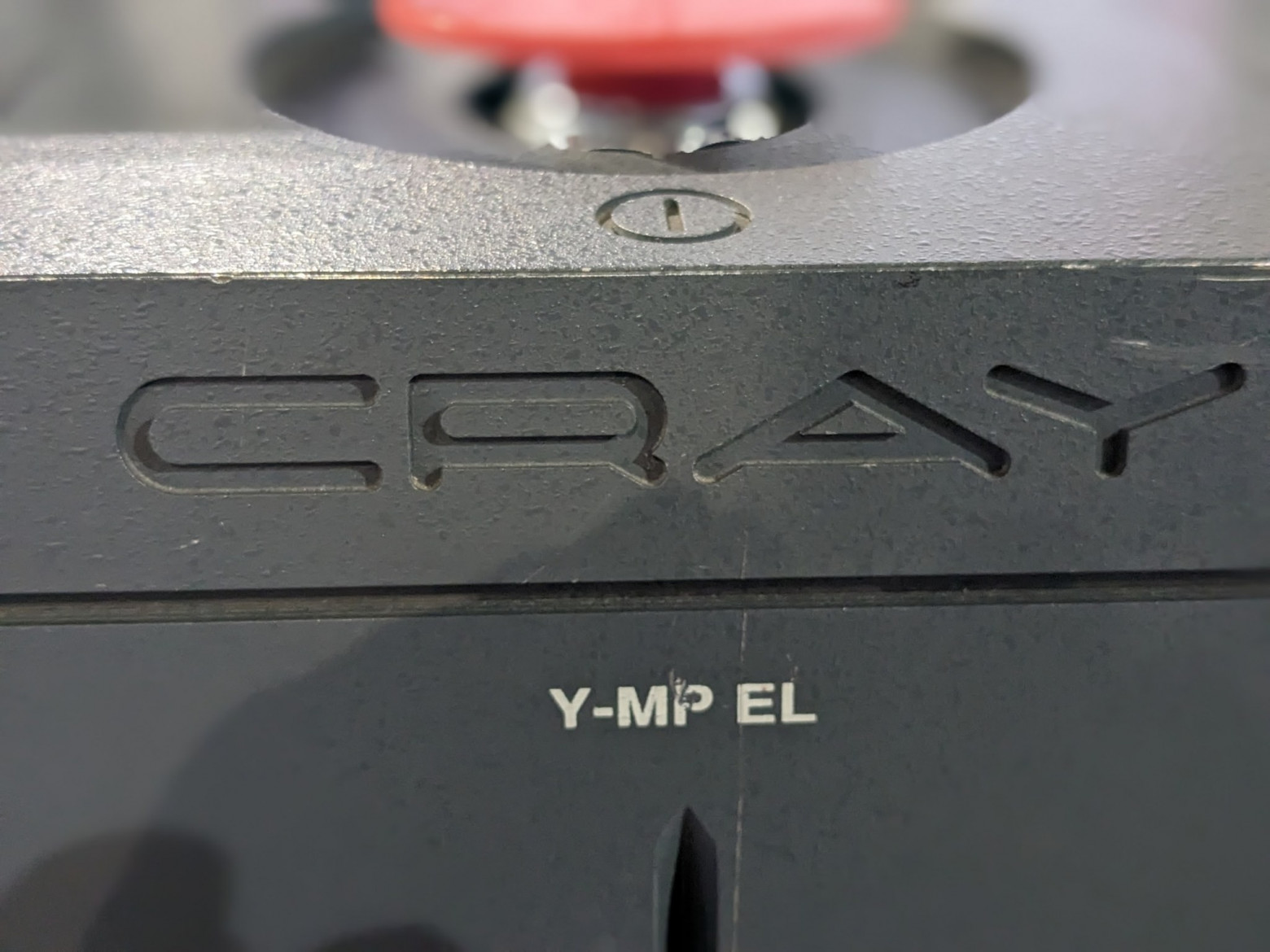
The Legend
Seymour Cray founded Cray Research in 1972 and over the following decades produced a series of machines that were repeatedly crowned the fastest on Earth. These were not computers that ordinary engineers could walk up to and use. Getting access required a PhD, a security clearance, and the right institutional affiliation. The machines were used for nuclear weapons simulation, signals intelligence, and cutting-edge scientific research. They were mythical precisely because almost nobody ever saw one up close.

The operating system that ran on Cray hardware was called UNICOS — a System V Unix variant heavily modified for supercomputing workloads. It was proprietary, tightly integrated with the custom hardware, and essentially disappeared when the machines did.
The Simulator
Enter Andras Tantos. Working from accidentally discovered backup tapes, he undertook what can only be described as a colossal reverse-engineering effort. He reconstructed bootloaders, implemented custom drivers, emulated network connections, and eventually produced a working Cray-1 simulator. Nobody really believed he would pull it off — the work was of monstrous scope and complexity, and the documentation was scattered or nonexistent.

But he did. The simulator is now available on GitHub at https://github.com/andrastantos/cray-sim, and with the right configuration you can boot an authentic UNICOS installation and run real Cray software on a modern Linux system.
Awakening the Legend: Network Setup
Before you can run the simulator you need to set up a virtual network bridge so the simulated UNICOS machine can communicate with your host system. Install the required packages first:
sudo apt-get install xterm telnet tmux brctlThen create the bridge and a TAP interface:
brctl addbr craybr
ip tuntap add mode tap tap1
ifconfig tap1 up
brctl addif craybr tap1
ifconfig craybr 172.16.0.1 netmask 255.255.255.0
If you want the simulated machine to reach the internet, add outbound routing:
brctl setfd craybr 0
sysctl net.ipv4.ip_forward=1
iptables --table nat -A POSTROUTING --out-interface wlan0 -j MASQUERADE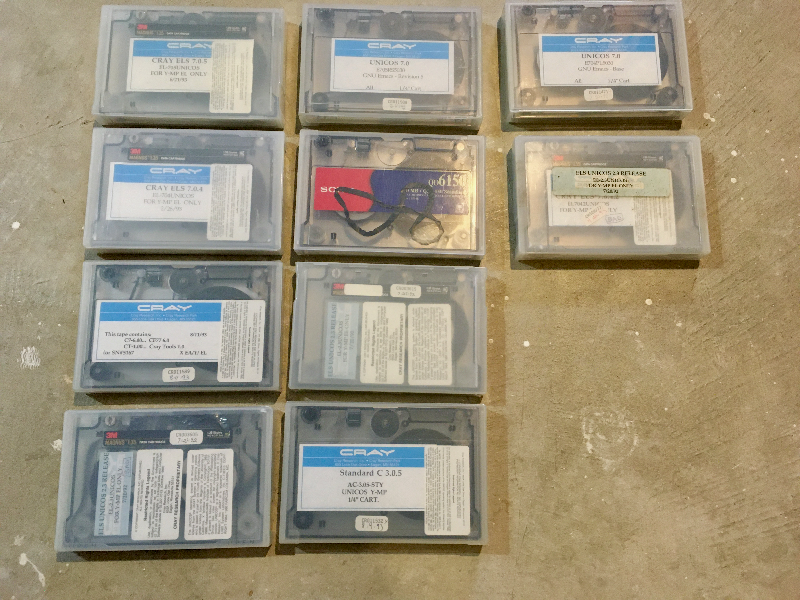
Building from Source
Pre-built binaries are available, but if you want to compile from source the dependencies on Ubuntu are:
sudo apt-get install g++ make libboost-all-dev libncurses-dev libgpm-dev
git clone https://github.com/andrastantos/cray-sim.git
cd cray-sim/simulator
make build
On Mageia the package names differ slightly:
sudo urpmi gcc-c++ make lib64boost-devel lib64ncurses-devel lib64gpm-devel
git clone https://github.com/andrastantos/cray-sim.git
cd cray-sim/simulator
make LINK_TYPE=dynamic build
Installing UNICOS
UNICOS installation media are available from Archive.org as ISO images. Once you have the ISO, mount it and extract the kernel and RAM filesystem:
export ISO=/mnt/iso
export SIM=/opt/work/cray/cray-sim
fuseiso ./cray-cd2.iso $ISO
cp $ISO/unicos_exe/ram_fs $SIM
cp $ISO/unicos_exe/krn_11.bgz $SIM
cd $SIM
gzip -d -- < krn_11.bgz | cpio -i
Boot the simulator in pre-installation mode to get a minimal environment:
./unicos_ramfsInside the running UNICOS environment, configure the network interface:
ifconfig en0 172.16.0.2
route add default 172.16.0.1
Then use rcp to pull the installation script from the host and run it:
rcp alex@172.16.0.1:/opt/work/cray/cray-sim/install .
./install
The installation script copies all necessary files, links the kernel, and prepares the system for a full boot. Once it completes, you can start the full simulator:
./unicos
Graphical Interface via X11
UNICOS supports X11, which means you can run graphical applications from the simulated Cray and display them on your modern desktop. First enable TCP connections on your X server. On a LightDM system edit /etc/lightdm/lightdm.conf.d/49-mageia.conf and add:
xserver-allow-tcp=true
xserver-command=X -listen tcp
Restart LightDM, then allow connections from the simulated machine:
xhost +Inside UNICOS, configure the display and launch an xterm:
setenv DISPLAY 172.16.0.1:0.0
setenv TERM xterm
/usr/bin/X11/xterm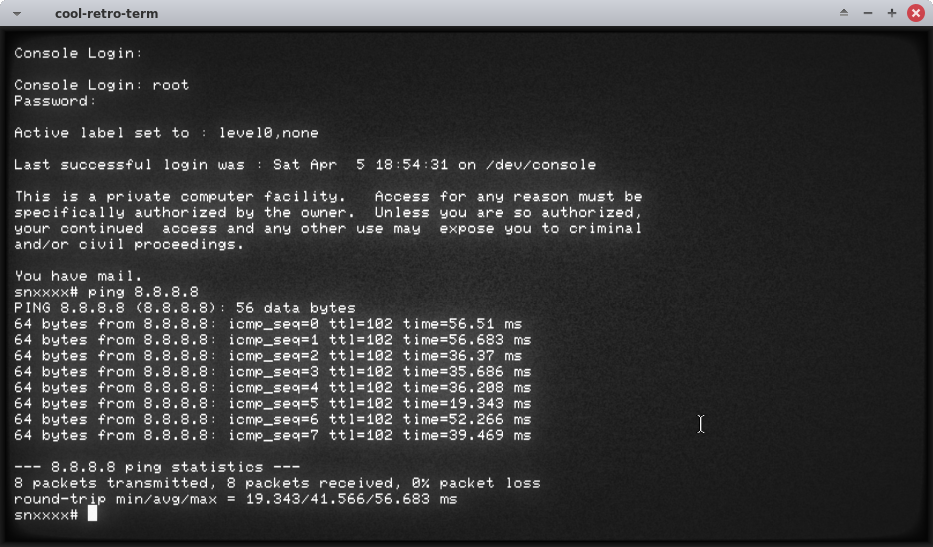
Bonus: Midnight Commander and Bash
Pre-compiled versions of Midnight Commander and Bash for UNICOS are included in the goodies archive. Transfer it from the host and install:
rcp alex@172.16.0.1:/opt/work/cray/cray-sim/unicos_tools/goodies.tar /
cd /usr
tar xvf /goodies.tar
chmod +x /usr/bin/mc /usr/bin/bash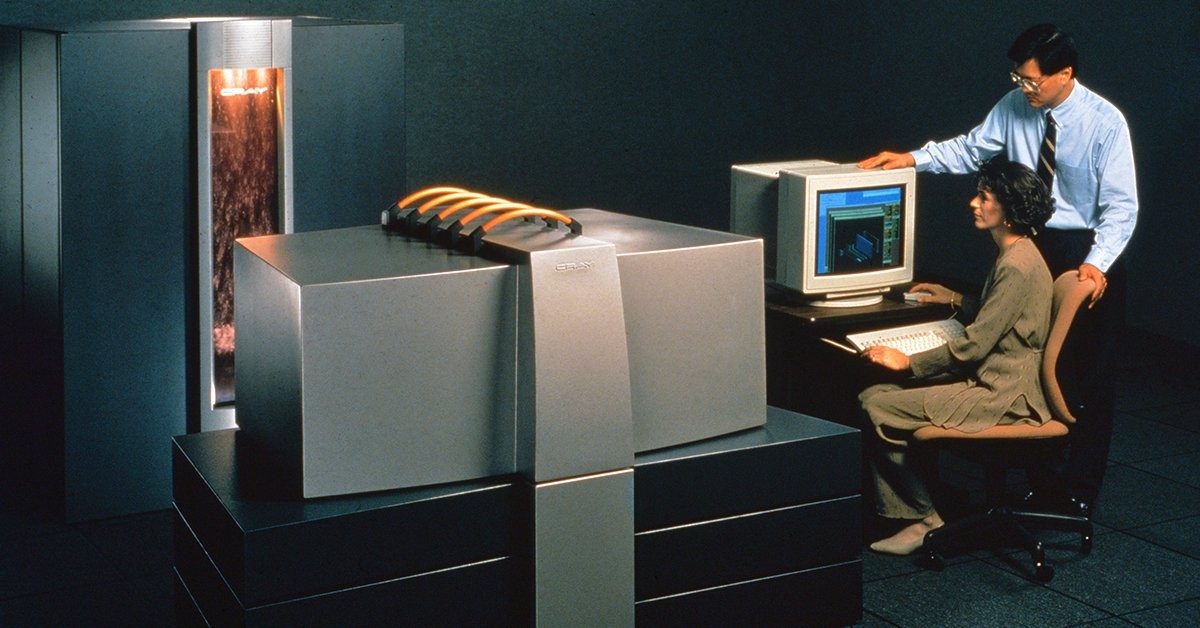
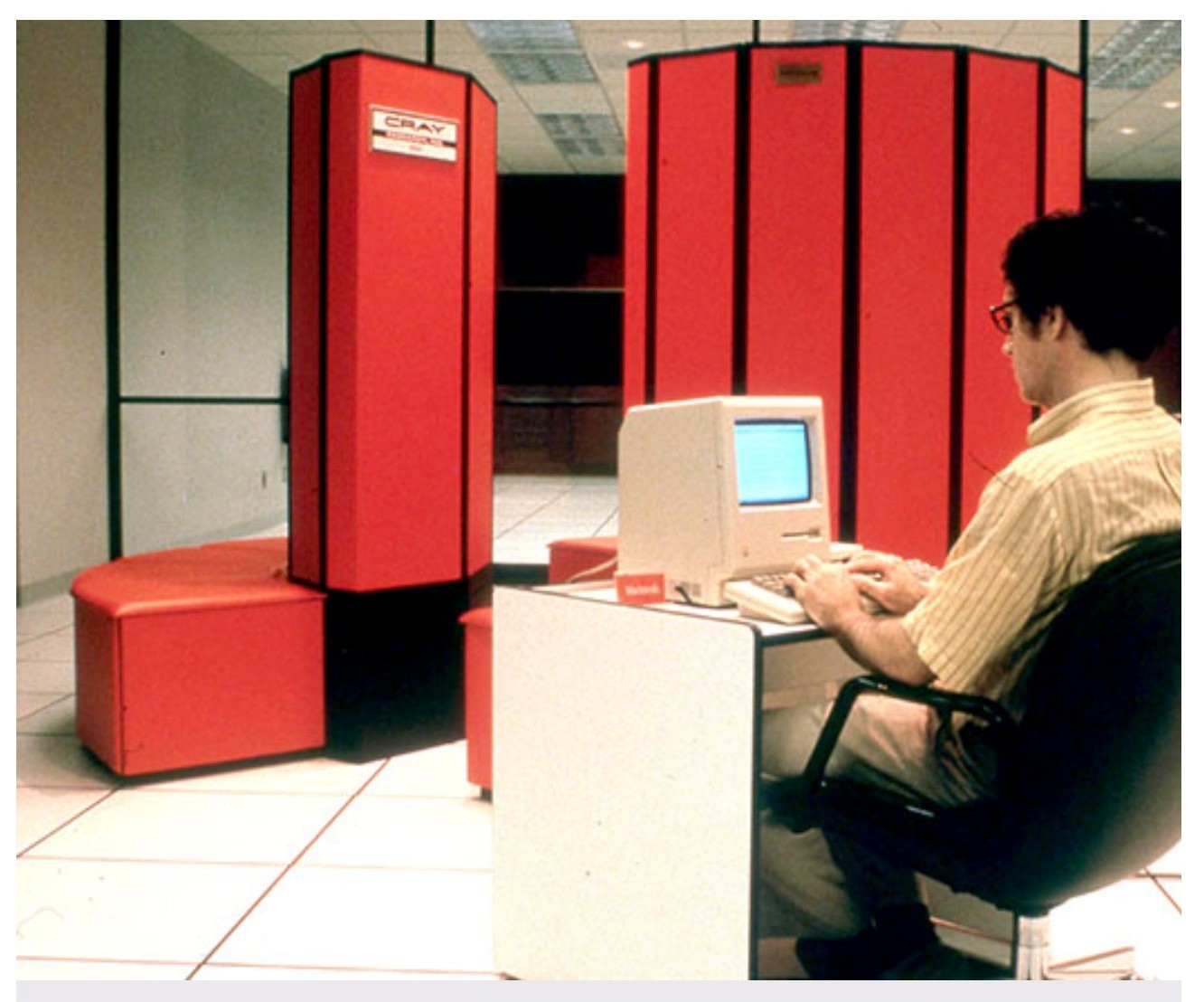
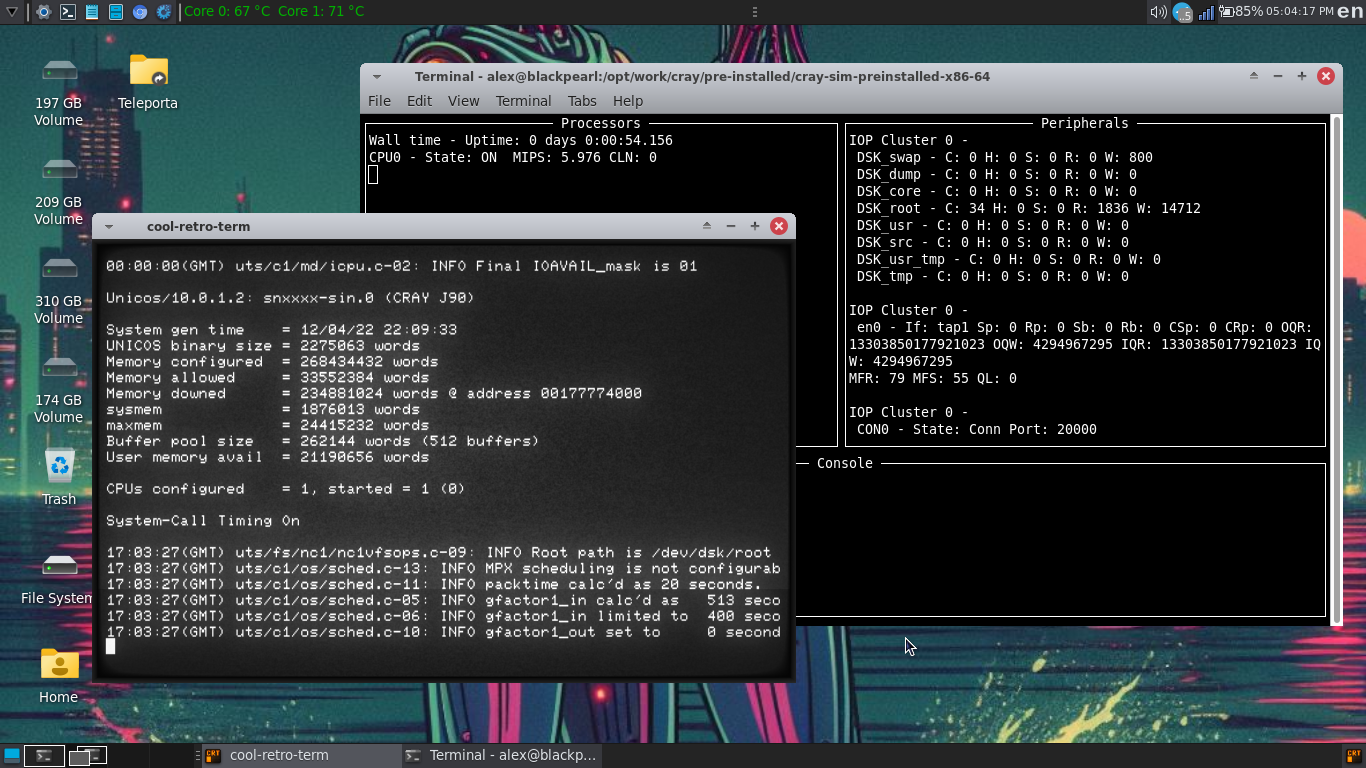
The result is something that would have seemed impossible just a few years ago: a working Cray supercomputer running on your laptop. You can launch the clock application and watch it tick away on simulated Cray hardware, with the output appearing on your modern Linux display. Andras Tantos performed an almost inconceivably difficult piece of engineering work, and the result is that a piece of computing mythology is now accessible to anyone curious enough to set it up.

This is not the end of the story, either. There are hints of even more discoveries ahead — including the possibility of access to actual physical Cray hardware. Stay tuned.